Introduction
The WordPress block editor, often known as WordPress Gutenberg Editor, is a brand-new content editor launched with the version 5.0 release of WordPress. WordPress has since enhanced the editor with more features and capabilities. When compared to the Classic Editor, it offers greater options for personalization. You are provided blocks from which you may include various aspects of your material without editing the code.
Using the same font and color scheme as your WordPress theme, it attempts to simulate the final appearance of your blogs and pages in real time. To illustrate your blog postings, you may utilize an image block. In addition, the partnership allows for a wide range of customization possibilities regarding picture presentation.
What exactly is a block editor?
The revolutionary new block editor superseded the Classic Editor by introducing WordPress version 5.0. The block editor is the new default editor for WordPress websites. It allows users of all skill levels, from beginners to experts, to construct pages, themes, and even complete websites by dragging and dropping objects into the desired positions on the page.
Each component is referred to as a block, and they may take the form of anything from words or photos to columns, price tables, social network feeds, and many other things. A user may easily build a page, article, or other website component by dragging and dropping blocks into position and then styling each one with the help of an easy-to-understand settings panel.
It is more than just a simple page editor like most others. Blocks may alter the look of a website’s navigation bar, footer, sidebars, archives, and shopping cart. It makes website creation accessible to people of all skill levels.
Does the WordPress block editor often crash?
WordPress’s block editor is popular because it makes it easy to utilize building blocks to create content that responds to user input. When the block editor unexpectedly stops working, you often get the error message, for example – the editor has encountered an unexpected error. In addition, WordPress will provide three options: copy error, copy post content, and try recovery. If you’re having trouble with the WordPress block editor crashing, there are a few possible causes:
- An old program
- Problems with the theme or the plugin
- Inadequate system resources on the server
- Problems with JavaScript
- Problems on the server end include incorrect settings or a need for more resources.
- Problems with the browser itself, such as caching or incompatible add-ons
How to resolve issues with the WordPress Block Editor?
A few potential solutions exist if the WordPress Block Editor keeps crashing. Here are some answers to consider:
1. WordPress Block Editor Frequently Freezes
The unexpected breakdown of the WordPress block editor is a problem often encountered by users. An unexpected problem has occurred in the editor; the error message reads in the event of a crash. In addition, WordPress would provide three options: attempt recovery, copy post, and copy error.
There’s more than one factor at play here. This error may appear if, for example, a plugin has caused damage to the block editor or if your WordPress translation is out of current.
Simply deactivating and reactivating each plugin should restore normal operation. Alternatively, you may try switching to a different theme for WordPress, like Twenty Twenty-Two, to see if it helps. If you’re still experiencing difficulties after verifying the plugins and music, you may also optimize the WordPress interpretation and empty the WordPress cache.
2. Unexpected changes in formatting
One of the most common issues with the WordPress Block Editor is sudden and unexpected style changes. Unforeseen changes to the block formatting might throw off the intended design or layout. Changes to the font, size, color, alignment, and spacing might fall under this category.
You may take certain steps to address this problem. Update your theme and plugins before continuing. Developers often provide updates to address compatibility issues and ensure that the Block Editor may be used without problems. Updating your theme and plugins may be easier to prevent conflicts and maintain consistent formatting.
If the issue persists, check the block settings and options in the Block Editor. Some blocks may have fonts, colors, and other styling elements changed to suit the user’s preferences. Verify that everything is properly configured to produce the format you want. Last but not least, always double-check your work for accidental formatting changes before submitting it for publication.
3. HTTP Image Upload Error Correction
The HTTP error is another potential issue when using the WordPress block editor to upload images. If you try to see a picture after uploading it to WordPress Media Library, you’ll get an HTTP error message instead. There might be a wide variety of reasons for this. The most frustrating aspect is the need for more context from the error notice.
There are several potential solutions to this problem. After some time has passed, try re-uploading the picture. Occasionally, your website’s server may have issues like unexpected traffic or a lack of available resources. In addition, if you have some difficulties that cause HTTP errors, you may increase WordPress’s limit. In addition, you may adjust the WordPress image editor library or the file.
It’s also possible that the session you were using has ended. In such cases, it may be sufficient to retype the username and password on the login page.
4. Replace WordPress with the Most Recent Update
Update to the latest version of WordPress immediately if you aren’t already. Your site’s functionality, including third-party add-ons, will only work if this is enabled. The WordPress block editor may sometimes give you trouble, even when using the latest version.
In such a case, reinstalling WordPress from the most current version is required. Here is the quickest and easiest way to reinstall the most recent version of WordPress. Select Dashboard from the screen’s left-hand menu. A menu item labeled Update will show up. Then all you have to do is click on it.
The Update to the latest version button becomes visible when the pointer is moved down. Then all you have to do is click on it. Once the process has been completed, verify that the WordPress block editor has started working again. If not, maybe one of your plugins is at fault.
5. You may add or remove the blank spaces between the WordPress Blocks
When utilizing the WordPress block editor to create custom pages and articles, you can discover either excessive space between the blocks or insufficient space.
The spacing is usually determined by the WordPress theme you choose. However, the block editor has settings that let you customize your website’s structure and provide a more pleasant experience for users. For example, add a Spacer block to create empty spaces. Click the “+” button and the Spacer block will be added to the content at your chosen location.
How to Make WordPress Simpler to Use?
WordPress is widely used despite its perceived complexity. Please don’t allow the learning curve to prevent you from using its powerful capabilities to help with your project. Instead, if you stick to this advice, you’ll find learning WordPress is very easy:
- Use a WordPress page builder
WordPress isn’t a website builder by itself, but by installing a website builder plugin, you may have access to such tools and their advantages.
There are a ton of best WordPress page builder plugins out there, both free and paid, that can help you save time and effort throughout the design process. Users with no coding or design experience may use the many features available, such as the drag-and-drop editor, the several pre-made templates, and the plethora of animation effects.
- Make use of a basic theme
Like plugins, paid themes are not necessarily superior to their free counterparts. Paid articles often include more choices for personalization, making them more difficult to adjust and less suitable for beginners. In addition, you may notice a decline in speed if you use a theme that needs to be more sophisticated or optimized properly.
For beginner users still learning WordPress customization, many beautiful free WordPress themes are available that are on par with the paid alternatives. Alternatively, you can choose a Minimalist WordPress Theme that already has performance optimizations built in.
- Plugins should be limited
Although it may seem like a good idea at the time, adding many plugins may lead to incompatibilities and security holes that put the site’s content at risk; furthermore, having an abundance of plugins might negatively impact your site’s speed and user experience.
Instead, it would help if you looked into plugins that meet your requirements and filter down your choices depending on price and popularity. Prioritizing plugins with many uses can save you time and effort.
Conclusion
Moreover, when using the WordPress block editor, if you run into any little problems, troubleshooting and fixing them will be quick and straightforward if you follow these short steps. These pointers can assist you in streamlining your content production process and making the most of your time working with WordPress block editor, regardless of how experienced a user you are or how recently you began using WordPress.

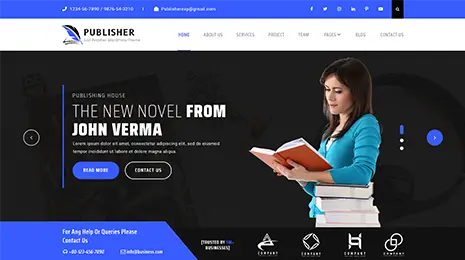
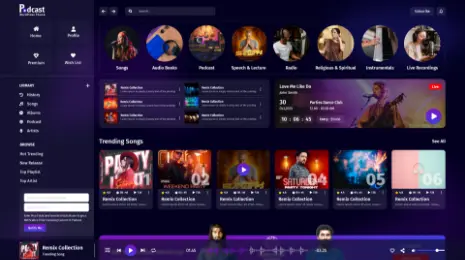
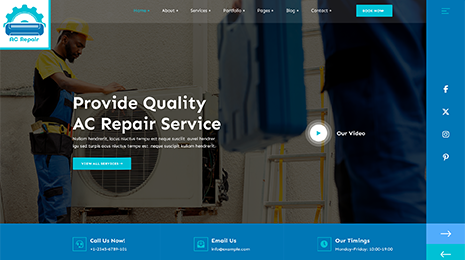
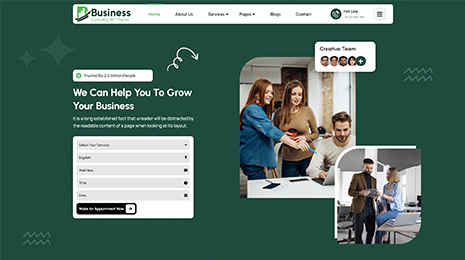
A WordPress theme bundle is a collection of pre-designed templates, styles, and functionalities that can be applied to a website to enhance its visual appeal and functionality. In the context of “How To Fix 5 Common WordPress Block Editor Problems,” a theme bundle can play a crucial role in resolving various issues related to the Block Editor, also known as Gutenberg. These problems might include formatting inconsistencies, layout challenges, compatibility glitches, responsiveness issues, and slow loading times. By selecting an appropriate theme bundle, users can gain access to optimized designs and coding that are tailored to work seamlessly with the Block Editor, effectively addressing these common problems and ensuring a smoother editing and browsing experience for both content creators and site visitors.