

System Requirements
We advise you have the following minimum system configuration in your web server theme.
- WordPress 6.4 or later
- PHP 8.2 or 8.3
- MySQL 5.6 (or greater) | MariaDB 10.0 (or greater)
- Need php ini file configration -
- post_max_size = 256M
- upload_max_filesize = 256M
- max_execution_time = 5000
- max_input_time = 5000
- memory_limit = 1000M
Introduction
We are grateful that you bought our WordPress theme. This article walks through a number of the procedures involved in setting up and maintaining a WordPress website.
WordPress CMS: What is it?
WordPress is an open source platform for creating websites built on PHP and MySQL. It is a feature-rich content management system (CMS) and blogging platform that is completely free. You may make dependable websites and online apps with this CMS. You hardly need any technological knowledge or experience to operate it. WordPress's many features, including its flexibility and ease of use, have made it the most popular website construction tool on the market.Learn More
A Wordpress template: what is it?
For websites created using the WordPress content management system, a WordPress template acts as the skin. Setting up a WordPress template is really easy. With the help of a freshly installed template, you may quickly alter the look of your WordPress website. All the source files required to create a WordPress template are included, and you are free to modify and expand it as you see fit.
Assistance and Encouragement
For assistance, go here:
SupportFile Organisation
You downloaded a template package that is organised into different directories. Let's look at what's in each folder:
- Screenshots -includes a screenshot of the template. Not for use in manufacturing.
- theme -includes files for WordPress themes.
- "anime-stream-pro" -All of the theme's required files are in this folder..
- "license.txt" -which includes license information
- "readme.txt" -provide details about the usage script, fonts, and theme image paths.
My website used to function properly. Who altered the permissions of the file?
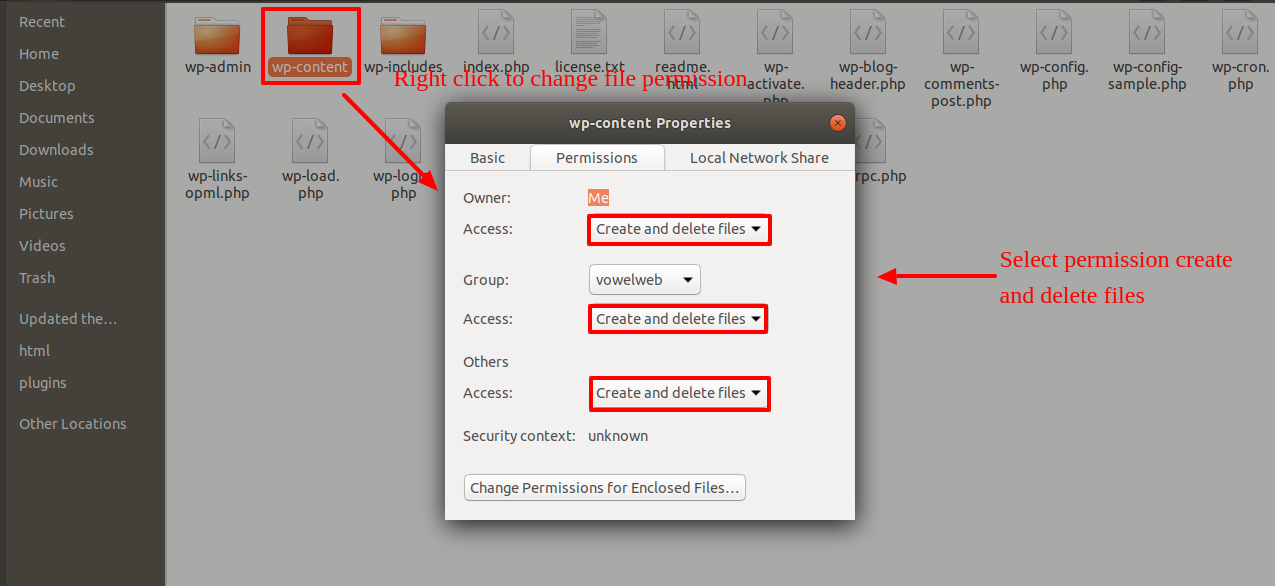
Incorrect file permission settings may prevent WordPress from creating folders, allowing images to be uploaded, or allowing certain scripts to run.
WordPress need rights in order to manage files and create directories on the server.
- Then, right-click on each folder in the root directory and select "File Permissions" from the context menu.
- wp-config >> dialogue box for permissions >> select the "read and write >> checkbox. Press the OK button to proceed.
- repeating the procedure with the wp-content folder
Installation of Templates
Installing a template is a simple process.
Within the WordPress interface, all installation procedures may be completed. It facilitates a quick and comfortable process.
There are two ways to complete the installation process.
1-Using WordPress admin, install a theme.
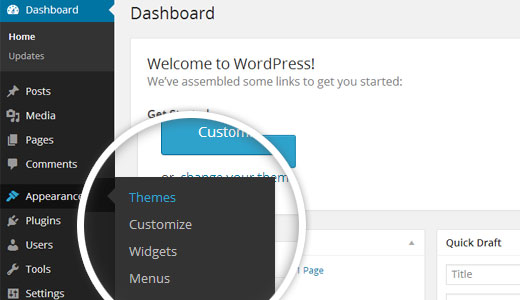
To begin, sign into your WordPress admin dashboard and select
1.Visit the Select Appearance >> Themes
2. Click the Add a new button to the themes page's top.
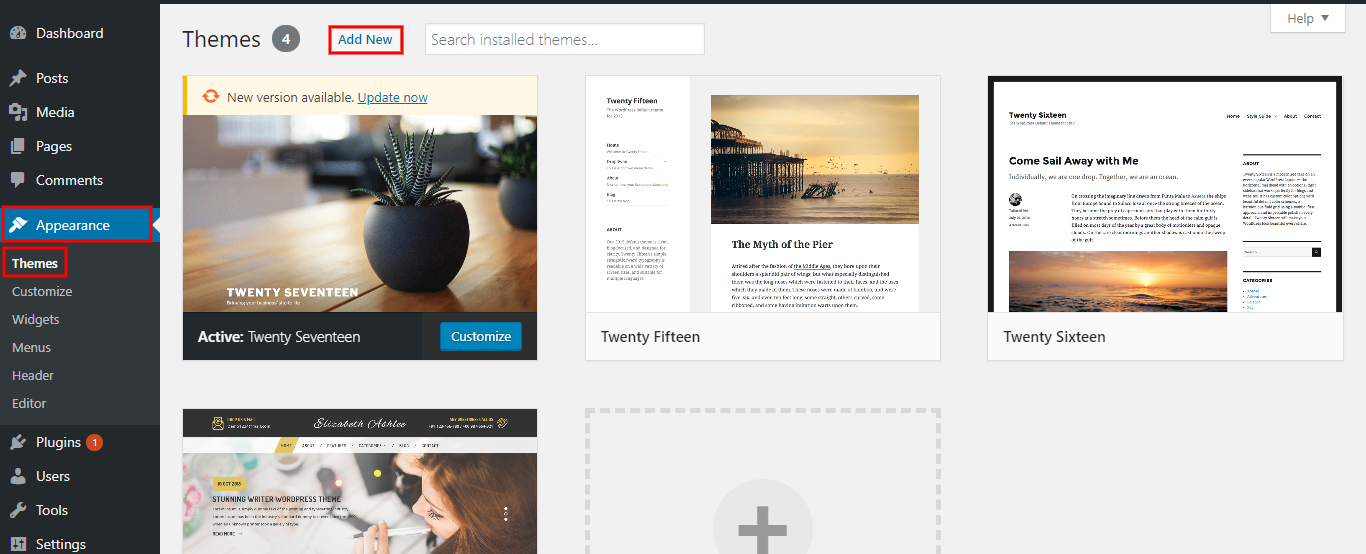
3. Press the "Upload Theme" button.

Follow the following steps to import content using Theme Wizard
1) Go to the Dashboard >> Getstarted
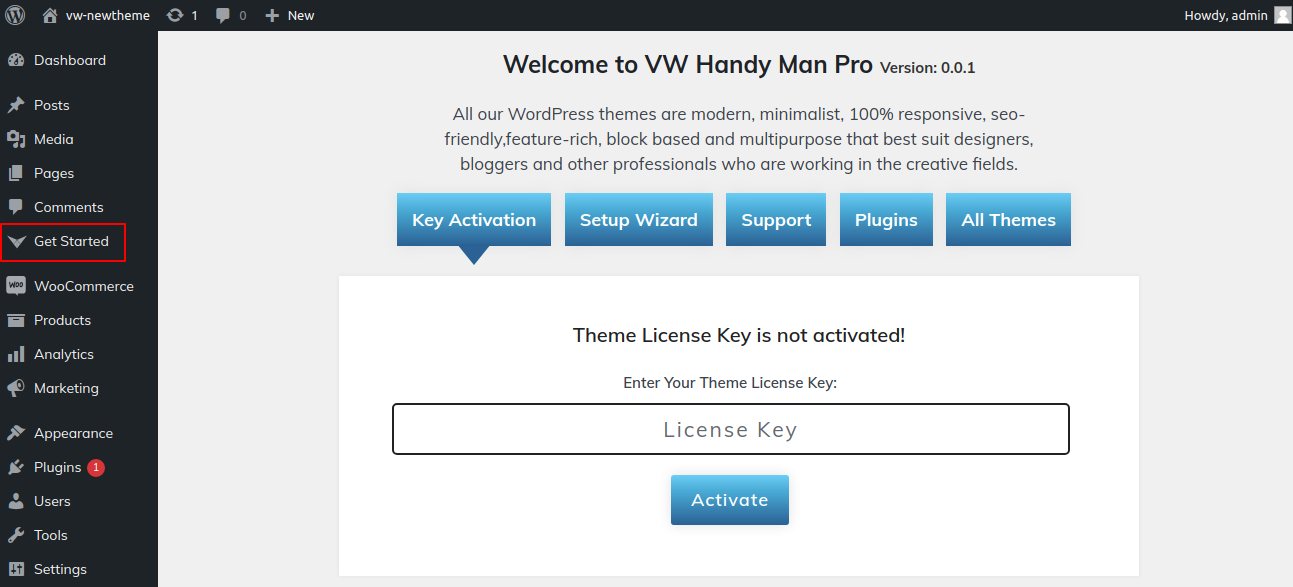
2) Insert your key.


3) CLick on Wizard and then start now.
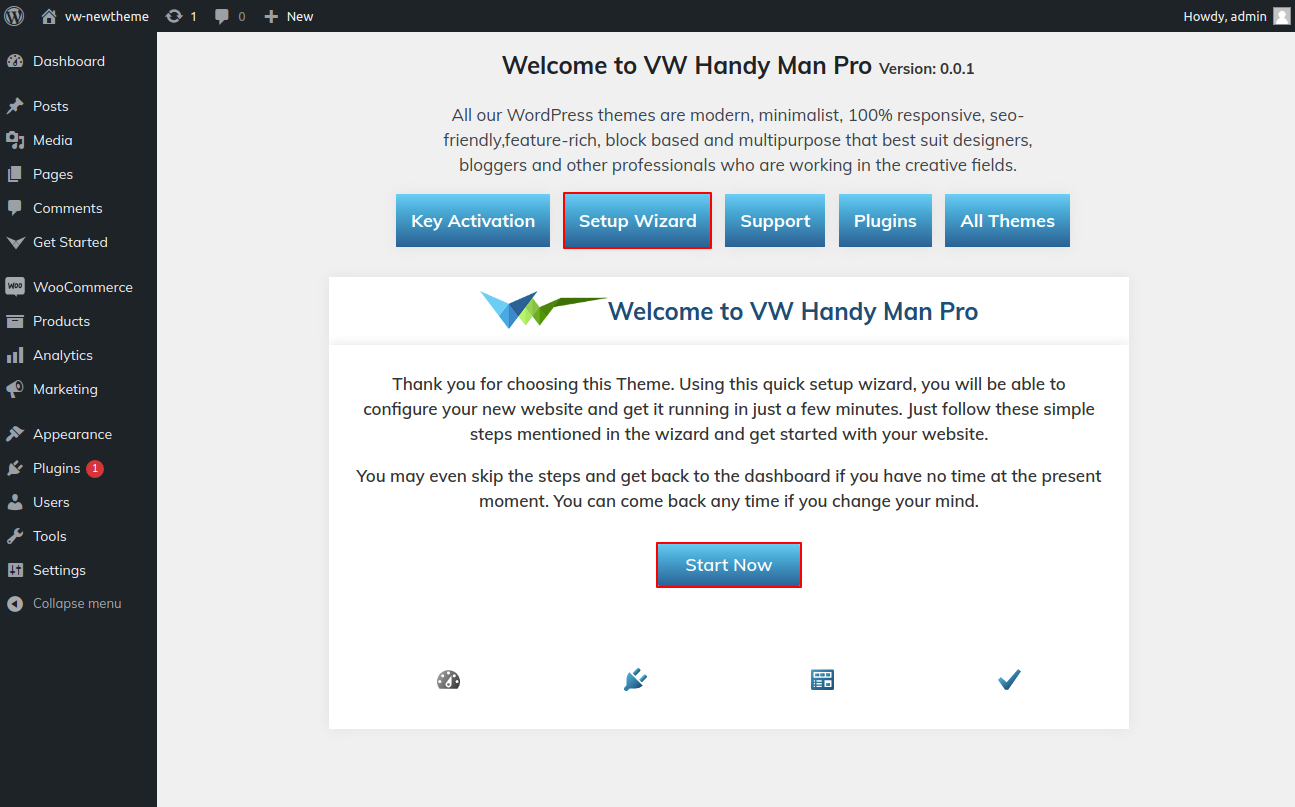
4) Install Plugins.
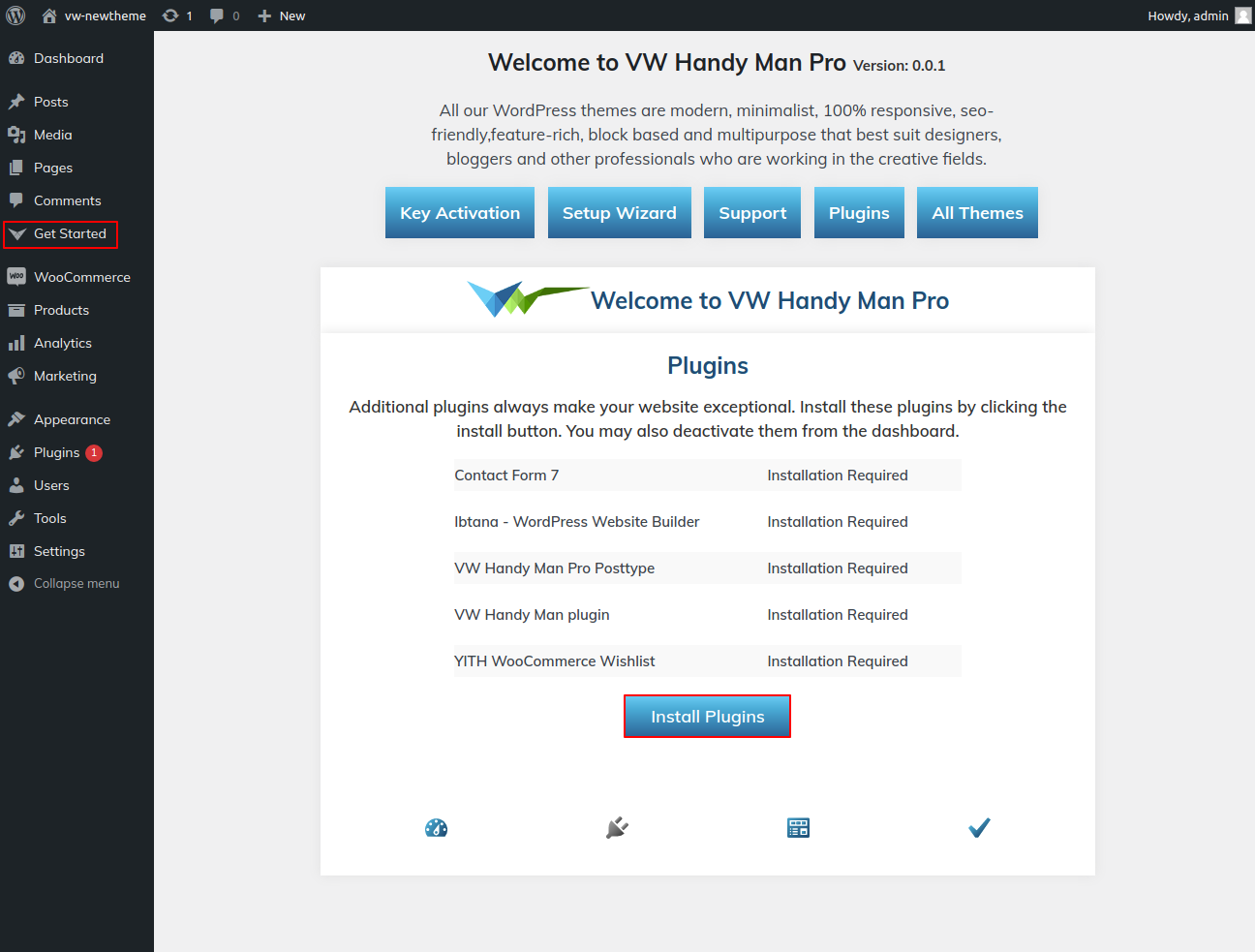
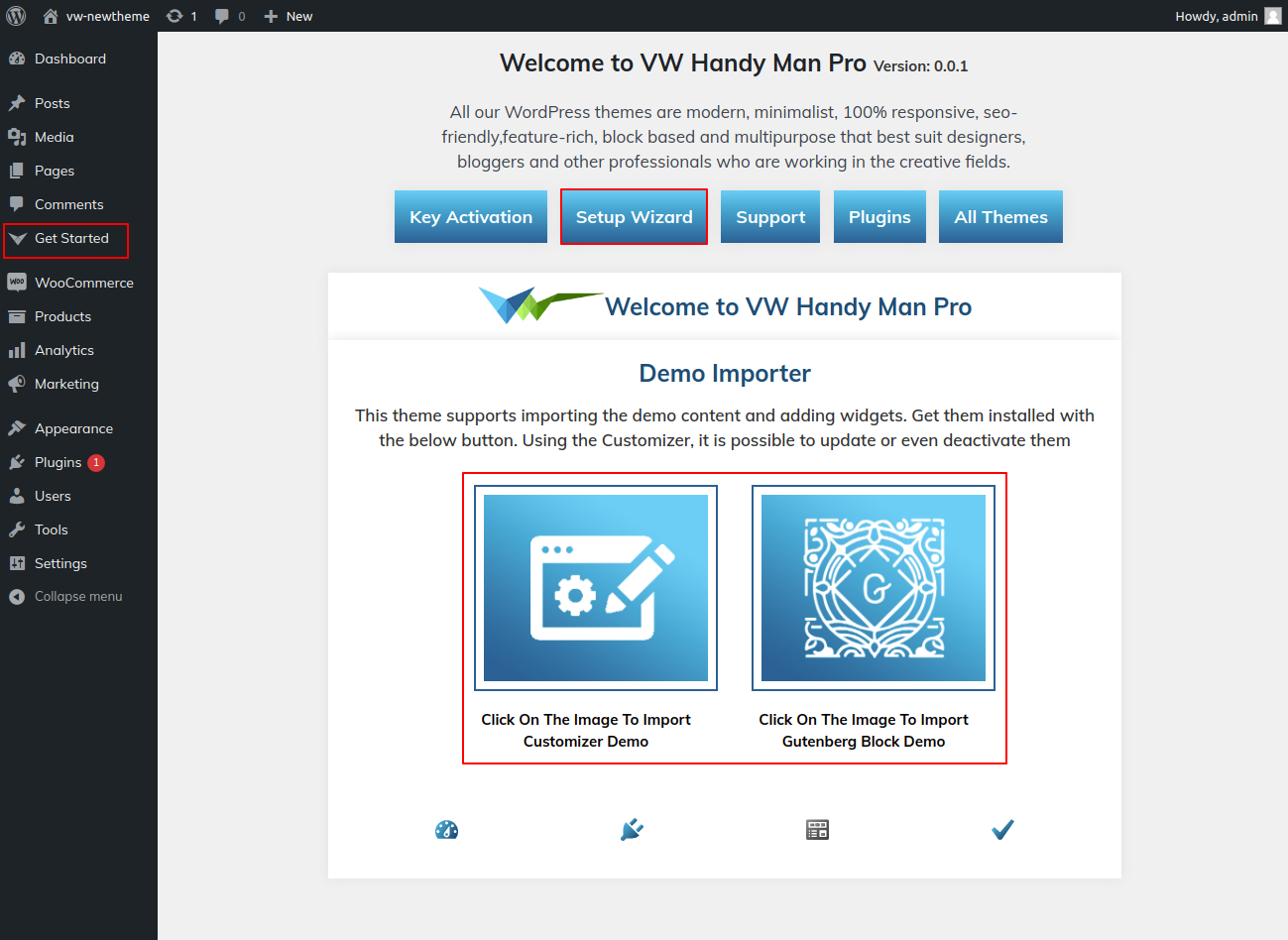
Import Your Demo By Two Way
1. Import your demo content based on Customizer.
2. Import your demo content based on Gutenberg.
6) Final Image Of HomePage.

You can refer this video for setup your demo content based on


2-Theme installation using FTP
Your second installation option is to use FTP to upload the theme. To apply this method, first use FTP to access your website, then locate your themes in to wp-content/themes folder. Once the theme file has been unzipped, you only need to transfer the extracted Total folder to your server.
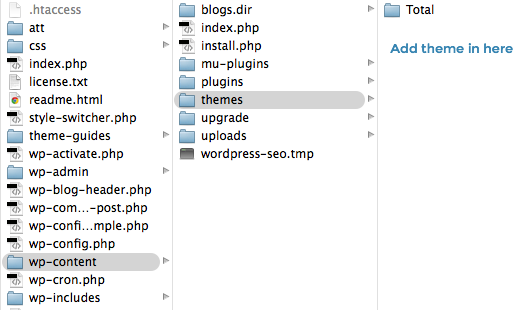
To activate Total, log into your WordPress website and Go to the the Appearance tab >> Themes.
Ordering by Section
How to Set Up Reordering Section
Rearranging a part merely entails setting it up to meet our requirements. To go on to the next section, drag the segment to the top or bottom as needed. Drag any piece to the top or bottom, and your front view will adjust according to the customiser options.
All you have to do is drag and drop the options into the desired order to rearrange a section.
to start the Section Ordering process.
First Step Navigate to Dashboard >> Customize >> Theme Settings >> Section Ordering
Select "Run Importer" after selecting "Demo Content Importer."

Padding Top Settings
In order to prevent top or bottom parts from overlapping when the location of the sections is changed, you must provide padding top to those sections in either pixels or percentage form.

Section Color/Font Pallette
The process of altering the colour or typeface is pretty straightforward. These options are available across all customiser areas. It is a complete graphic showcasing the typography and colour palette. You may alter the colour and font of headings, paragraphs, and buttons with a single glance or click.
Depending on how many options are available in each section, you can select the colour scheme for the headings, title and text, paragraphs, button text, and button backdrop.
Default Color/Font settings


Theme Customization
6.1 Setup Site Identity
Follow the procedures listed below to configure the Header Section.
Go to the Select Appearance >> Customize >> Site Identity .

You can then include the Final Site Identity section in this manner.

6.2 Left Sidebar Section
Follow the procedures listed below to configure the Left Sidebar Section.
Go to the Select Appearance >> Customize >> Go to Theme Settings >>heLeft Sidebar.


You can then include the Final Left Sidebar in this manner.

6.3 Setup Header Section
To proceed with the Header Menus Section.
Follow the procedures listed below to configure the Header Section.
Go to the Select Appearance >> Customize >> Go to Theme Settings >>he Header.


You can then include the Final header section in this manner.

6.4 Right Sidebar Section
Follow the procedures listed below to configure the Right Sidebar Section.
Go to the Select Appearance >> Customize >> Go to Theme Settings >>heRight Sidebar.


You can then include the Final Right Sidebar in this manner.

6.5 Slider Section
Follow the procedures listed below to configure the Slider Section.
Go to the Select Appearance >> Customize >> Go to Theme Settings >>heSlider Section.
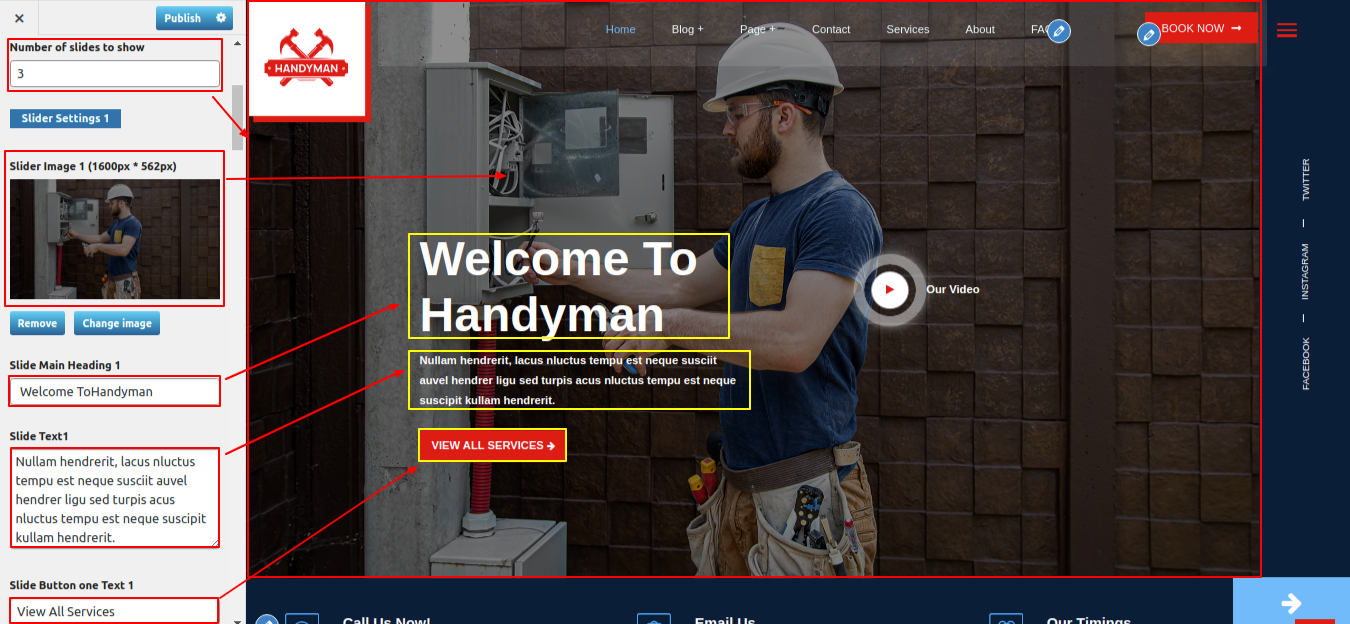
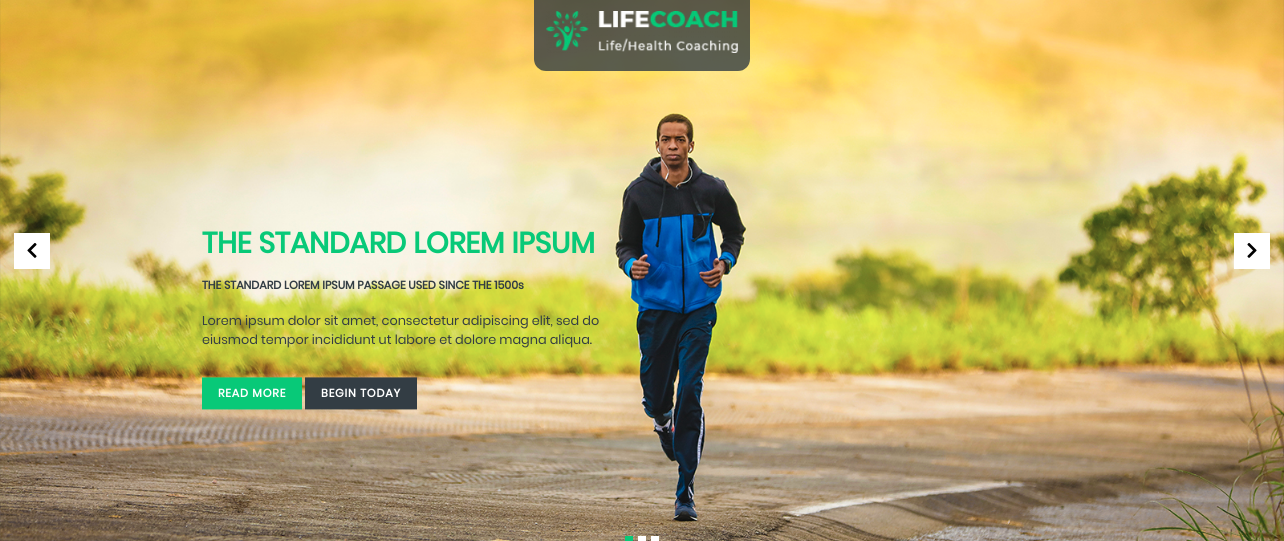
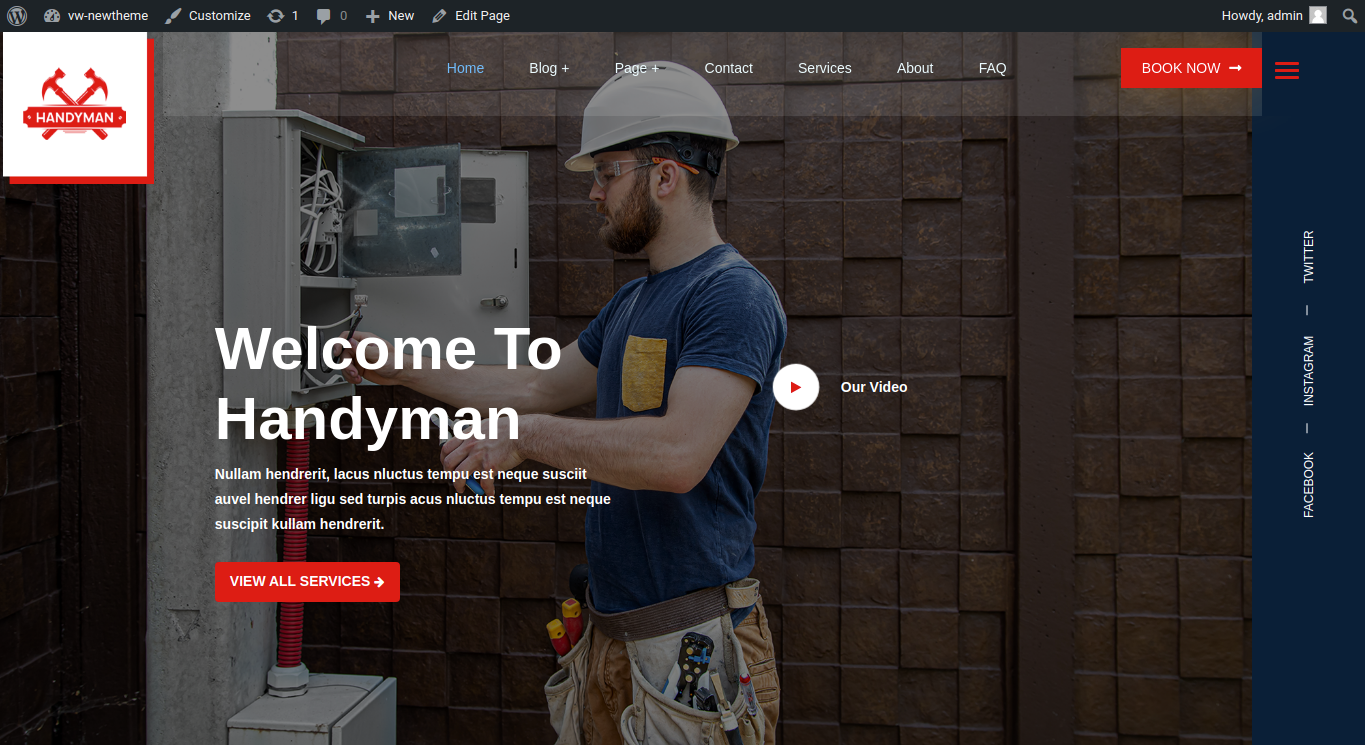

You can then include the Final Slider Section in this manner.

6.6 Continue Watching Section
To proceed with the Continue Watching Section
Go to the Dashboard >> Anime Videos >> Edit


Observe these instructions to set Continue Watching Section.
Go to the Appearance >> Customize >> Theme Settings >>Continue Watching Section


You can configure the Final Continue Watching Section in this way.

6.7 Counter Banner Section
Follow the procedures listed below to configure the Counter Banner Section.
Go to the Select Appearance >> Customize >> Go to Theme Settings >>heCounter Banner Section.


You can then include the Final Counter Banner Section in this manner.

6.8 Top Chart Section
To proceed with the Top Chart Section
Go to the Dashboard >> Anime Videos >> Edit


Observe these instructions to set Top Chart Section.
Go to the Appearance >> Customize >> Theme Settings >>Top Chart Section


You can configure the Final Top Chart Section in this way.

6.9 Offer Banner Section
To proceed with the Offer Banner Section.
Go to the Appearance >> Customize >> Theme Settings >> Offer Banner Section

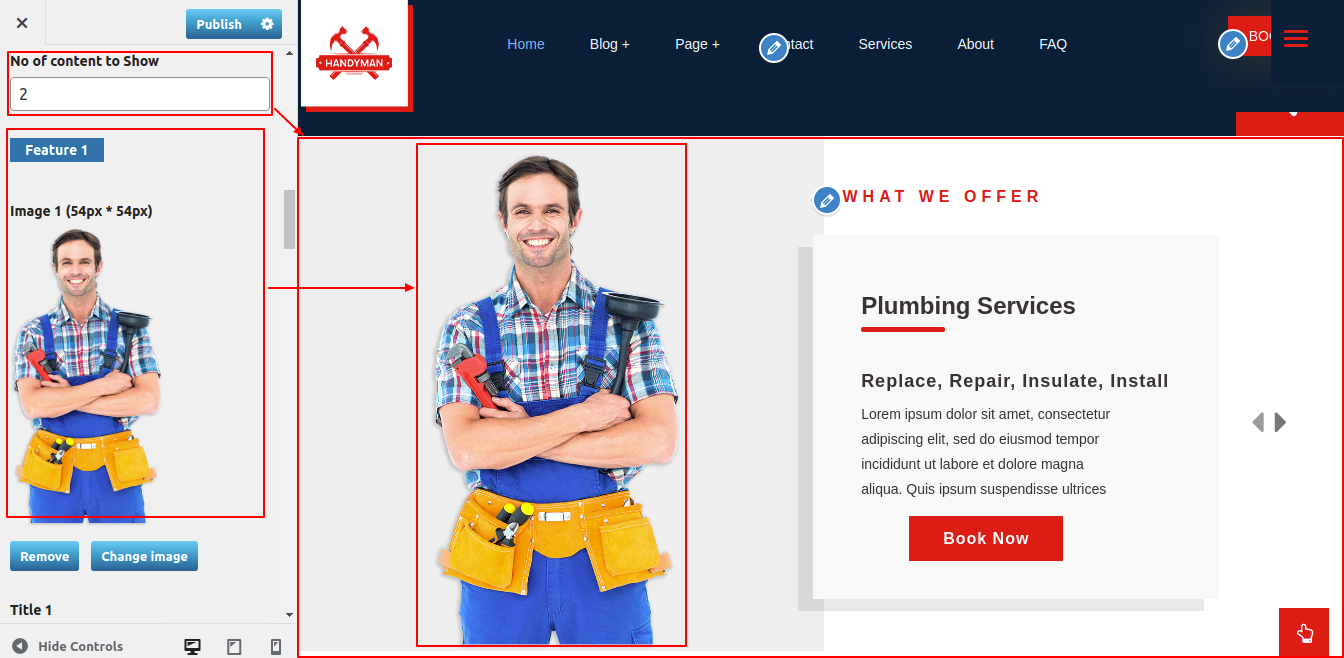

This is final image of Offer Banner Section

6.10 Manga Comics Section
To proceed with the Top Chart Section
Go to the Dashboard >> Products >> Edit


Observe these instructions to set Manga Comics Section.
Go to the Appearance >> Customize >> Theme Settings >>Manga Comics Section


You can configure the Final Manga Comics Section in this way.

6.11 Besteller Manga Section
To proceed with the Besteller Manga Section
Go to the Dashboard >> Products >> Edit
Observe these instructions to set Besteller Manga Section.
Go to the Appearance >> Customize >> Theme Settings >>Besteller Manga Section


You can configure the Final Besteller Manga Section in this way.

6.12 Anime Section
To proceed with the Anime Section
Go to the Dashboard >> Anime Videos >> Edit
Observe these instructions to set Anime Section.
Go to the Appearance >> Customize >> Theme Settings >>Anime Section


You can configure the Final Anime Section in this way.

6.13 Character Profile Section
To proceed with the Character Profile Section
Go to the Dashboard >> Characters >> Edit


Observe these instructions to set Character Profile Section.
Go to the Appearance >> Customize >> Theme Settings >>Character Profile Section


You can configure the Final Character Profile Section in this way.

6.14 Contact Us Section
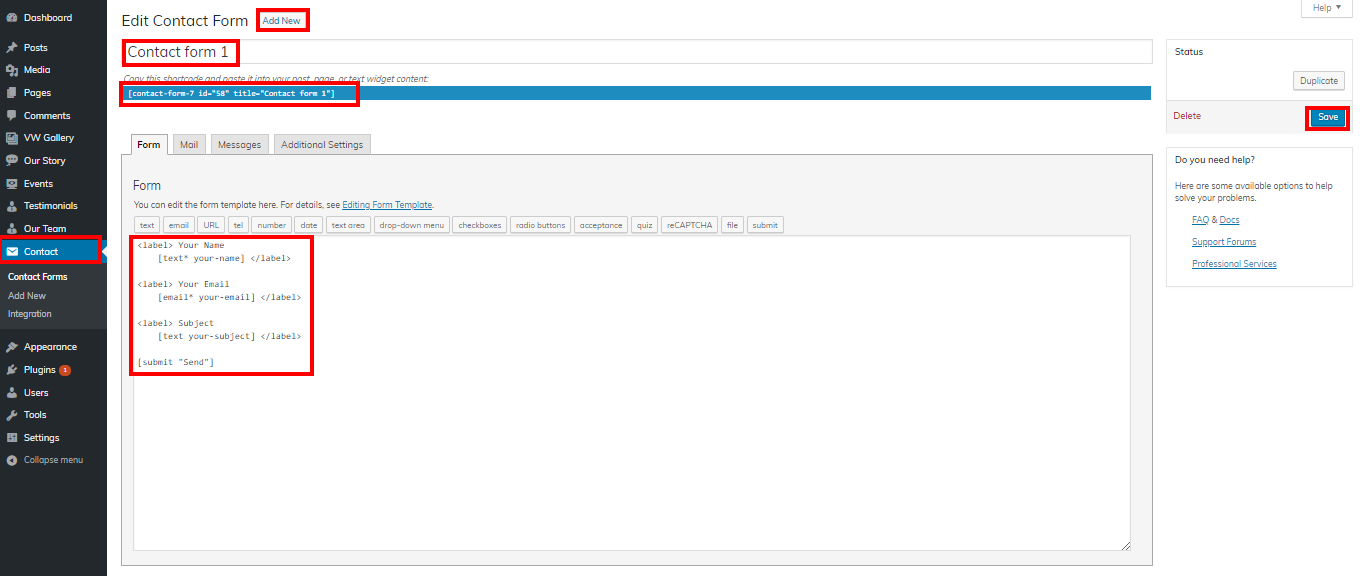
To proceed with the Contact Us Section
Go to the Dashboard >> Contact >> Edit
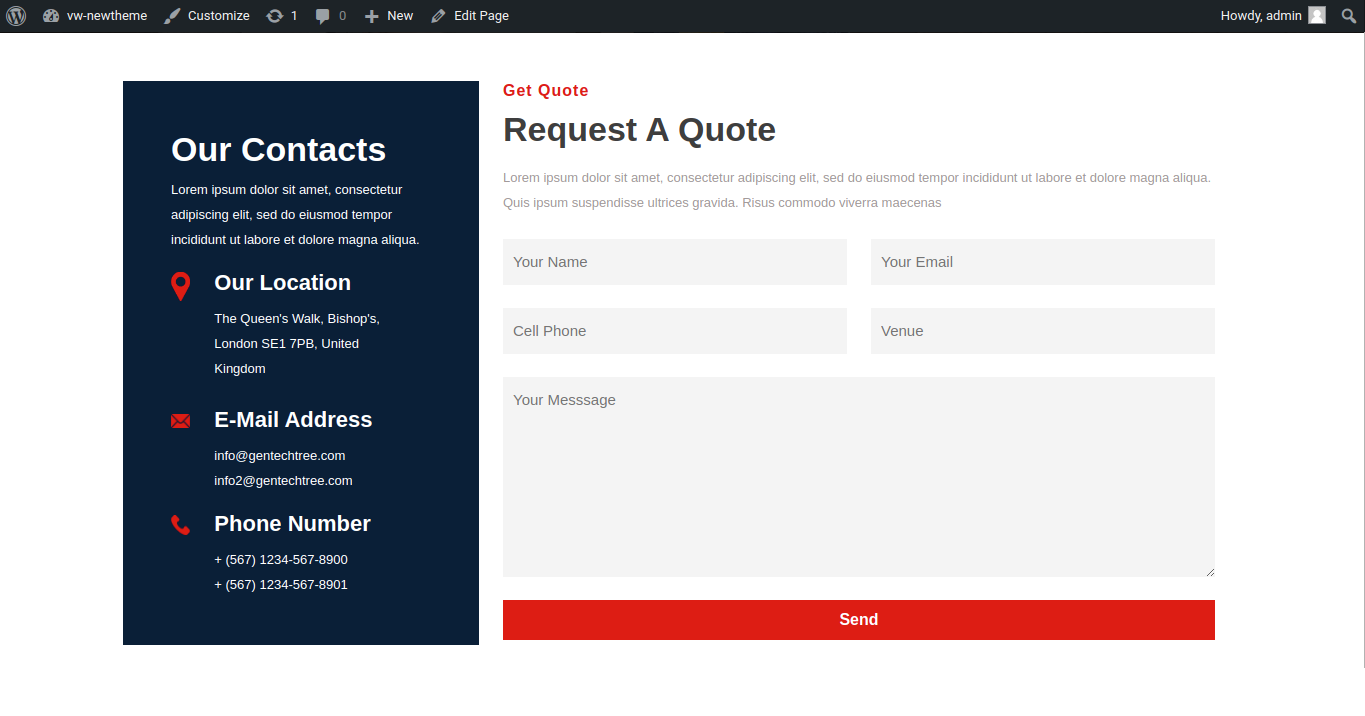

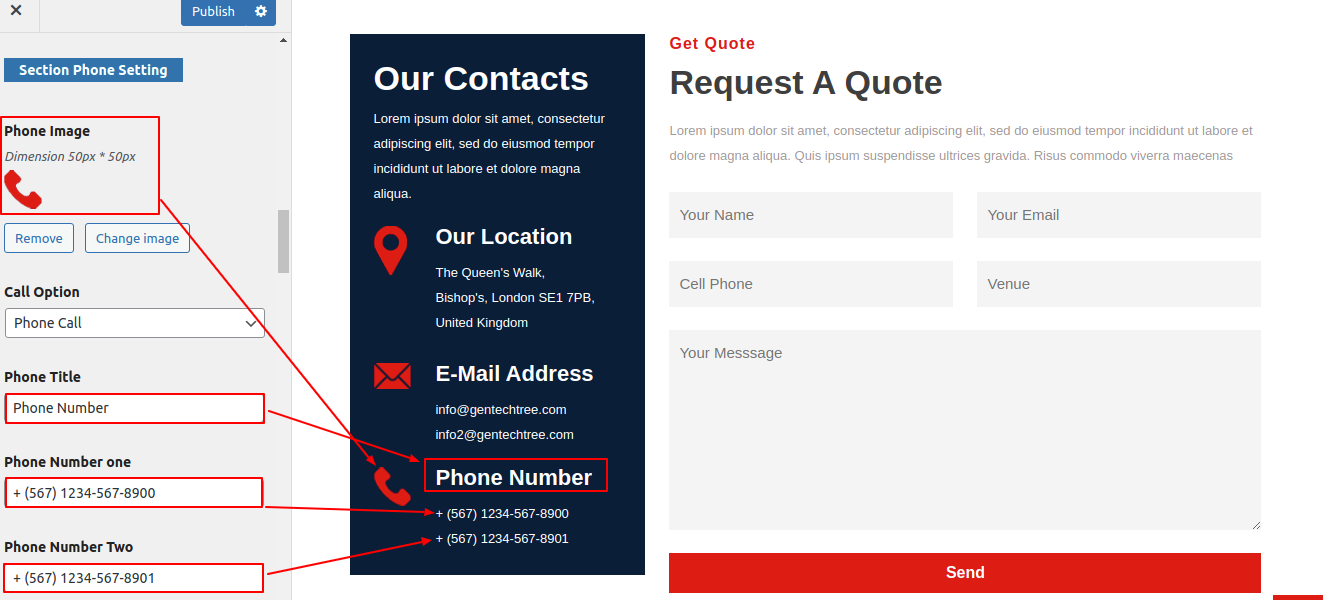
Observe these instructions to set up Contact Us Section.
Go to the Appearance >> Customize >> Theme Settings >> Contact Us Section

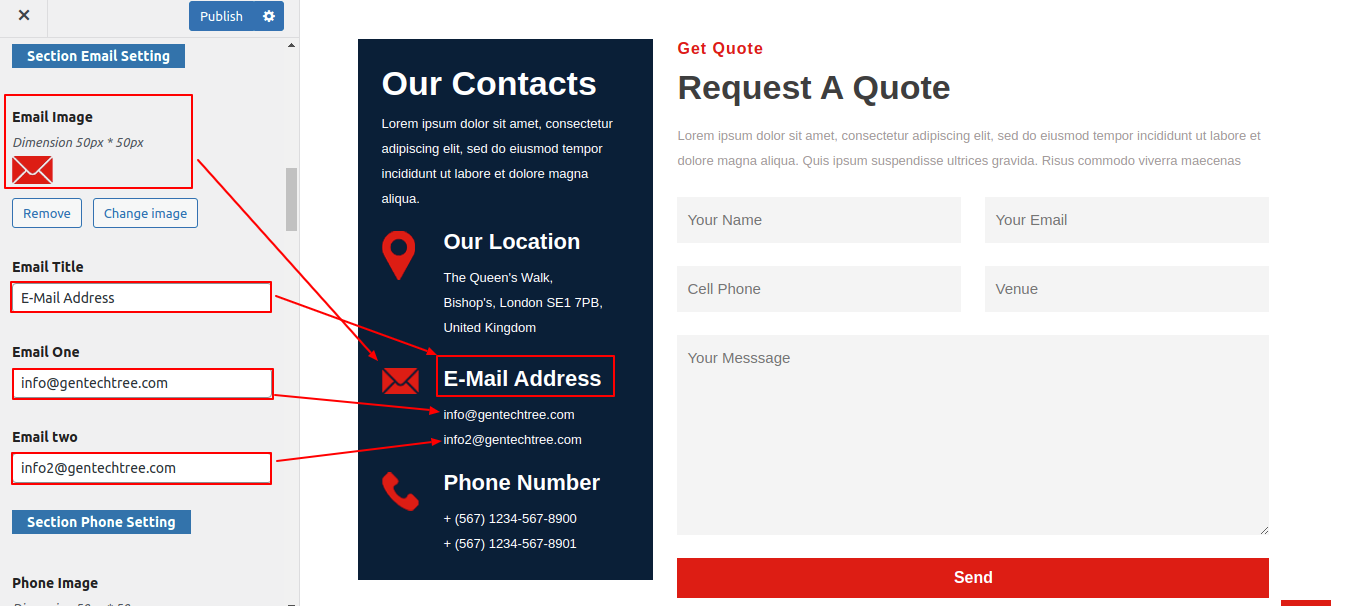
You can configure the Final Contact Us Section in this way.
6.15 Newsletter Section
To proceed with the Newsletter Section
Go to the Dashboard >> Contact >> Edit


Observe these instructions to set up Newsletter Section.
Go to the Appearance >> Customize >> Theme Settings >> Newsletter Section
You can configure the Final Newsletter Section in this way.

6.16 Setup Footer Menu Section
To Setup Footer Section
Go to the Dashboard >> Appearance >> Widgets

To proceed with the Footer Section.
Go to the Appearance >> Customize >> Theme Settings >> Footer Menu


Go to the Appearance >> Theme Settings >> Customize >> Footer Text

In this way you can add Final Footer Menu section.

All Inner Pages
6.17 Genre Page Settings
To proceed with the Genre Page.
Go to the Appearance >> Customize >> Theme Settings >> Genre Page

6.18 Support Page Settings
To proceed with the Support Page Settings.
Go to the Appearance >> Customize >> Theme Settings >> Support Page Settings


6.19 Privacy Policy Page Settings
To proceed with the Privacy Policy Page Settings.
Go to the Appearance >> Customize >> Theme Settings >> Privacy Policy Page Settings

6.20 Single Product Page Settings
To proceed with the Single Product Page Settings.
Go to the Appearance >> Customize >> Theme Settings >> Single Product Page Settings

6.21 404 Page Settings
To proceed with the 404 Page Settings.
Go to the Appearance >> Customize >> Theme Settings >> 404 Page Settings

Plugin Installation.
To manually install a WordPress plugin from a.zip package, utilise the plugin upload steps below.
Install any necessary plugins:
Access the Dashboard >> Include a new upload plugin.


