System Requirements
We advise you have the following minimum system configuration in your web server theme.
- WordPress 6.4 or later
- PHP 8.2 or 8.3
- MySQL 5.6 (or greater) | MariaDB 10.0 (or greater)
- Need php ini file configration -
- post_max_size = 256M
- upload_max_filesize = 256M
- max_execution_time = 5000
- max_input_time = 5000
- memory_limit = 1000M
Introduction
We appreciate you purchasing our WordPress theme. This article demonstrates several steps of the full configuration and management process for a WordPress website.
What is WordPress CMS?
WordPress is an open source website creation tool that uses PHP and MySQL as its foundation. It is a robust blogging platform and a totally free content management system (CMS). Using this CMS, you may create reliable online applications and websites. To manage it, you scarcely need any technological expertise or understanding. Because of its many benefits, including ease of use and flexibility, WordPress has emerged as the most popular website construction tool on the market. Learn More
A WordPress template: What is it?
A WordPress template serves as the skin for websites built using the WordPress content management system. A WordPress template is incredibly simple to setup. You may quickly modify the appearance of your WordPress website by installing a new template. A WordPress template comes complete with all the necessary source files, and you are free to change and expand it anyway you see fit.
Help and Support
Click here for support:
SupportFile Structure
The template bundle that you downloaded is divided into various directories. Let's examine the contents of each folder:
- Screenshots -contains template screenshot. Not for production.
- theme -contains wordpress theme files
- "isp-internet-provider-pro_0.0.1.zip" -this folder contains all the necessary files for the theme.
- "license.txt" -contains license details
- "readme.txt" -contain information about theme images path, font use and usage script
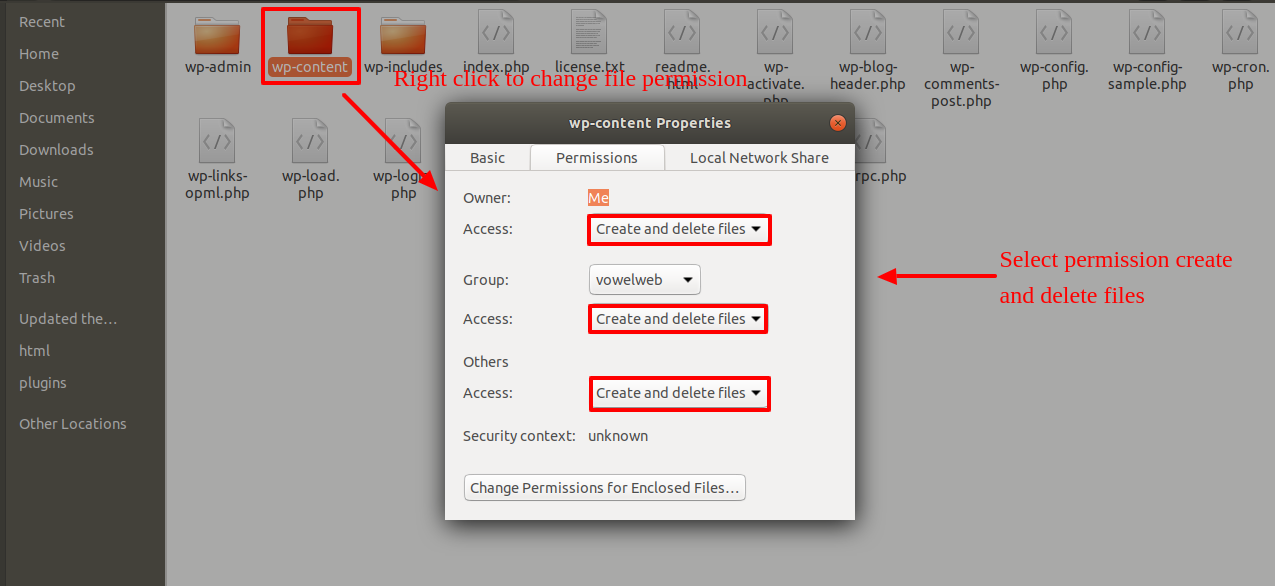
My website was operating normally before? Who altered the permissions on the file?
WordPress may be unable to create directories, upload photos, or execute some scripts if file permissions are set incorrectly.
To manage files and create directories on the server, WordPress needs permissions.
- After that select all folders in root directory and then right click to select ‘File Permissions’.
- wp-config >> permissions dialog box >> click on checkbox read and write >> Click on the OK button to continue
- same process repeated for wp-content folder
Template Installation
The process of installing a template is very straightforward and easy.
Within the WordPress interface, all installation procedures may be completed. It facilitates a quick and comfortable process.
There are two ways to complete the installation process.
1-To install a theme using WordPress admin, follow these steps:
To begin, sign into your WordPress admin dashboard and select
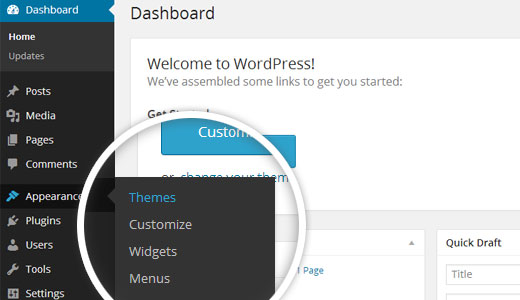
1.Visit the Appearance >> Themes.
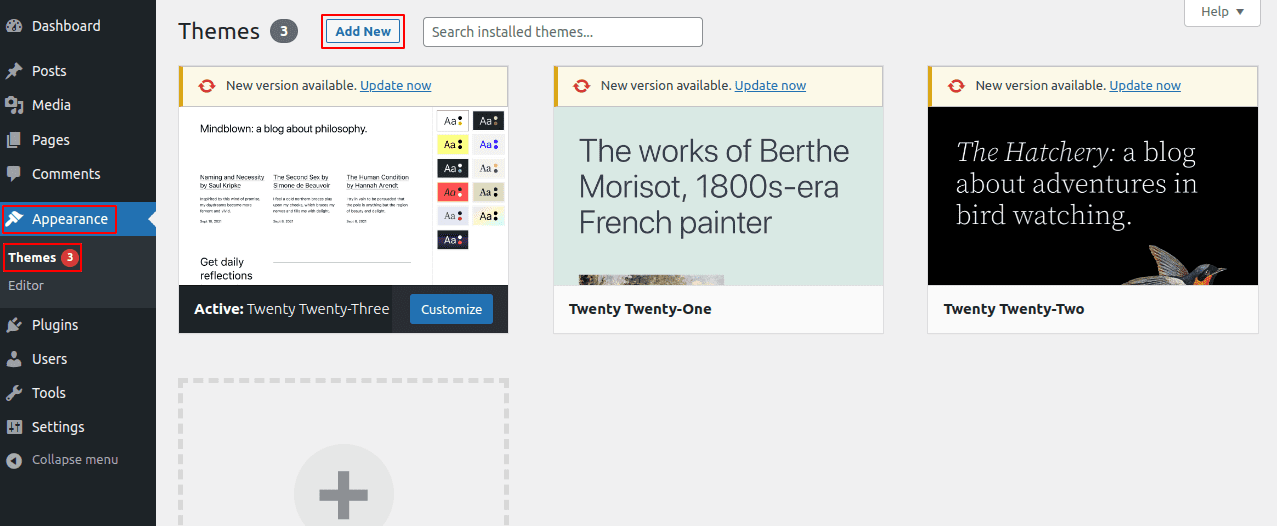
2. Once you are on the themes page, click on the Add New button located at the top of the page.
3. When arriving at the themes page, click on the Upload Theme button at the top and upload zip file.
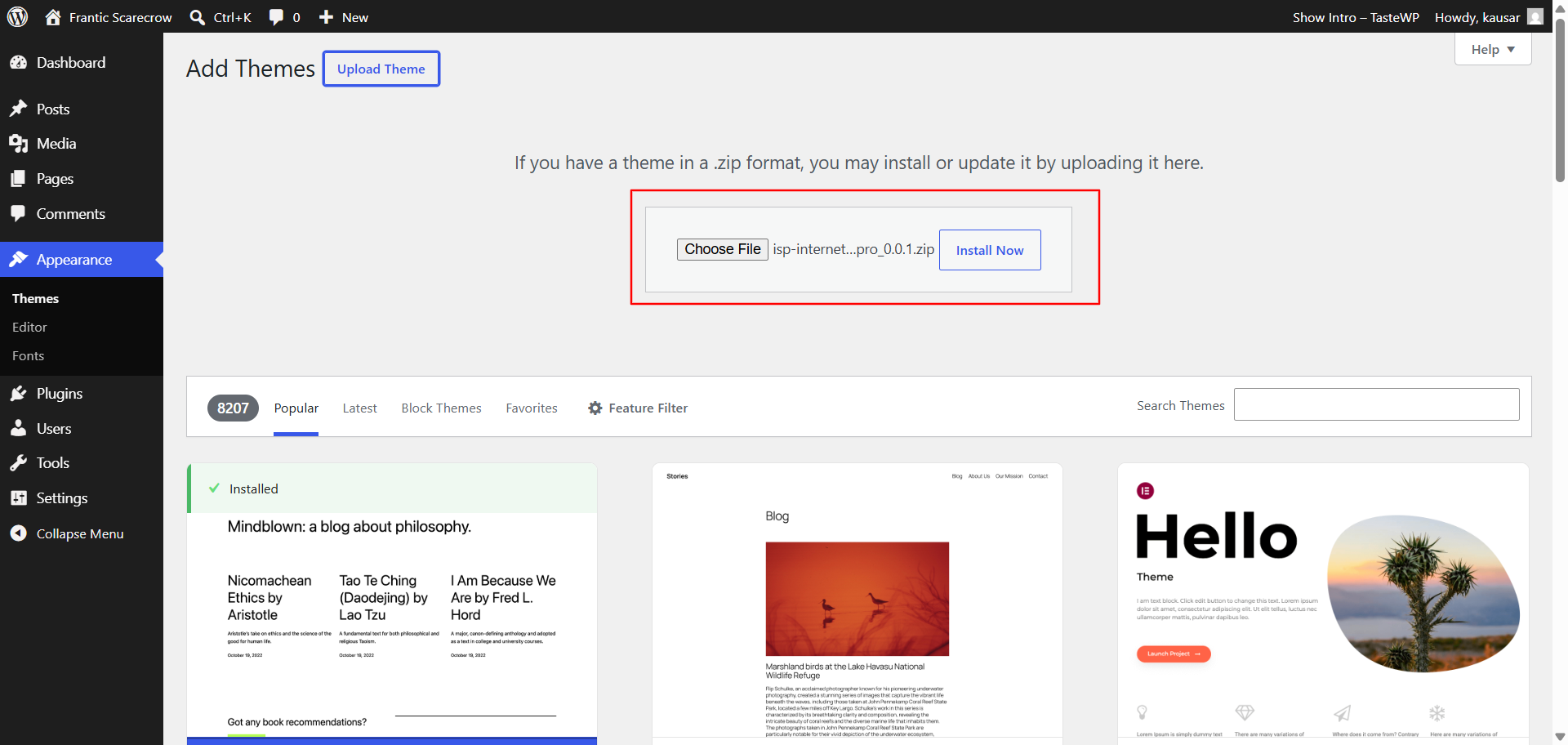
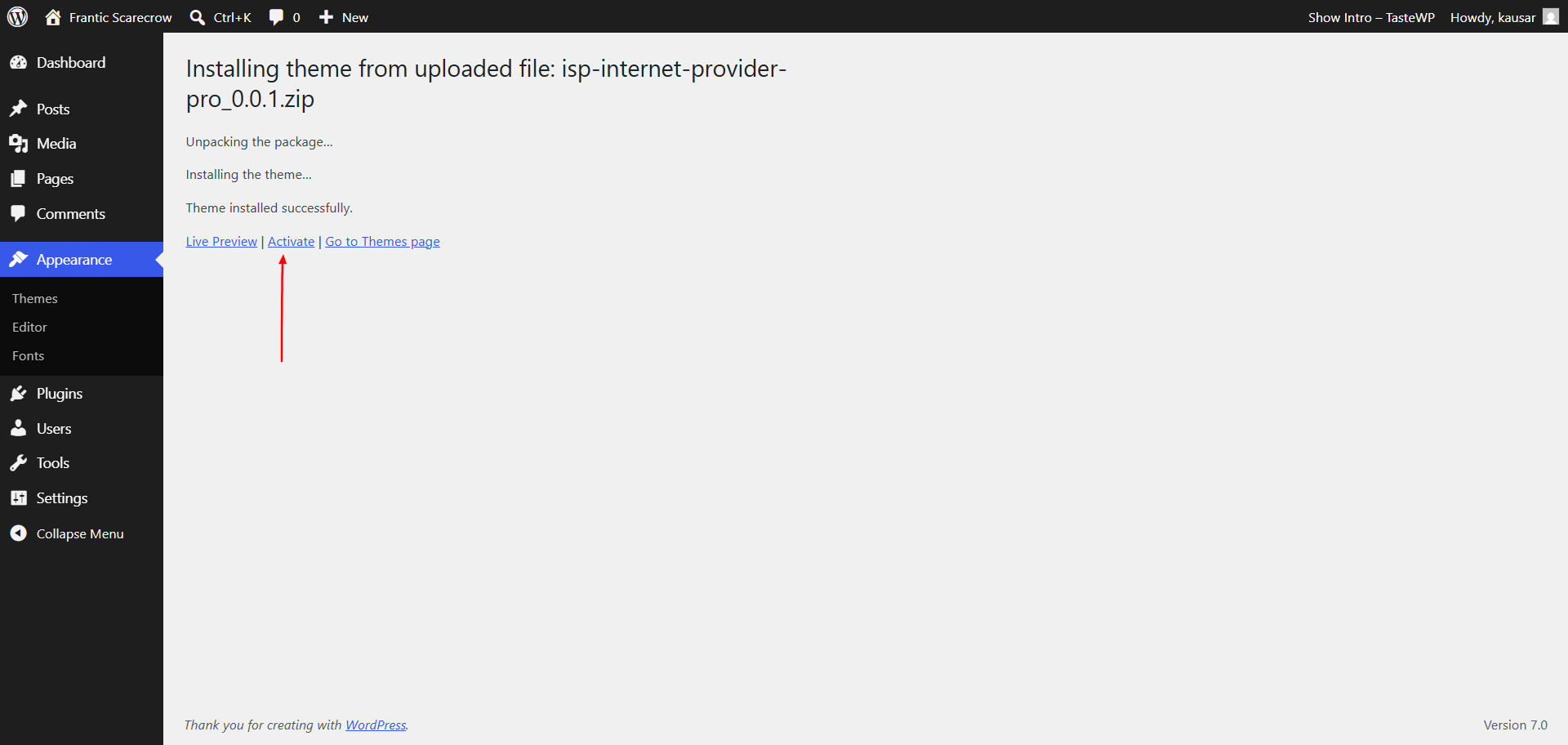
4. WordPress will now proceed with installing your selected theme, and upon completion, you will see a success message that includes options to activate the theme or preview it live.
Congratulations! Your theme has been successfully installed and set up.
2-Theme installation using FTP
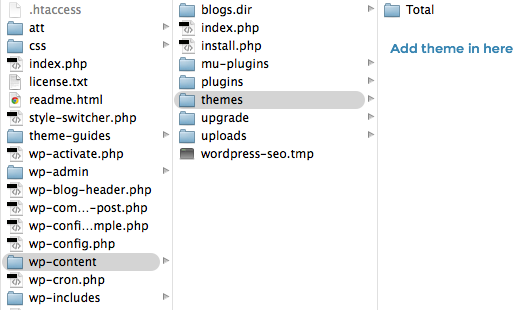
The theme can be uploaded using FTP, which is your second installation option. To use this method, first log into your website using FTP and navigate to the wp-content/themes folder. Just extract the Total folder from the theme file you got and upload it to your server.
Next log into your WordPress site and navigate toAppearance >> Themes to activate Total.
Section Ordering
How to Reorder and Organize Section
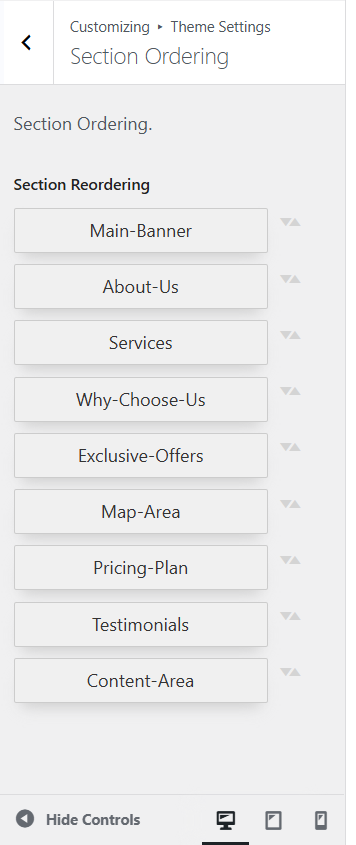
To reorder a part simply means to arrange it according to our needs. Drag the segment to the top or bottom as necessary to continue with this section. Your front view will change in accordance with customizer options when you drag any portion to the top or bottom.
You can reorder sections by simply dragging and dropping the options into the desired order.
To proceed with the Section Ordering.
Step 1 Go to Dashboard >> Appearance >> Customizing >> VW Theme Settings >> Section Ordering
Click on "Demo Content Importer" and then "Run Importer".
Section Color and Font Scheme
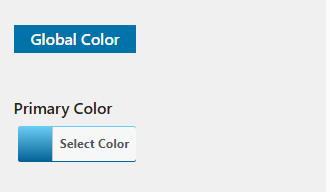
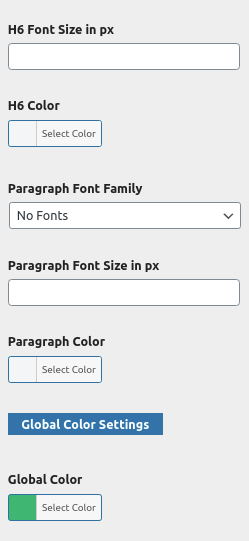
The method of changing the colour or font is quite simple. These choices are available in all customizer areas. It is a comprehensive graphic that demonstrates the typeface and colour palette. You can change the colour and font of the headings, paragraphs, and buttons with a single glance or click.
Depending on how many options are accessible in a given part, each individual section has the ability to choose the colour scheme for the headings, title/text, paragraph, button text, and button background.
Standard Color and Font settings
Theme Wizard
* Theme Wizard is a new addition to the version (1.1.2)
To import content using Theme Wizard, ad here to these procedures.
1) Go to Dashboard >> Getstarted
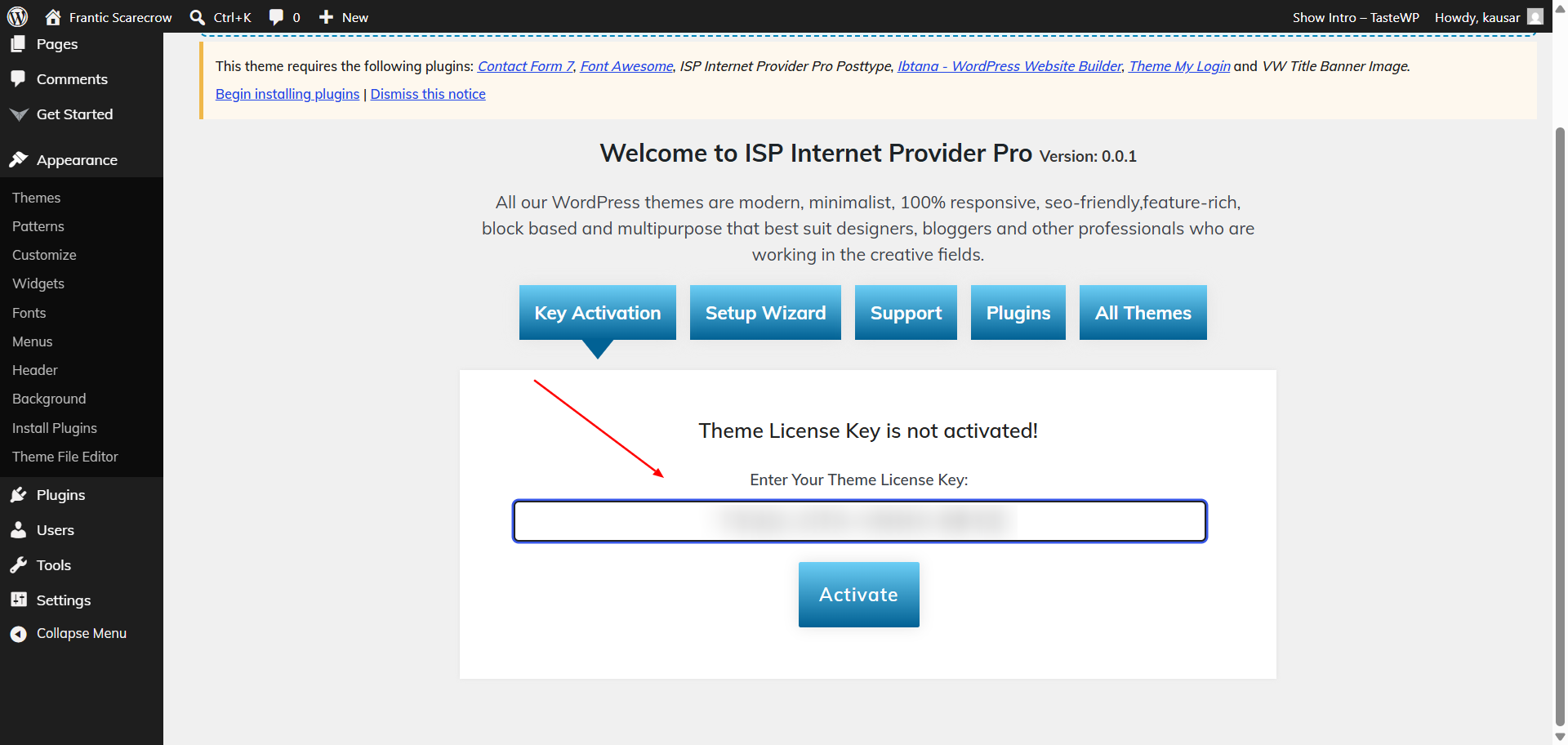
Refer video for Licence key activation:
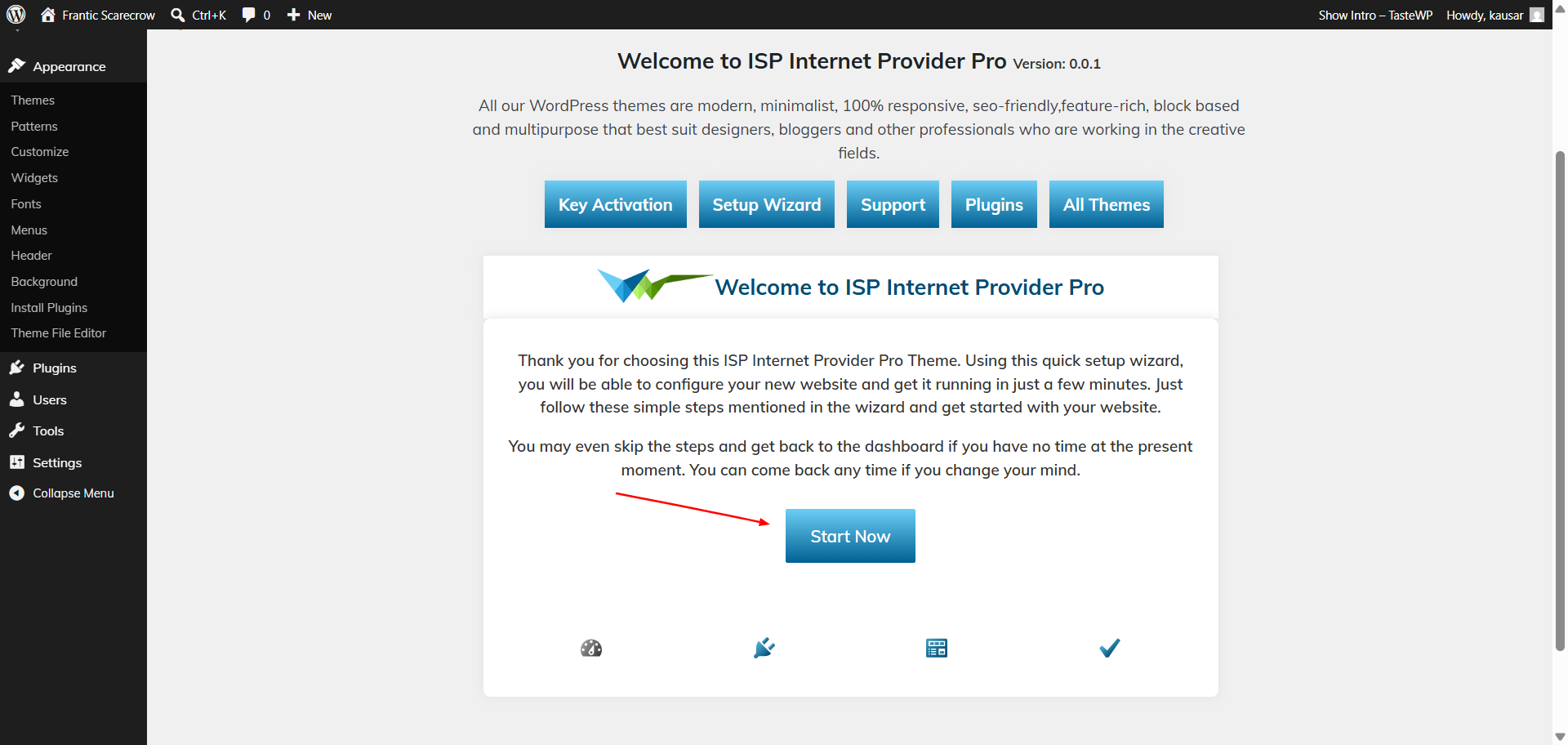
3) After selecting Setup Wizard, click Start Now.
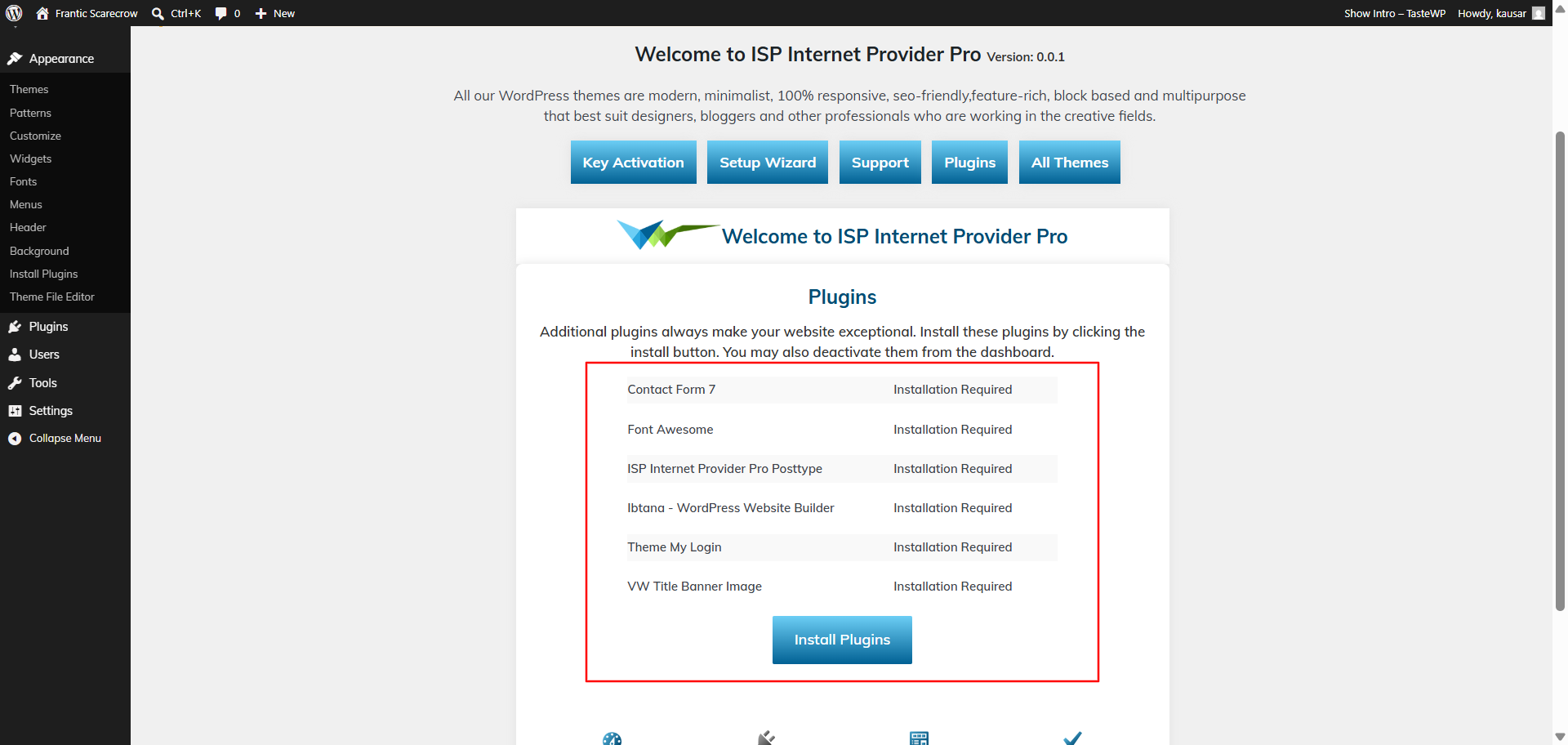
4) install Plugins.
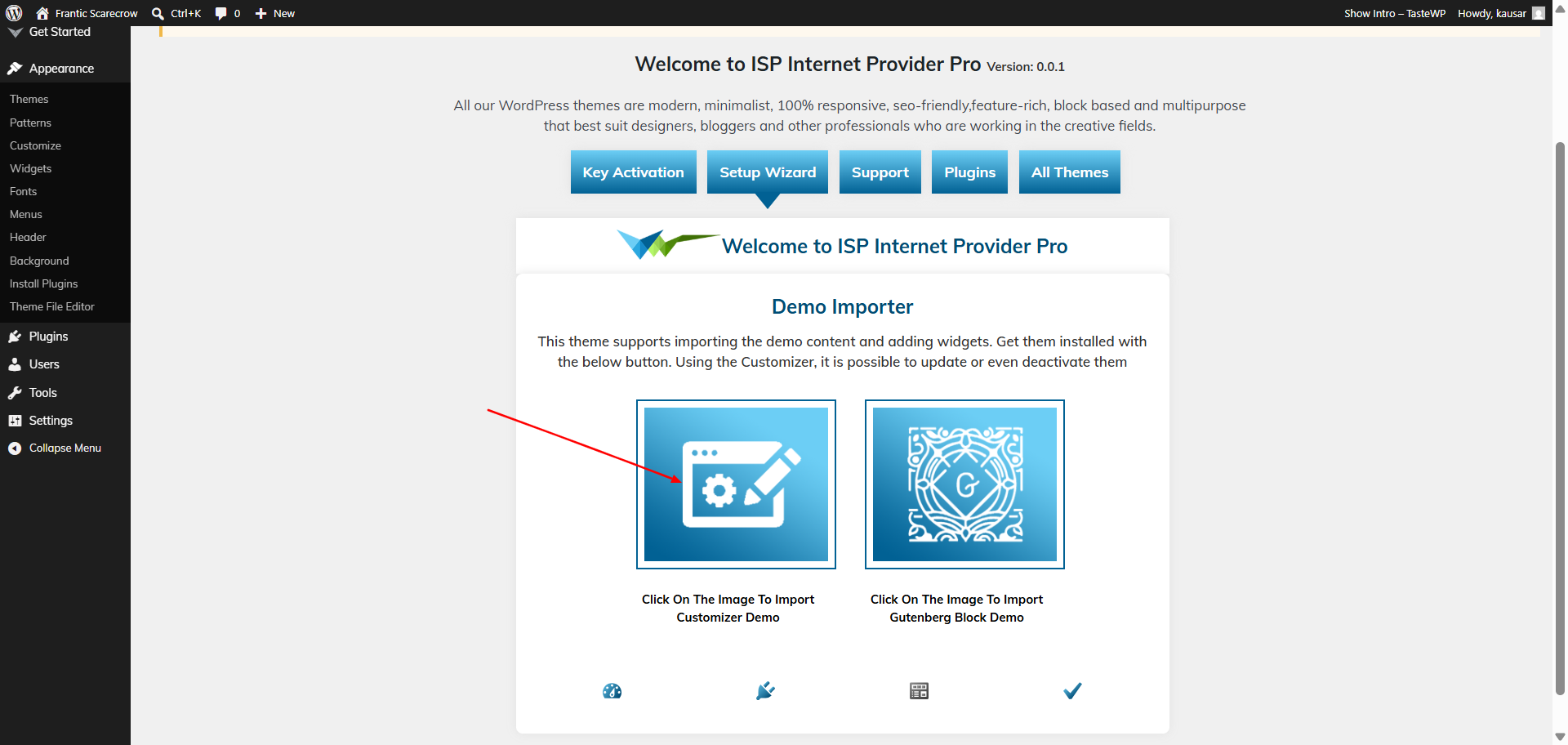
5) Import the material from your Customizer, Gutenberg, and Elementor-based demo.
For setting up your demo content based on, you can refer to this video.
Configure a homepage template
Build a home page using the video here:
Theme Configuration
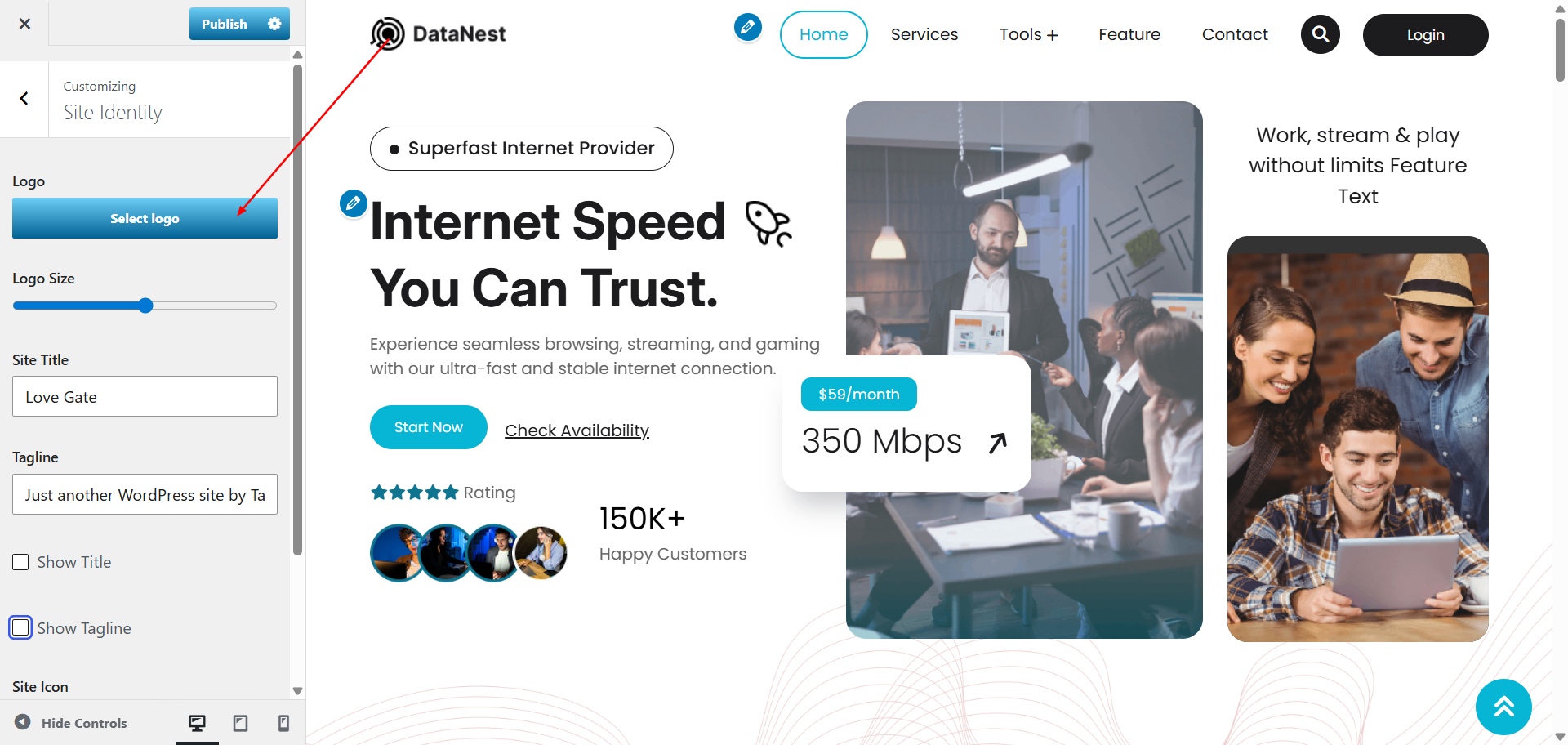
9.2. Setup Header Section
To proceed with the Header Section.
Go to Appearance >> Customize >> Site Identity >>Header Section
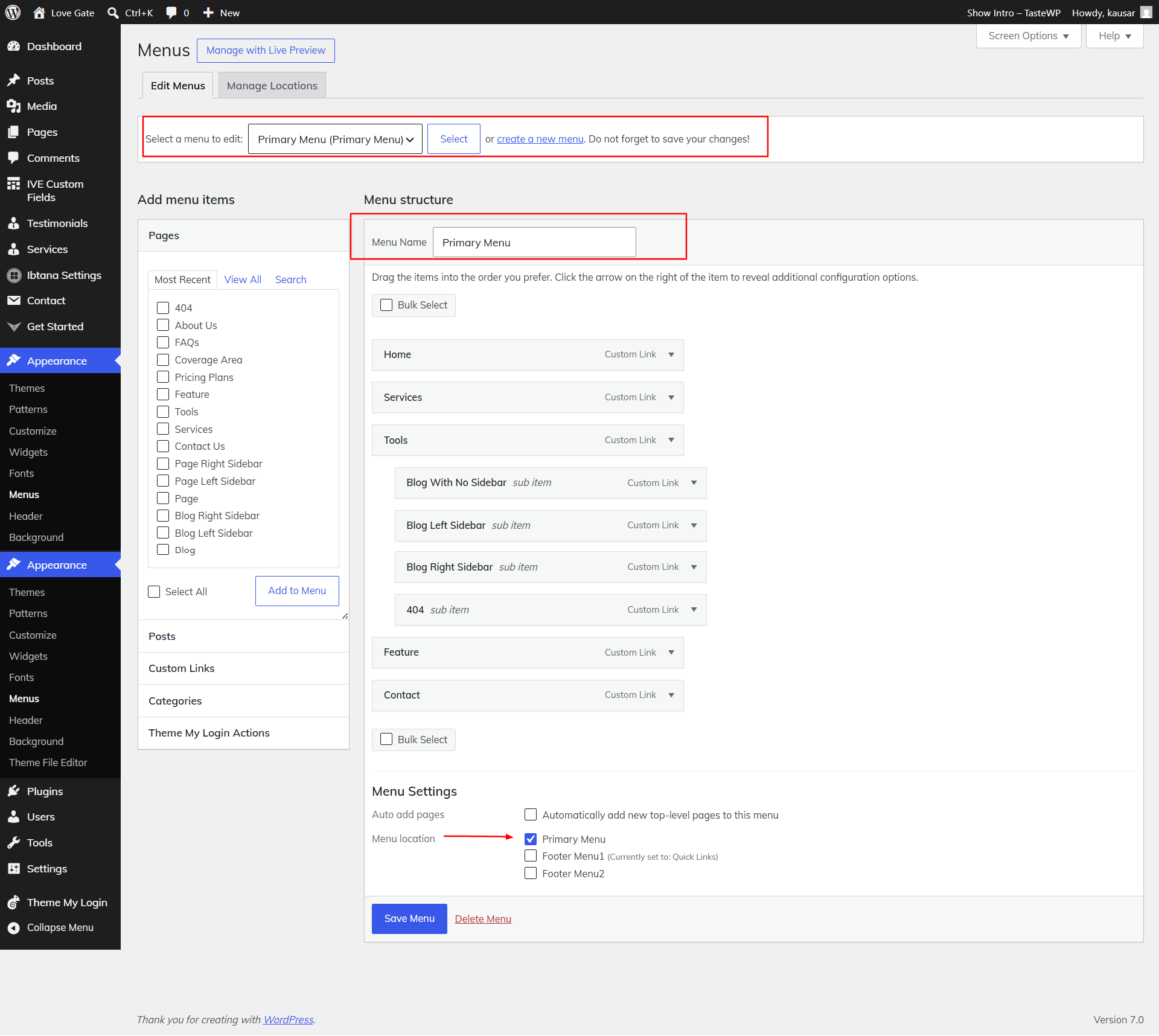
Update navigation from Appearance >> Menus
Go to Appearance >> Customize >> Theme Settings >>Header and update the button text and link.
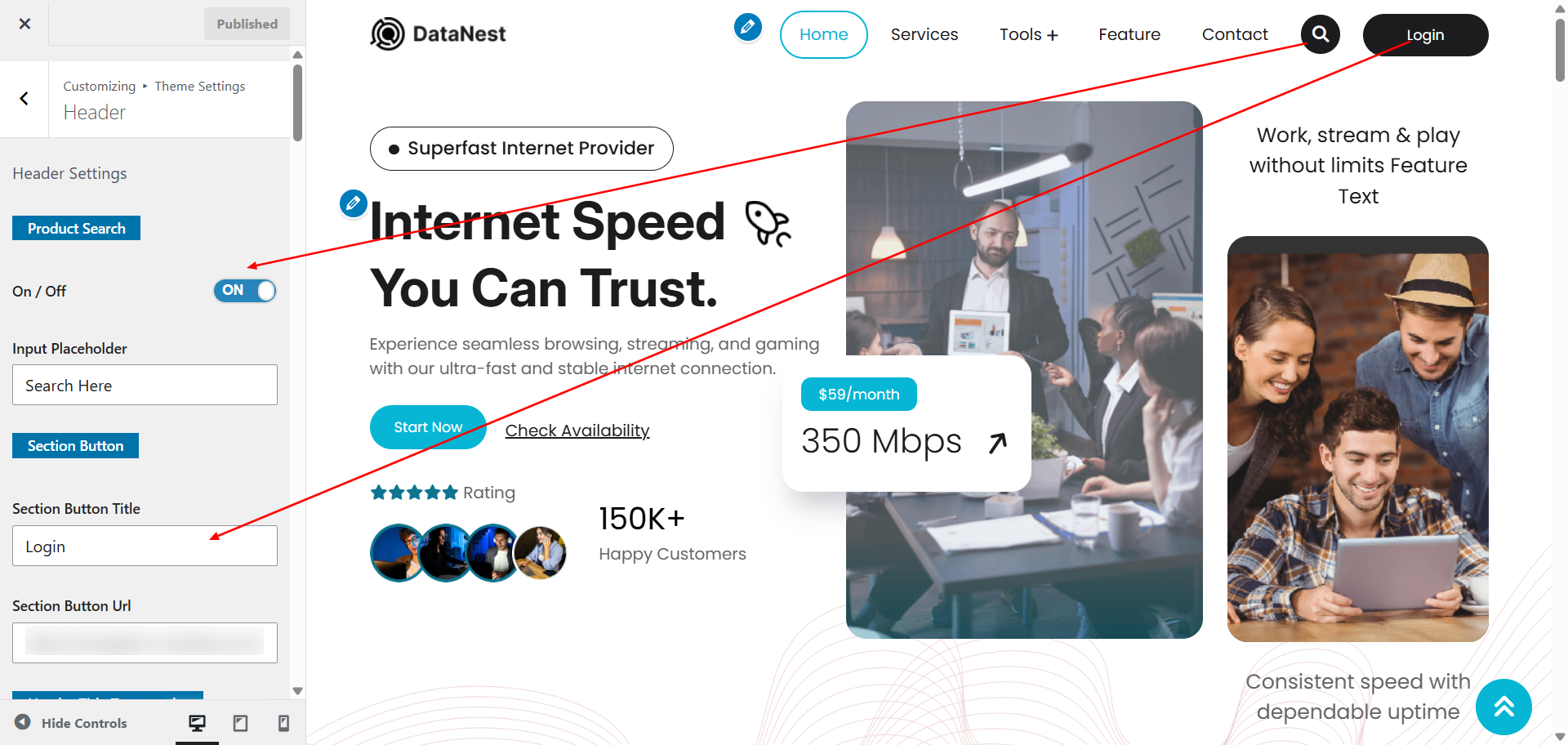
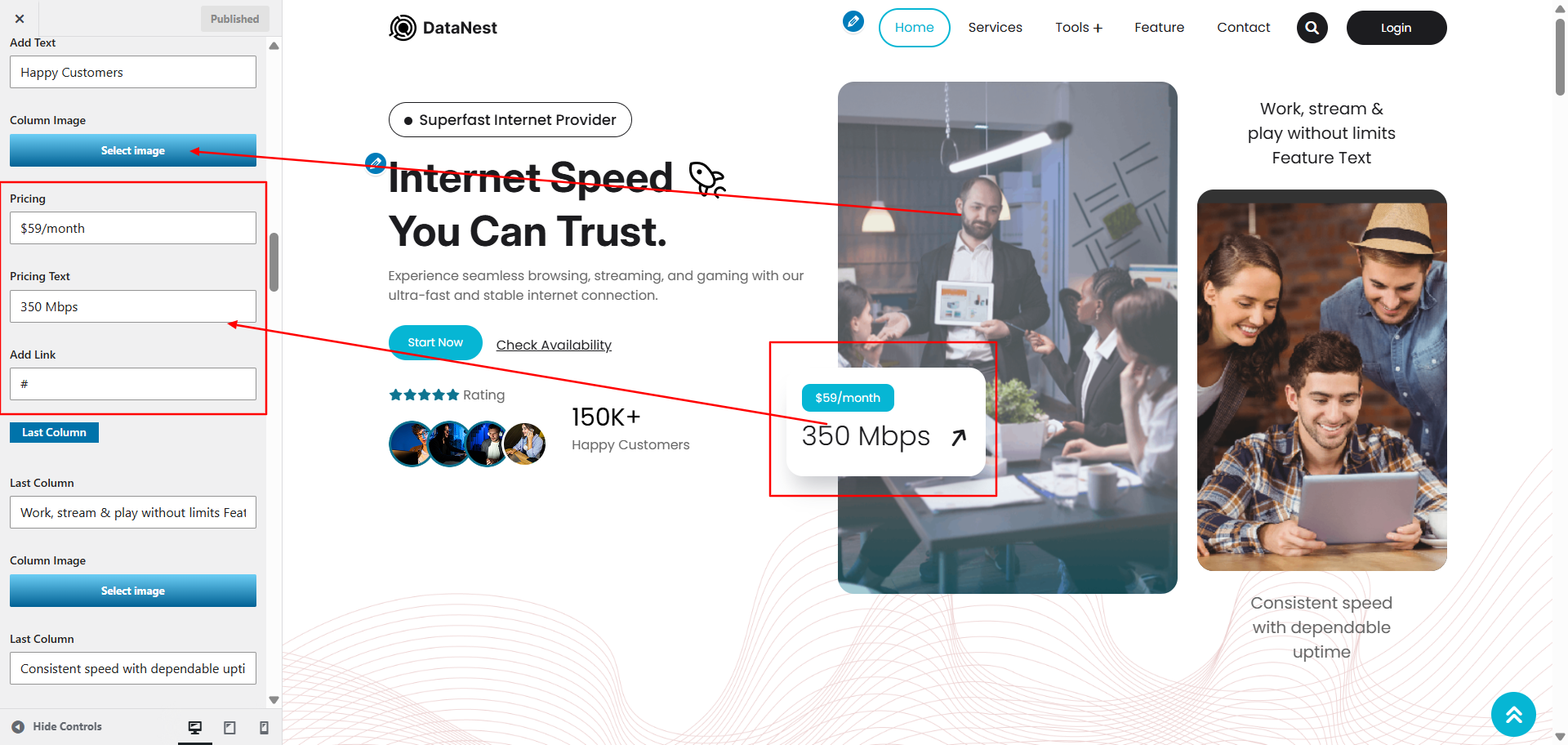
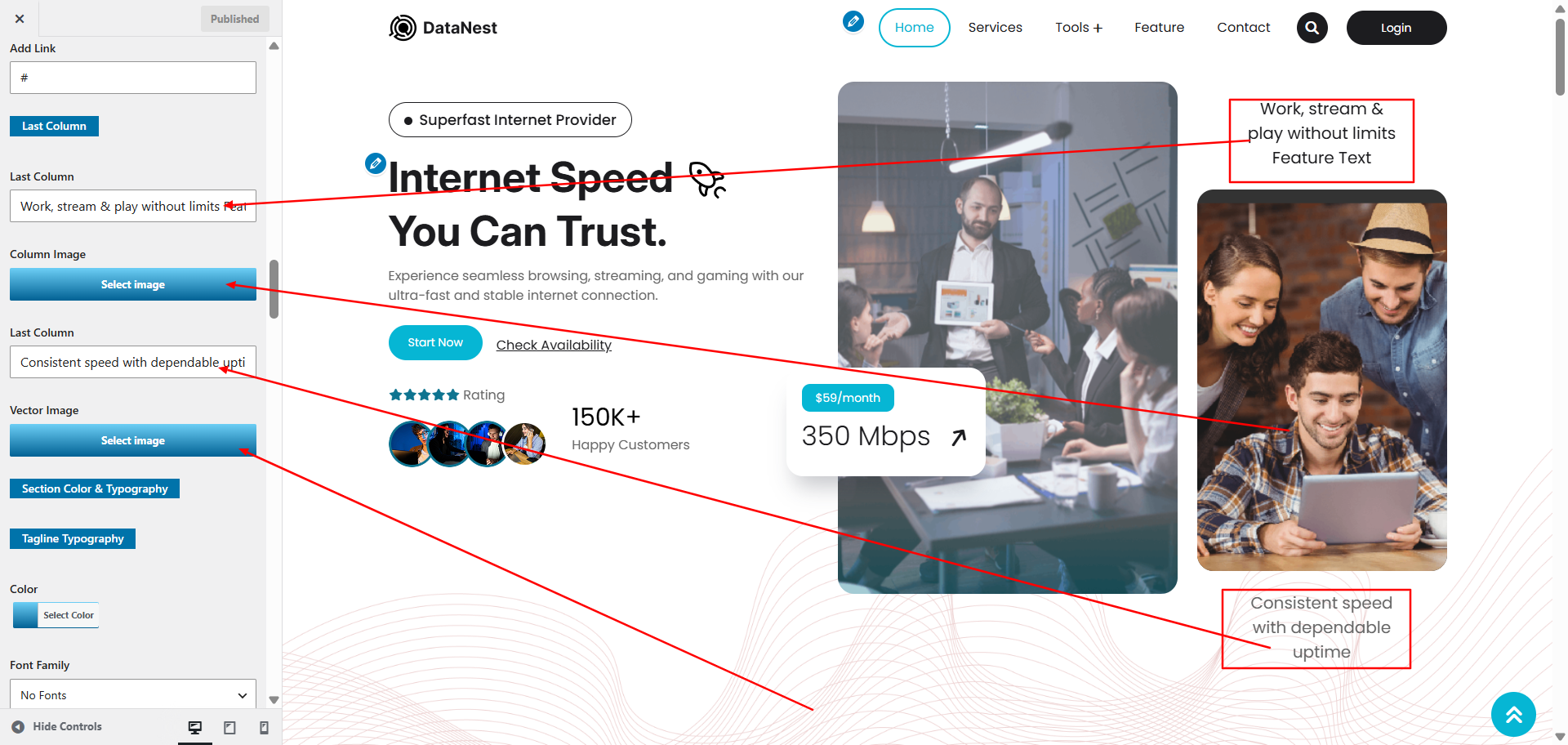
9.3. Setup Main Banner
To proceed with the section setup Go to Appearance >> Customize >> Theme Settings >> Main Banner Section and update the content.
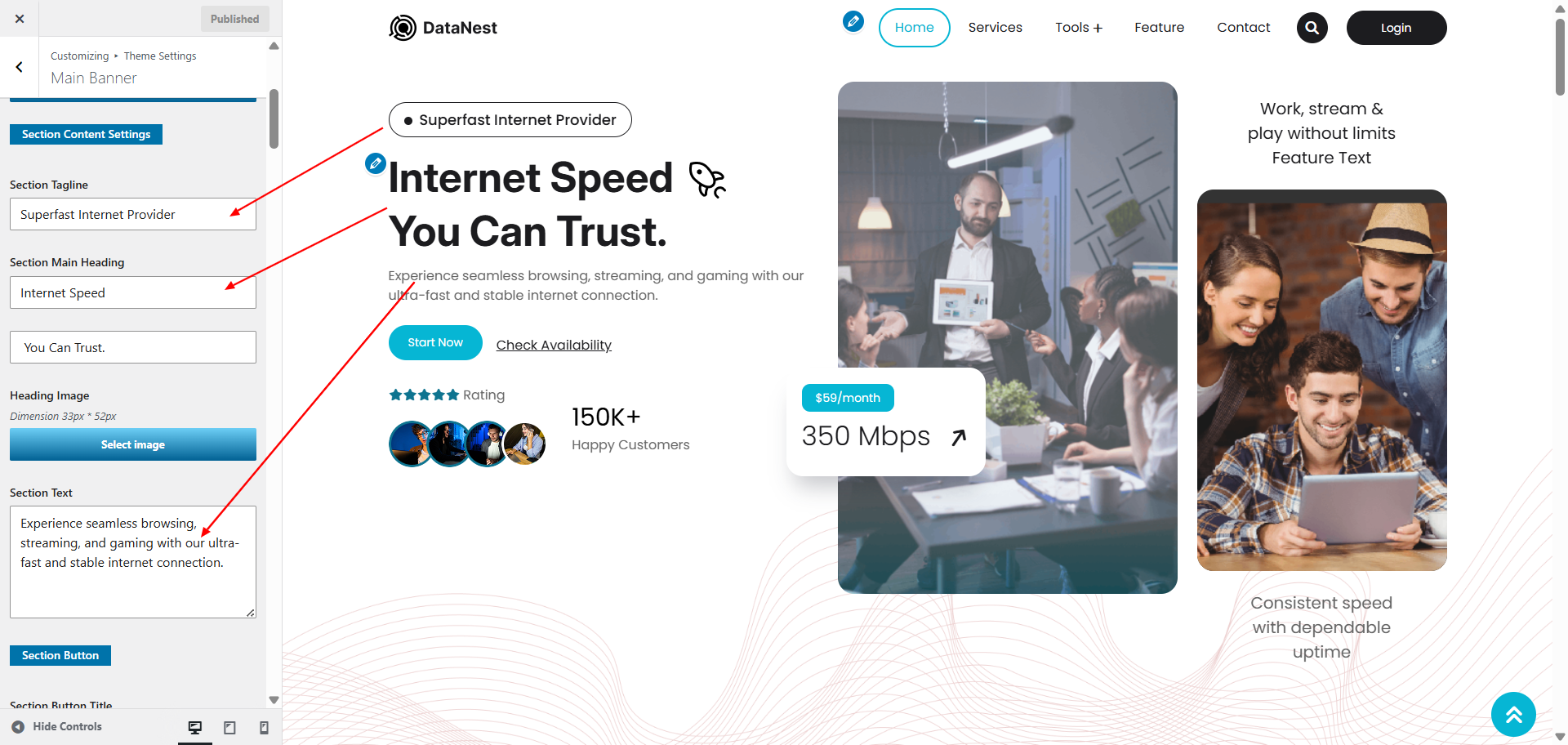
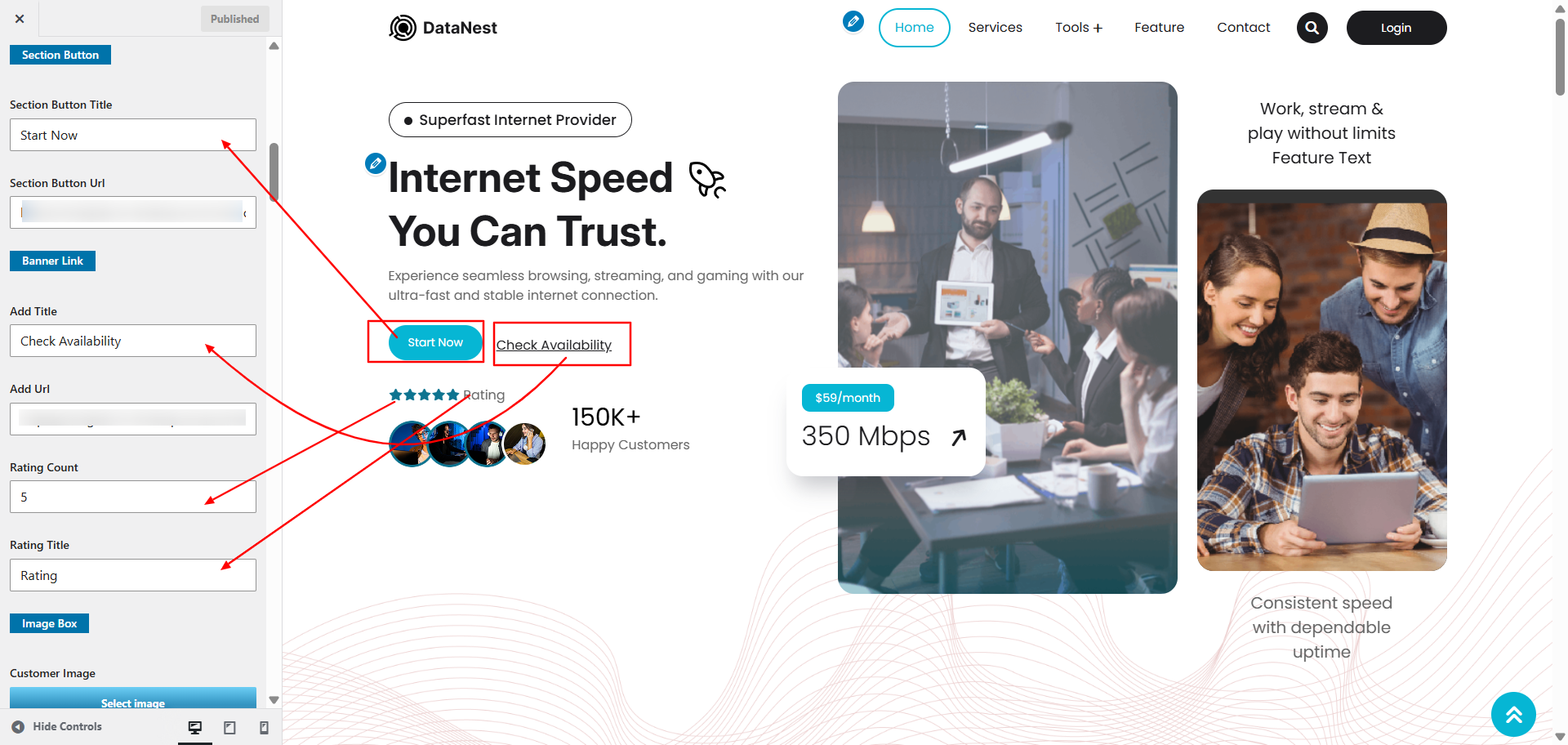
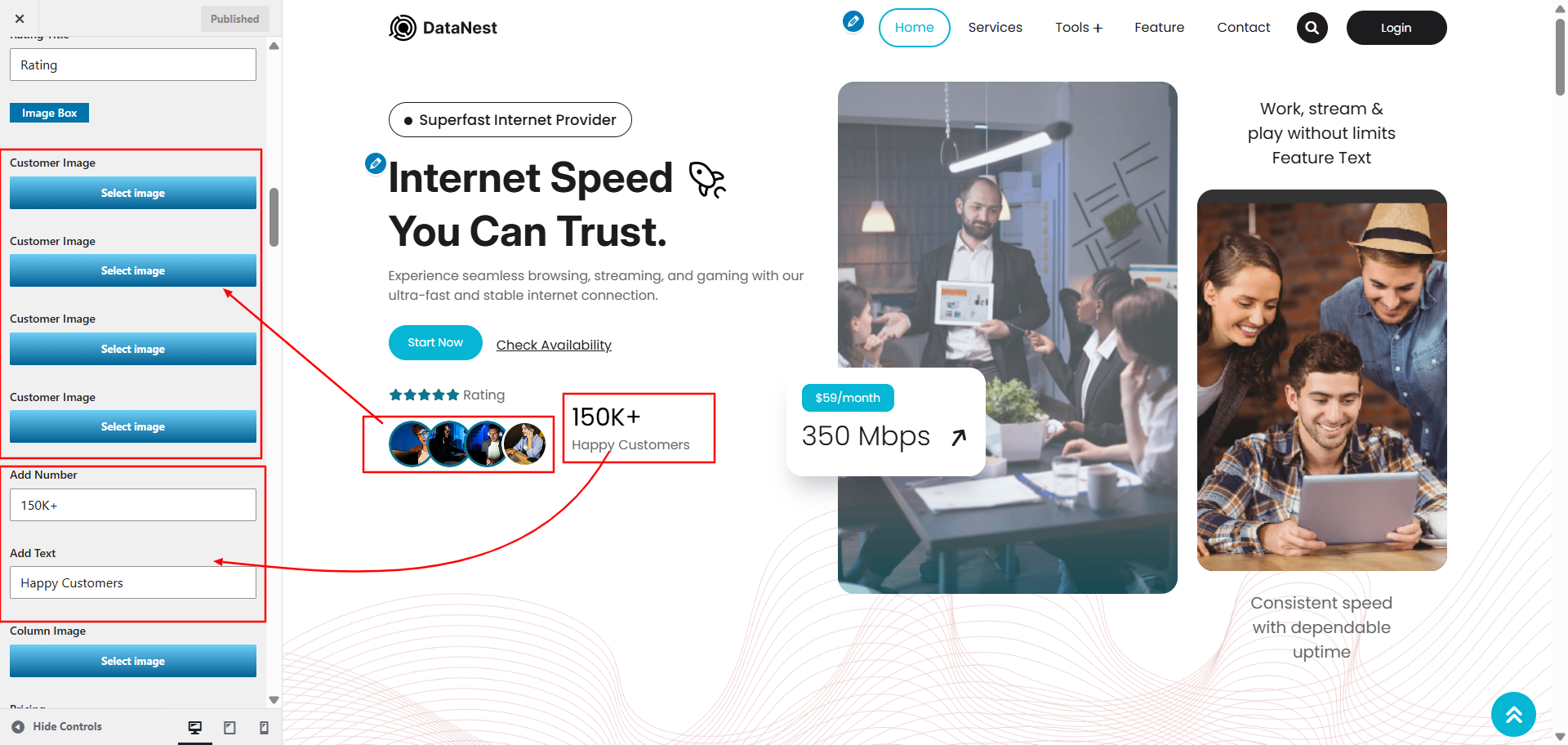
9.4. Setup Partners section
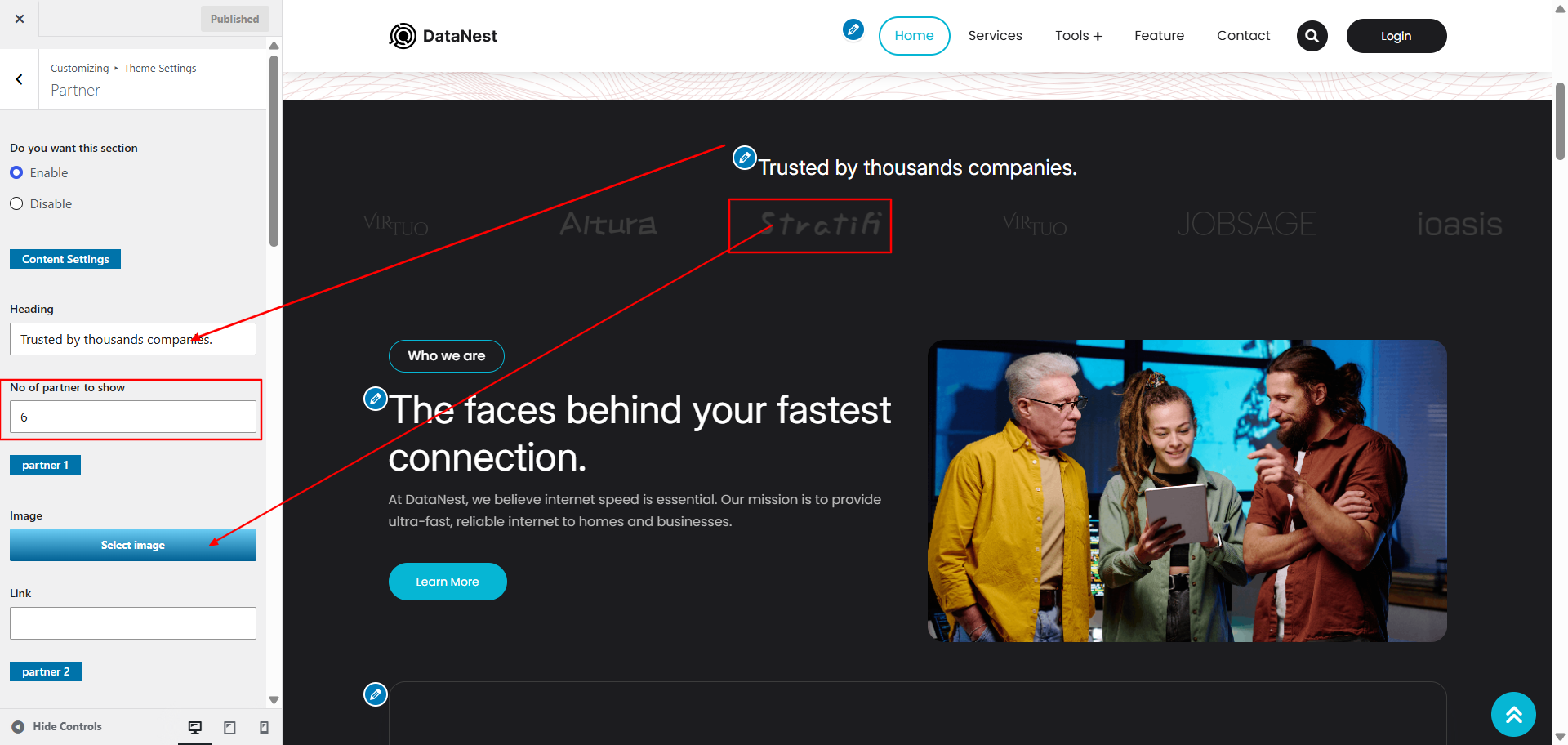
To proceed with the Partners section.
Go to Appearance >> Customize >> Theme Settings >> Partners and update the content. Increase or decrease the partner as per your requirement.
9.4. Setup About Us section
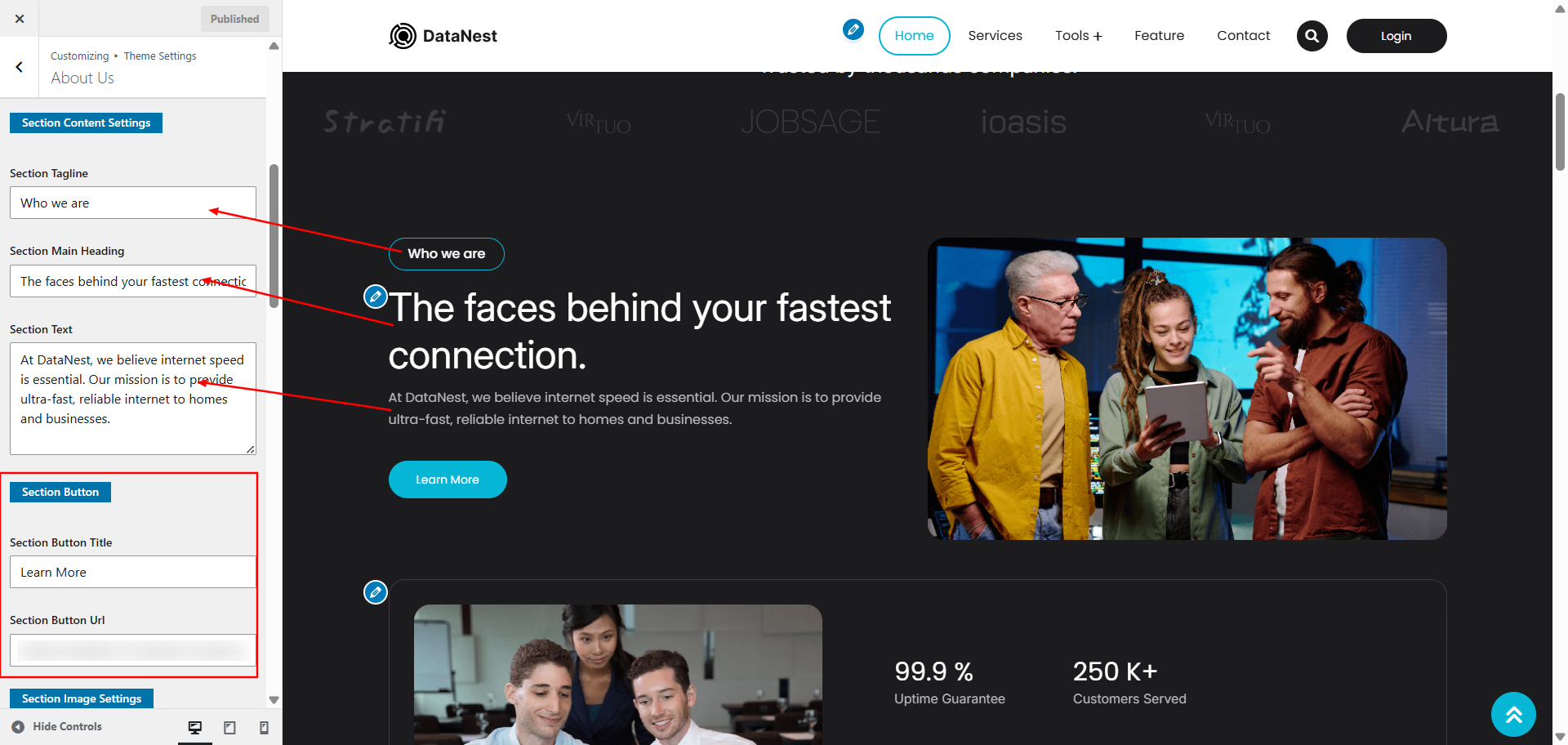
To proceed with the About Us section.
Go to Appearance >> Customize >> Theme Settings >> About Us and update the content.
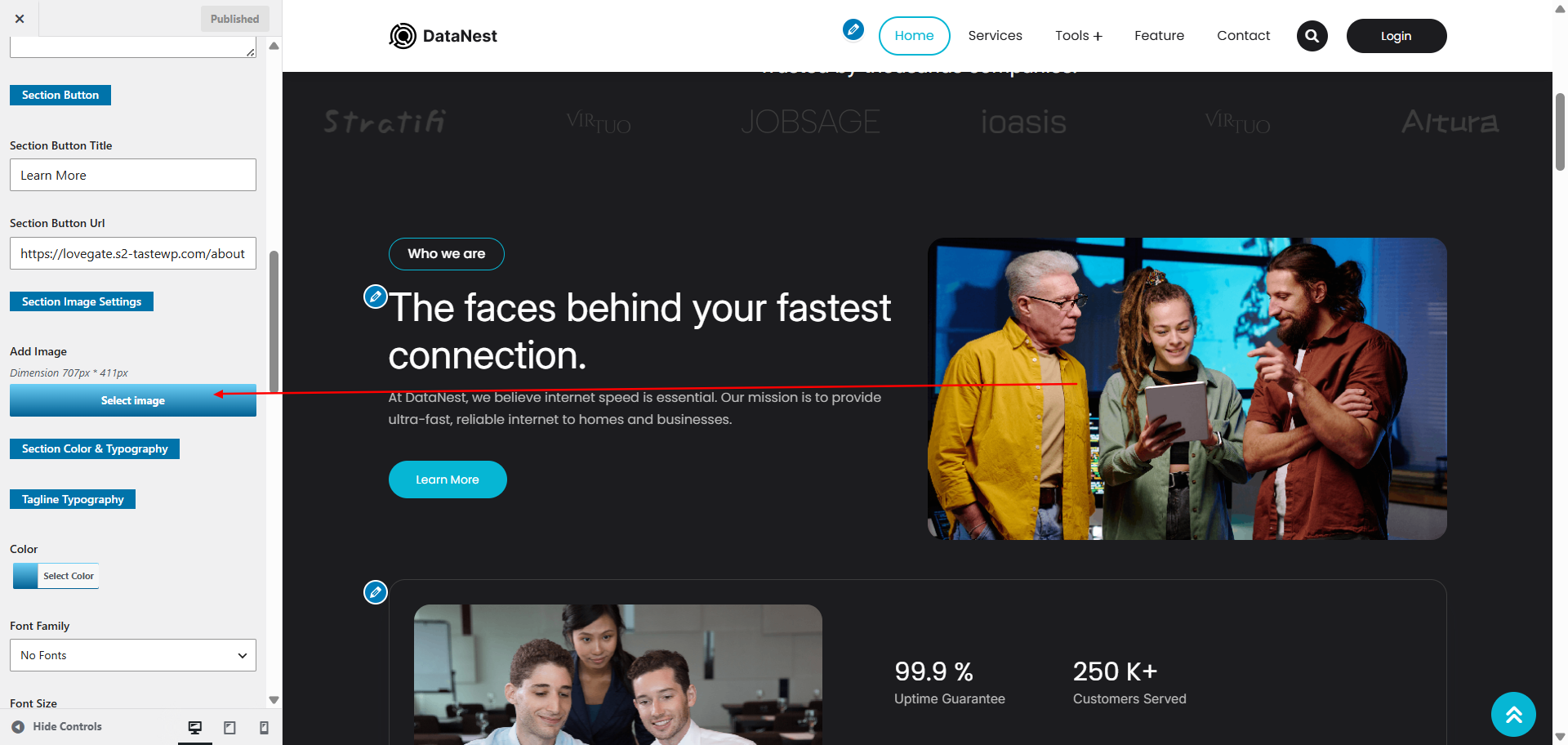
9.4. Setup Records section
To proceed with the Records section.
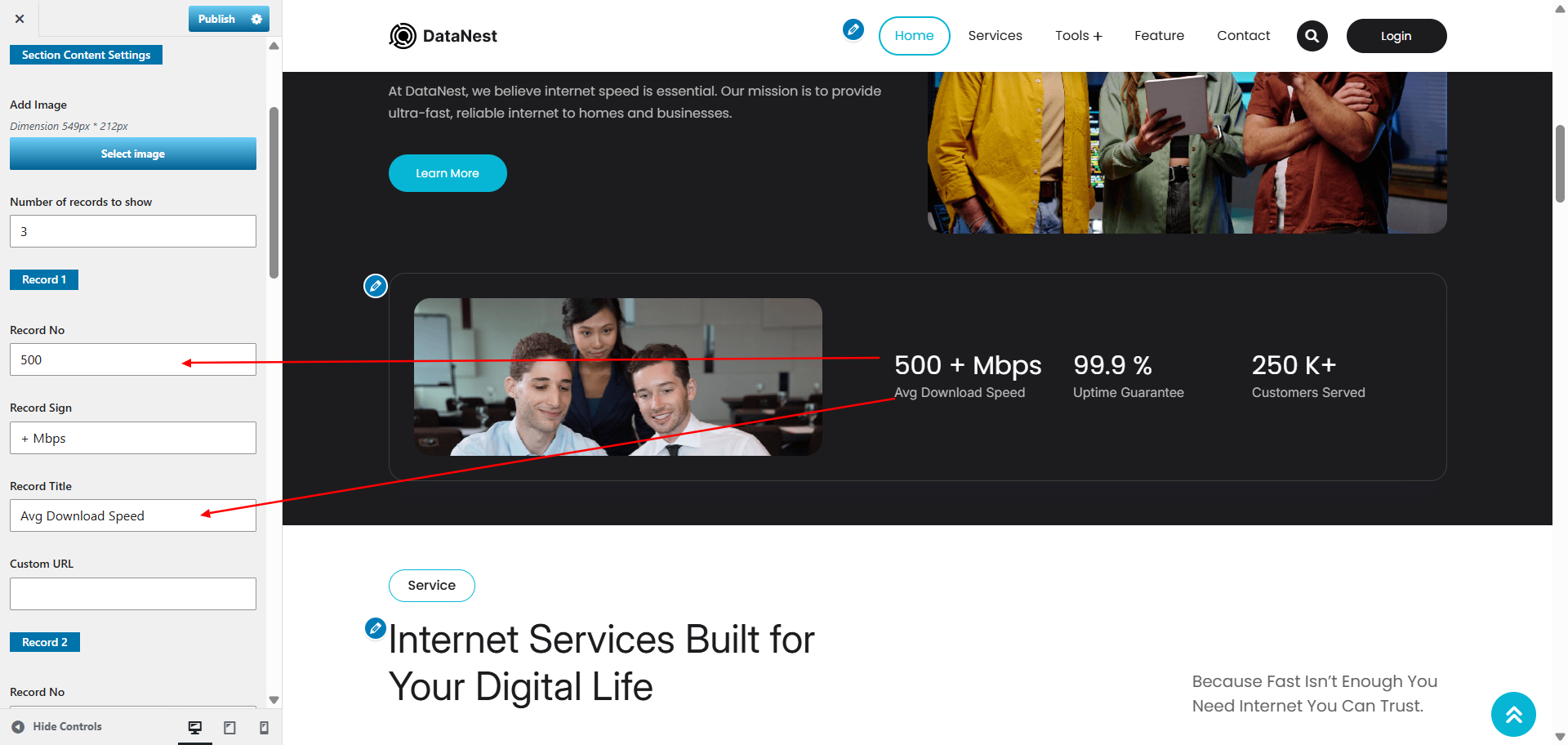
Go to Appearance >> Customize >> Theme Settings >> Records and update the content. Increase or decrease the record block as per your requirement.
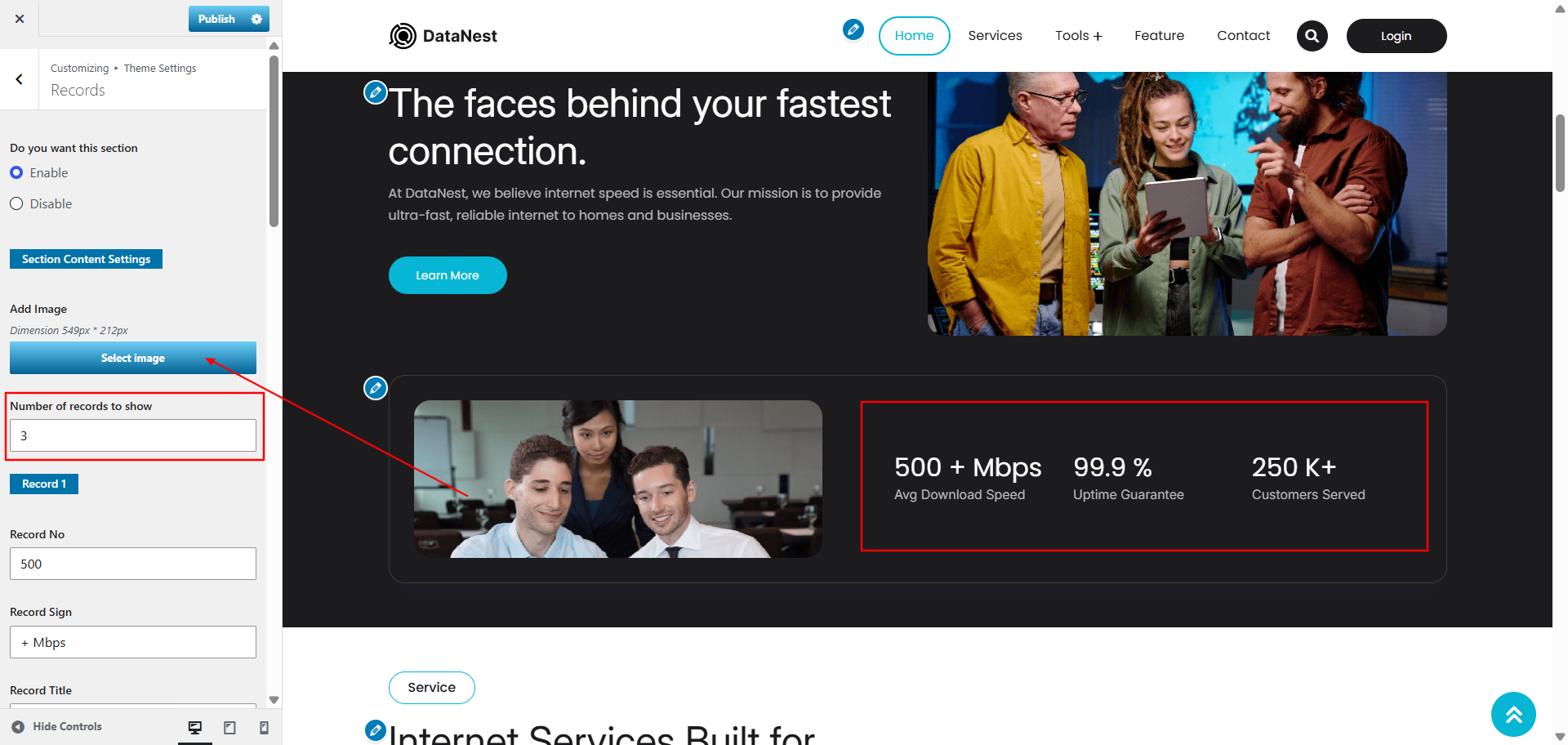
9.4. Setup Services section
To proceed with the Services section.
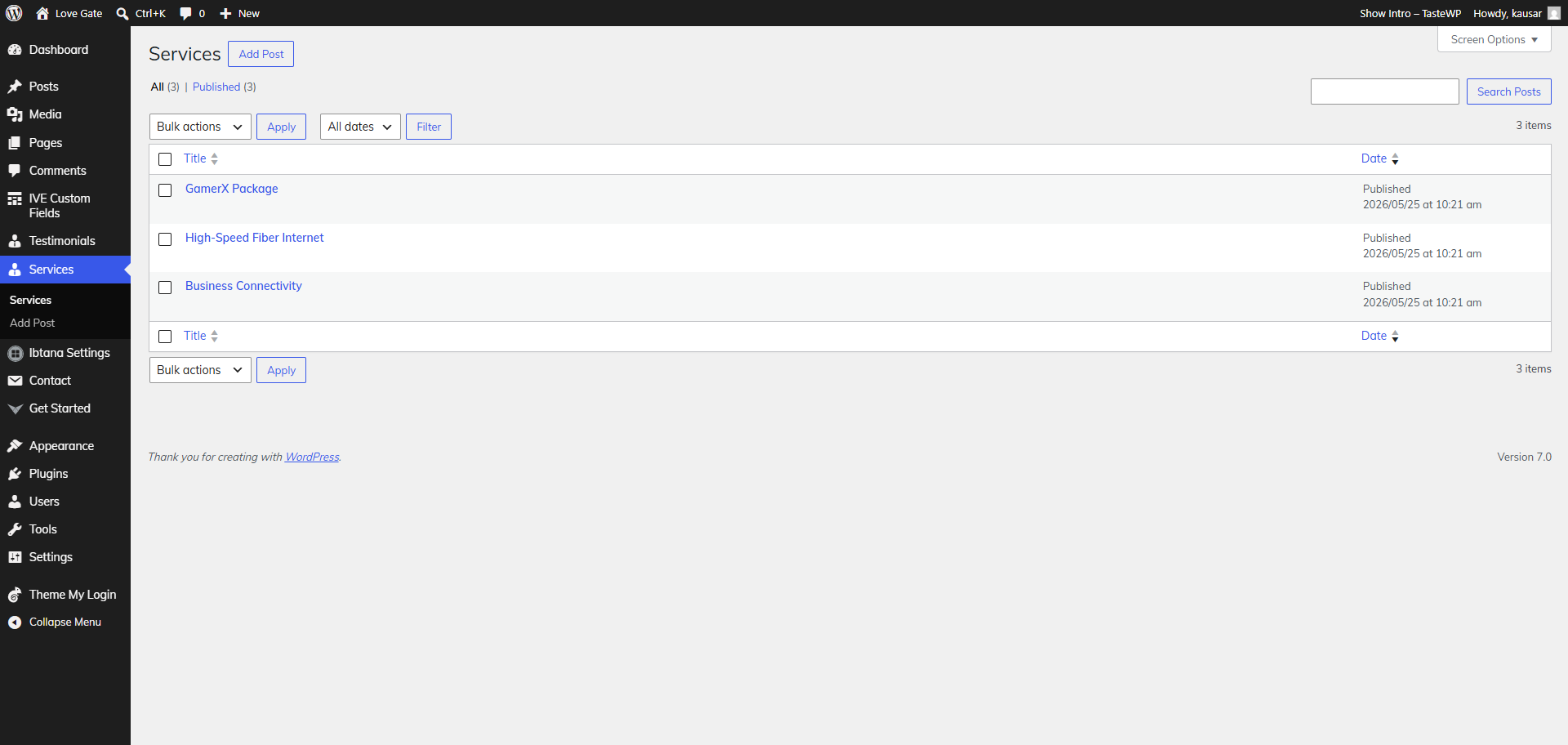
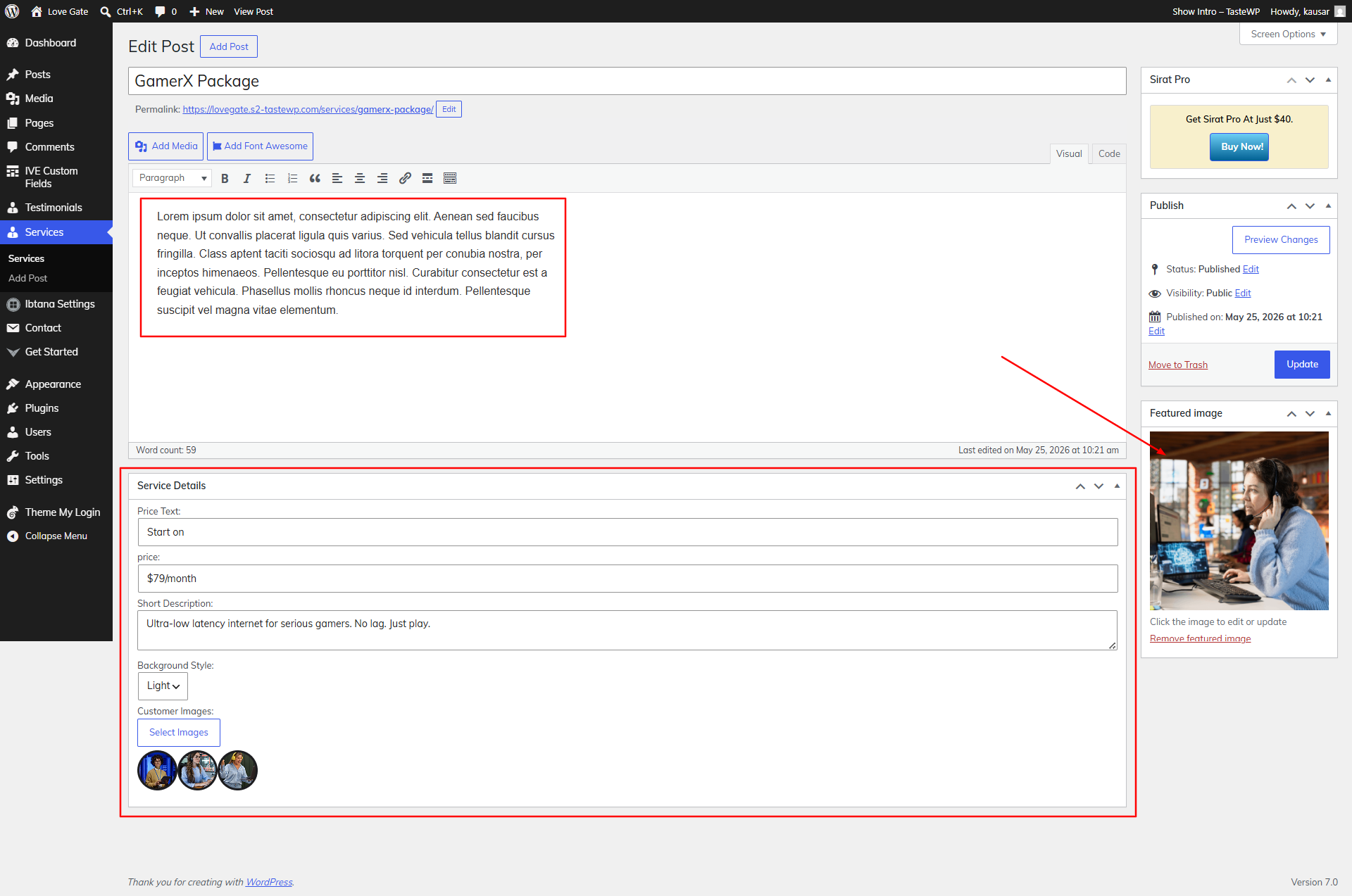
Go to Appearance >> Customize >> Theme Settings >> Services and update the content.
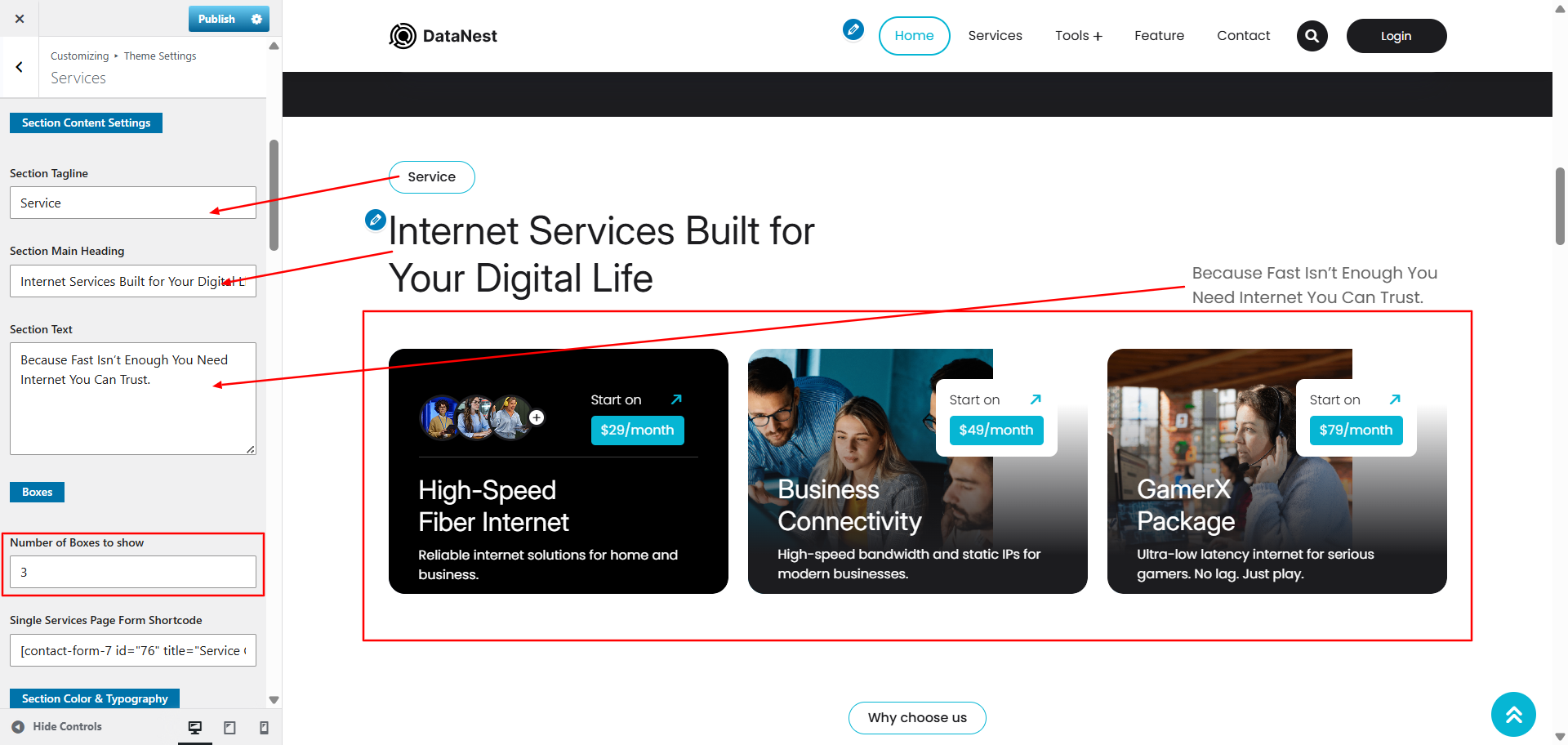
Go to Appearance >> Services >> and update the demo services post. You can create new one as well.
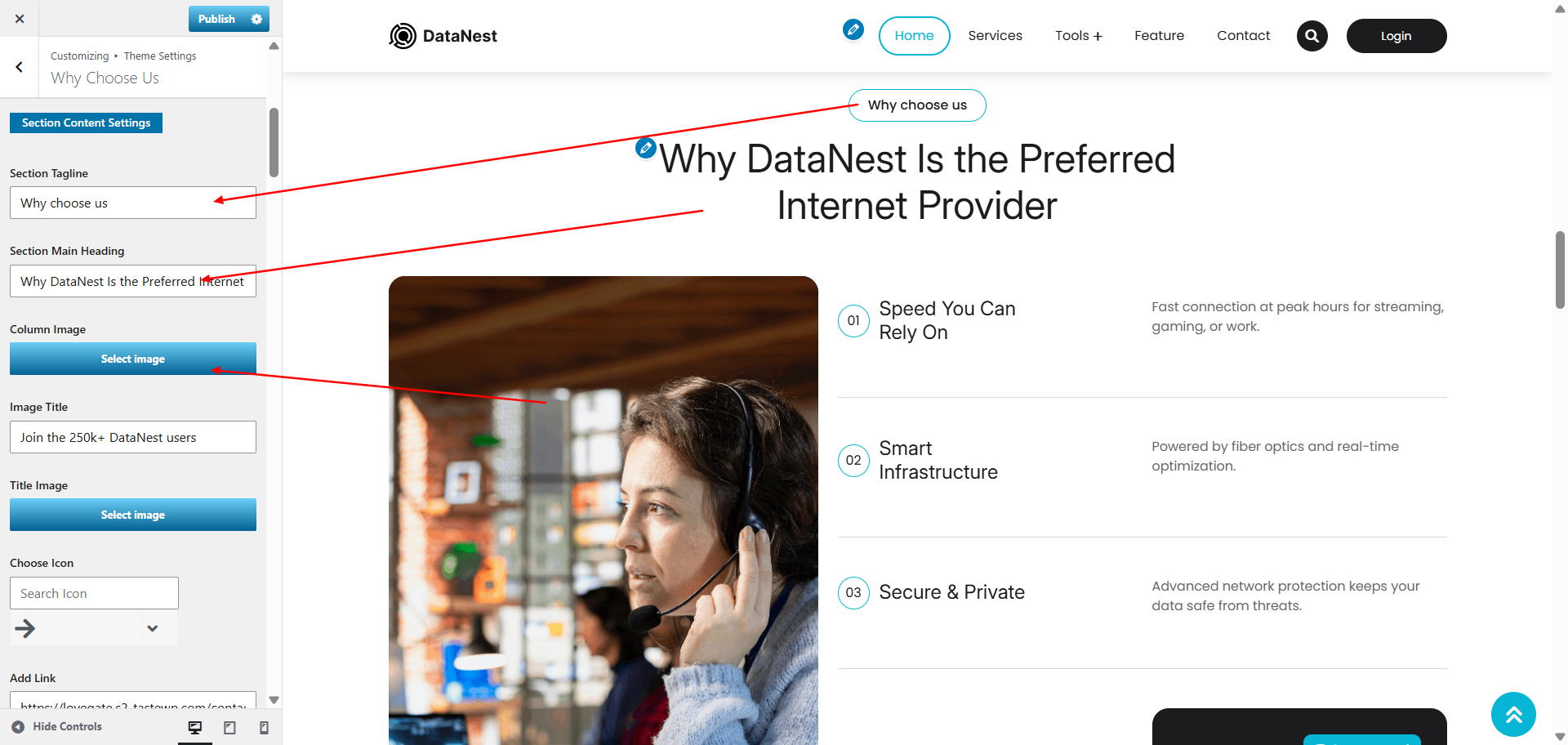
9.4. Setup Why Choose Us section
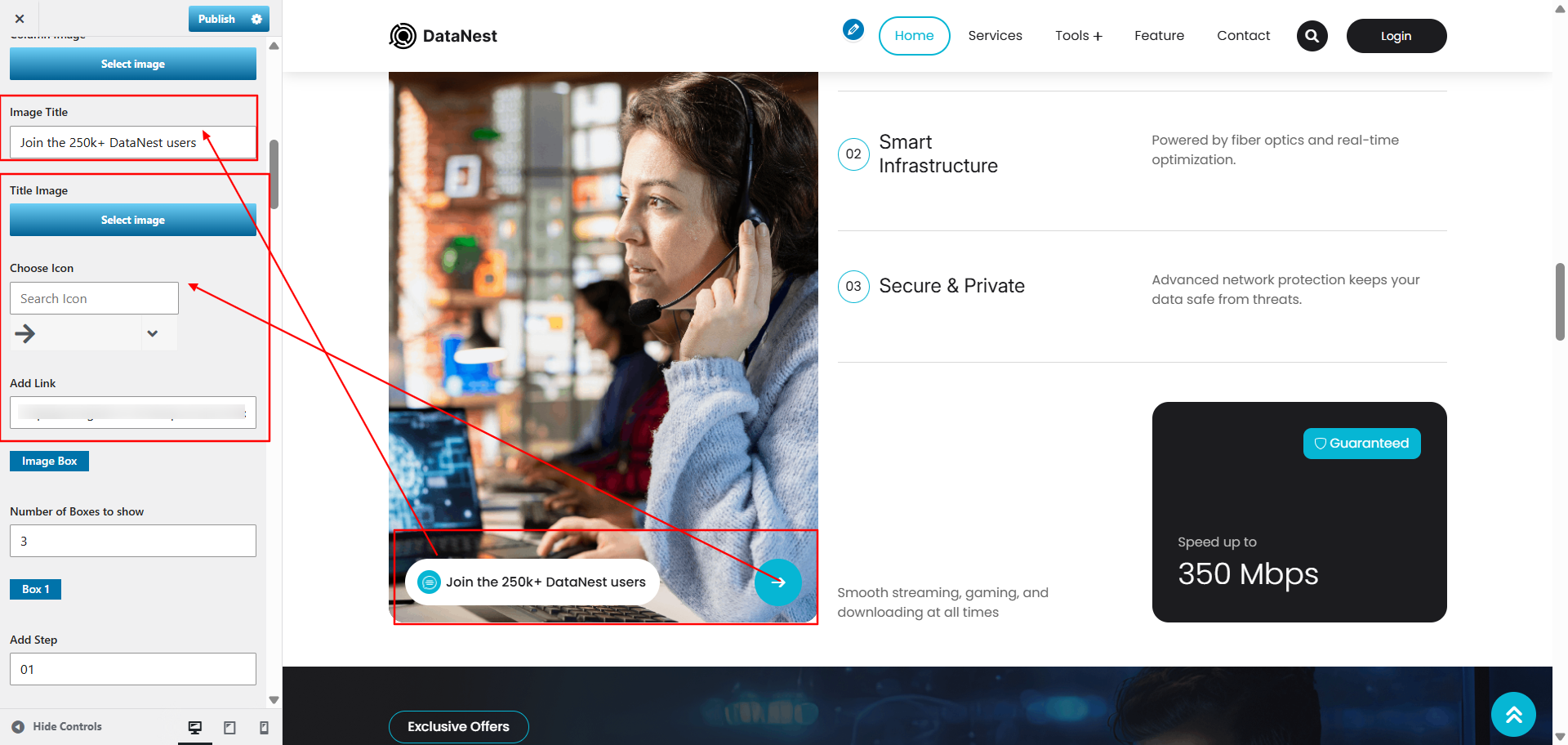
To proceed with the Why Choose Us section.
Go to Appearance >> Customize >> Theme Settings >> Why Choose Us and update the content.
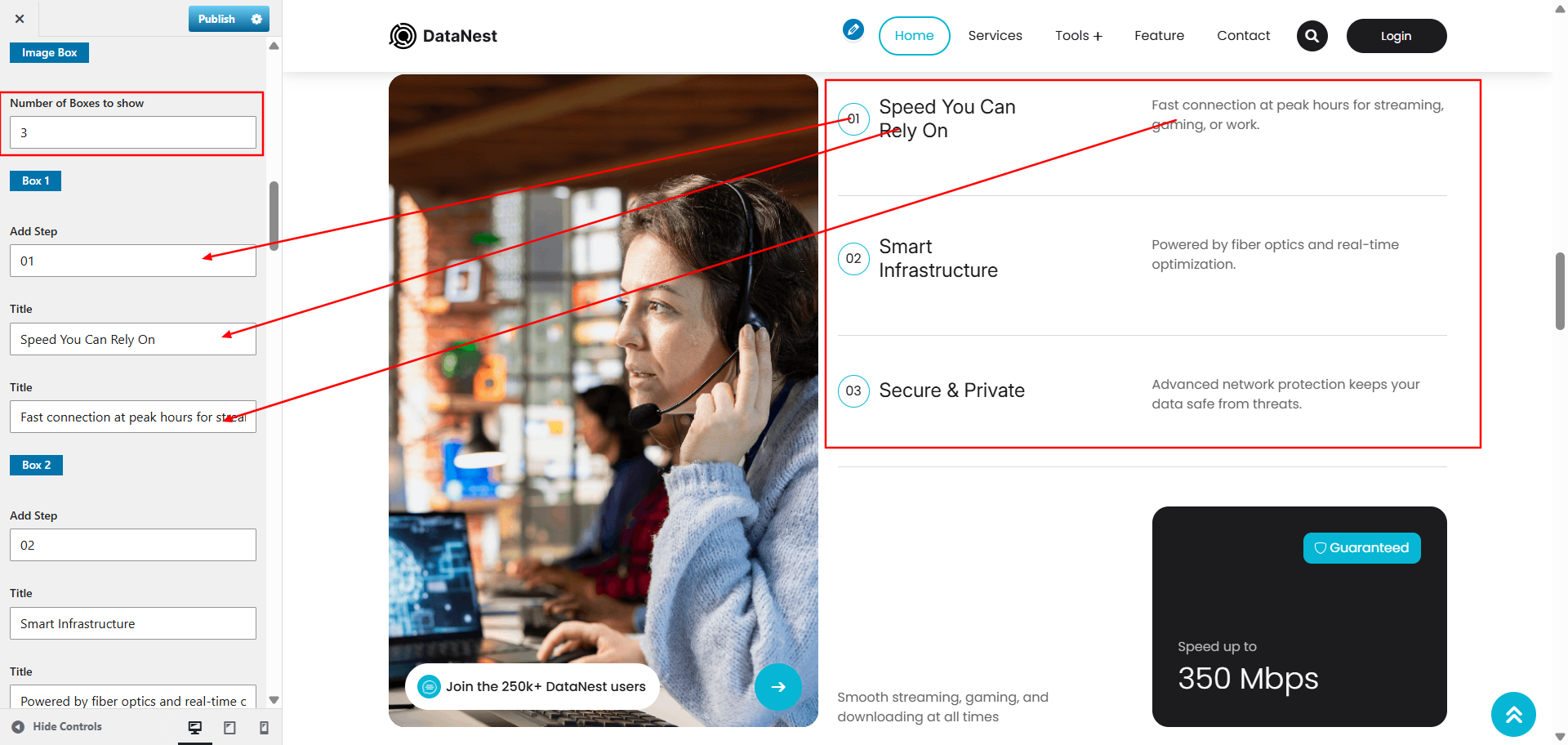
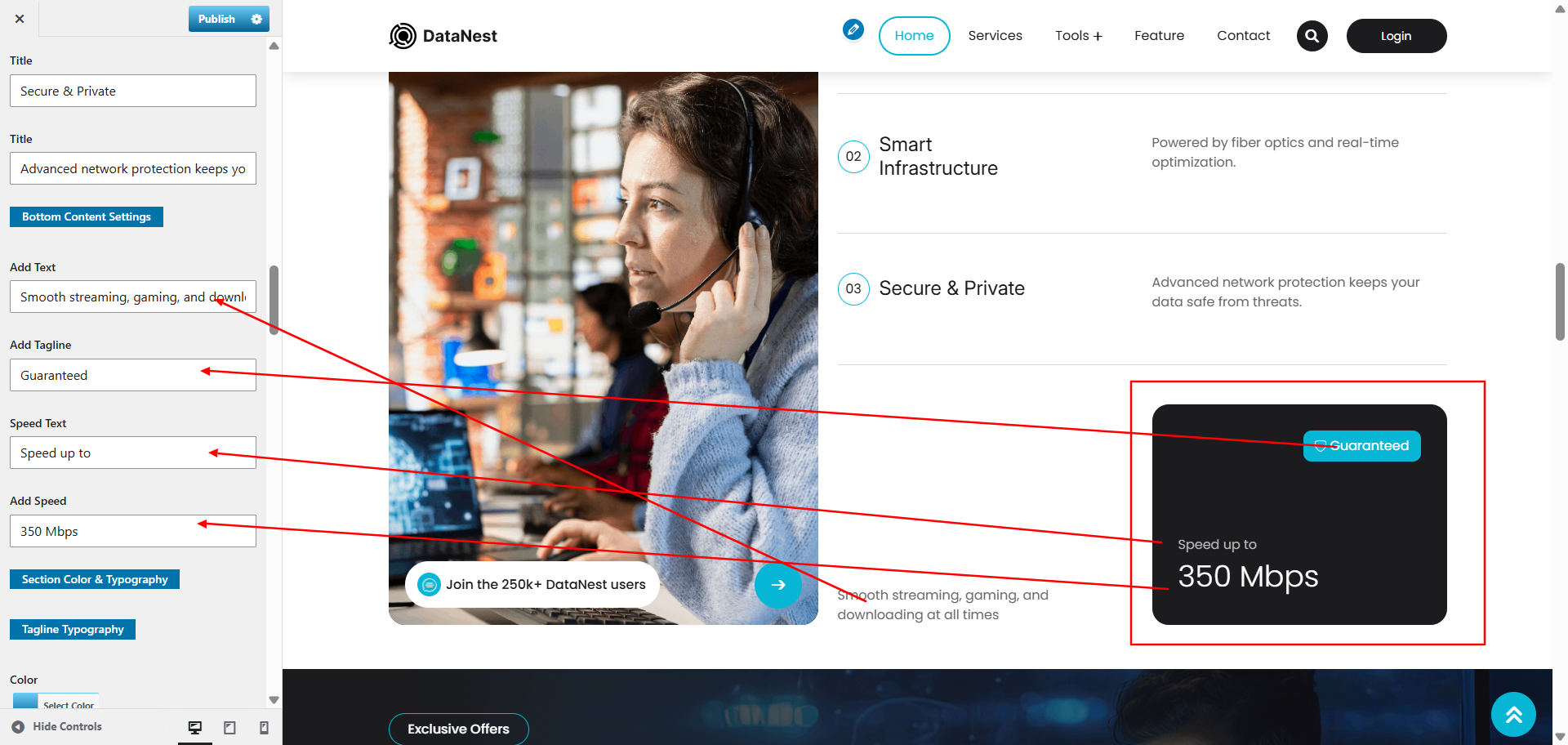
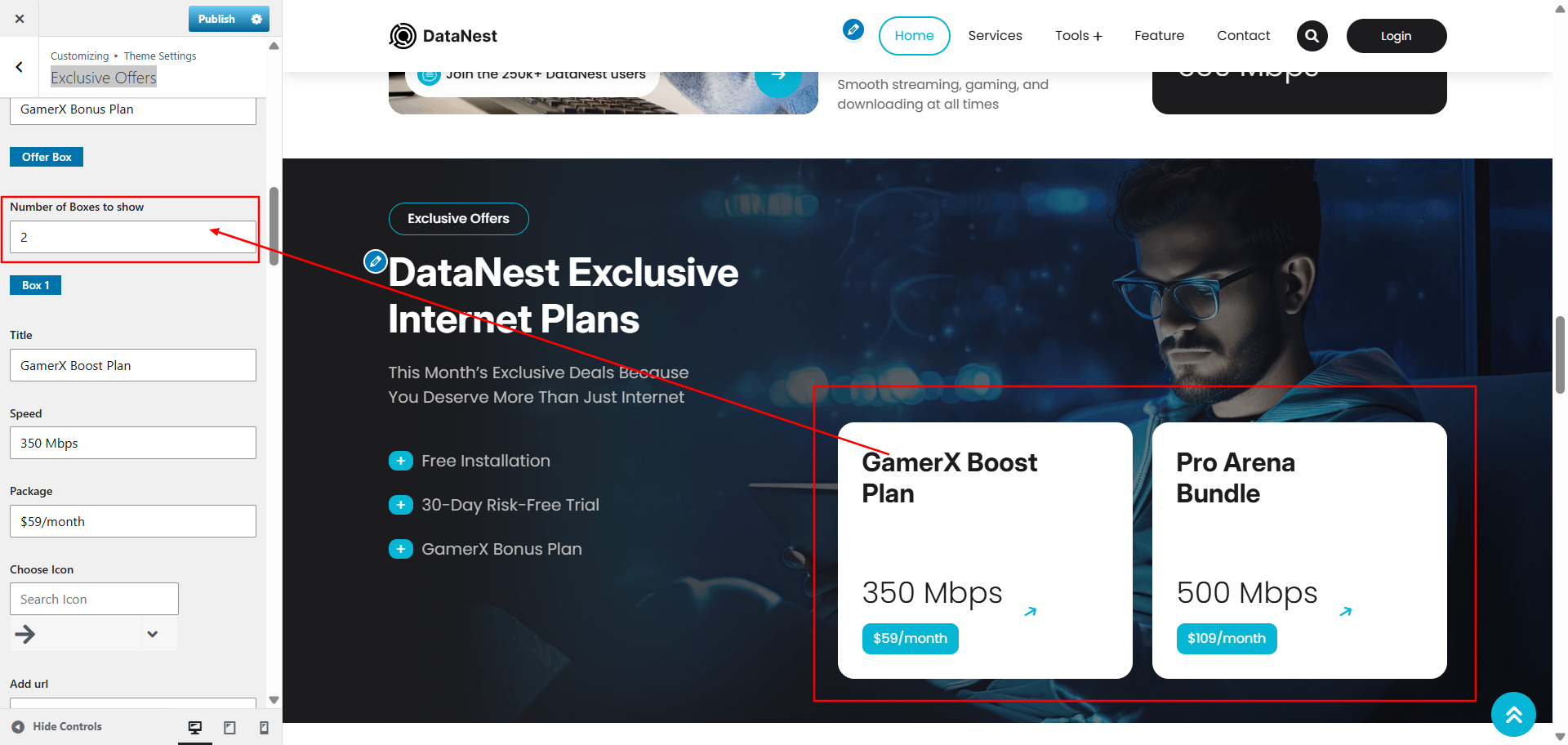
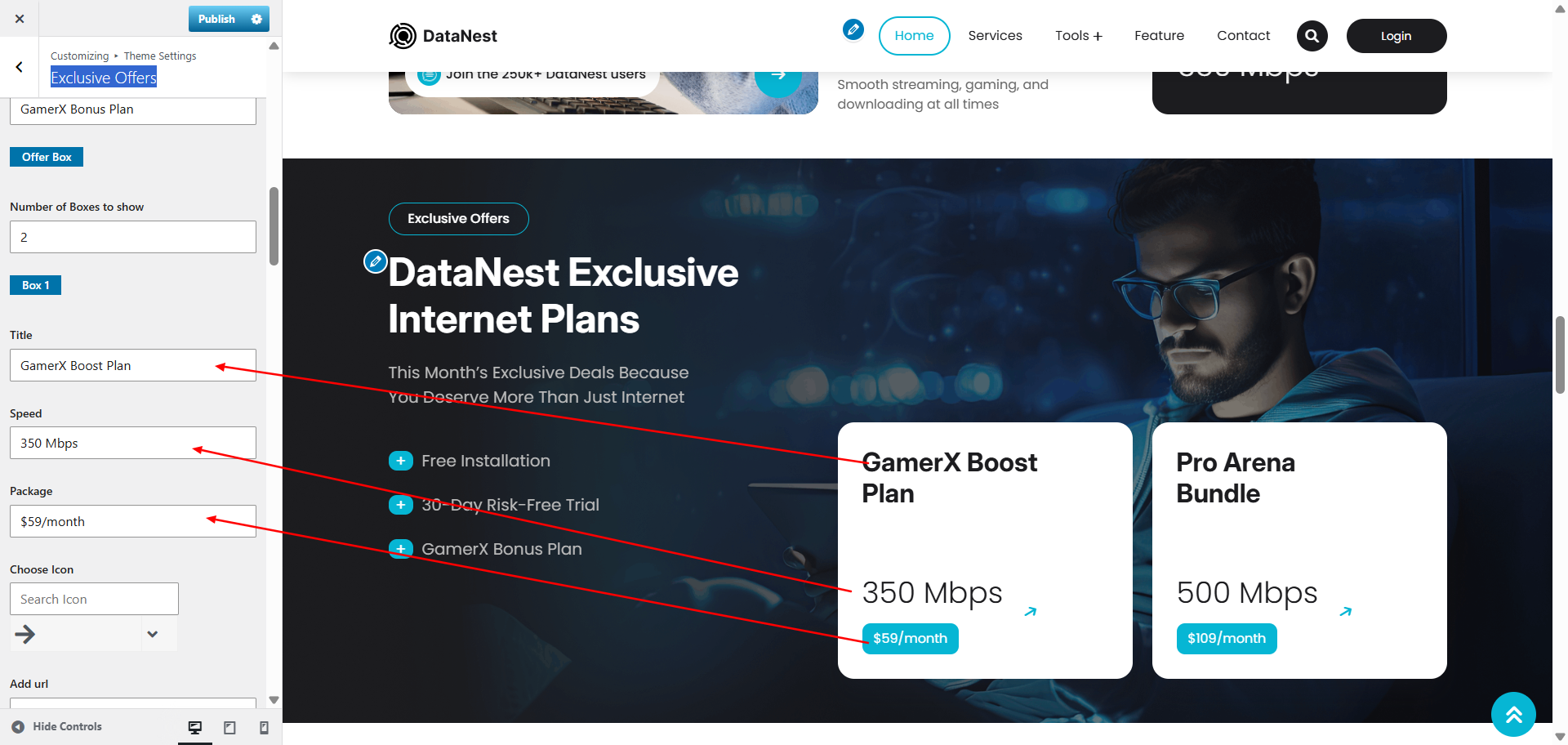
9.4. Setup Exclusive Offers section
To proceed with the Exclusive Offers section.
Go to Appearance >> Customize >> Theme Settings >> Exclusive Offers and update the content.
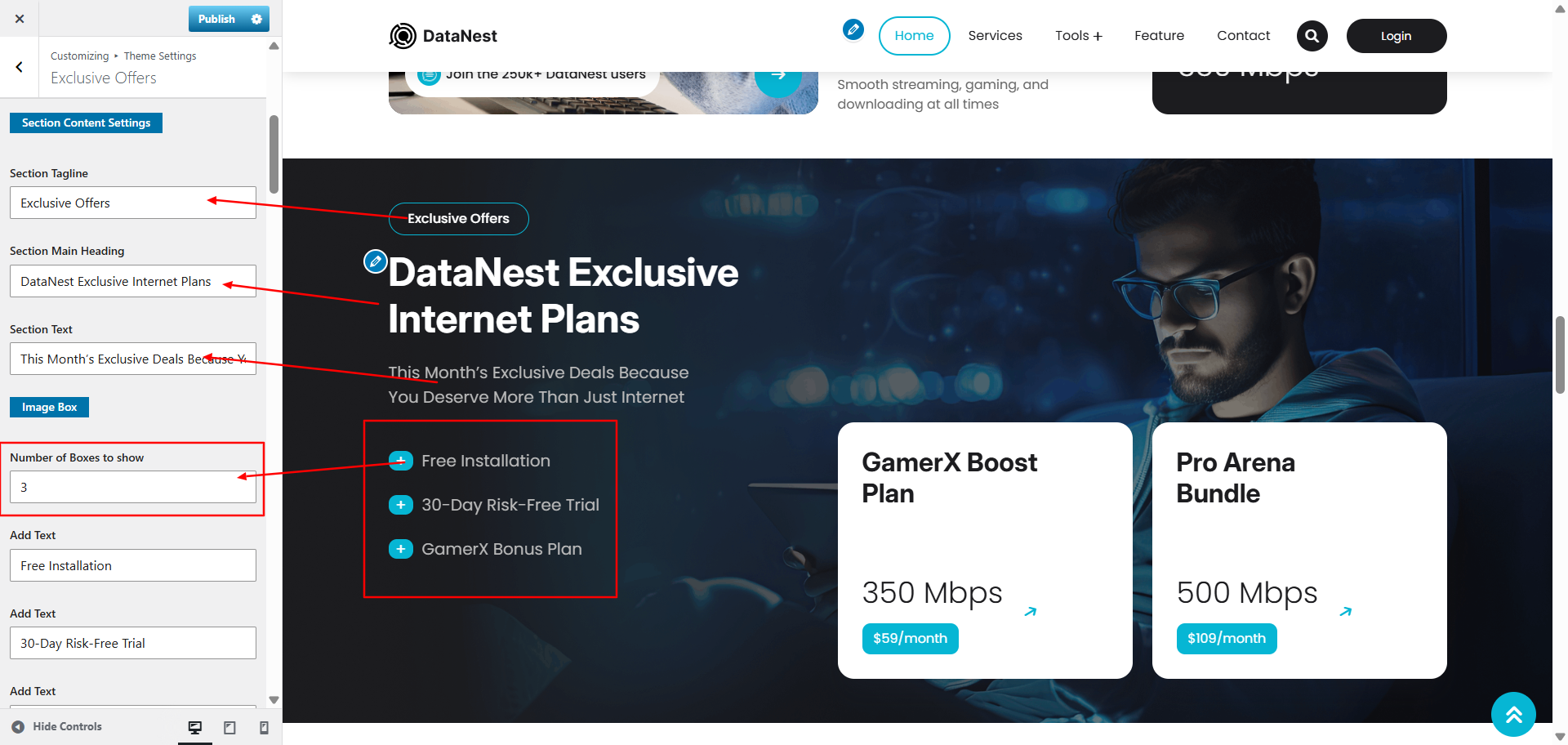
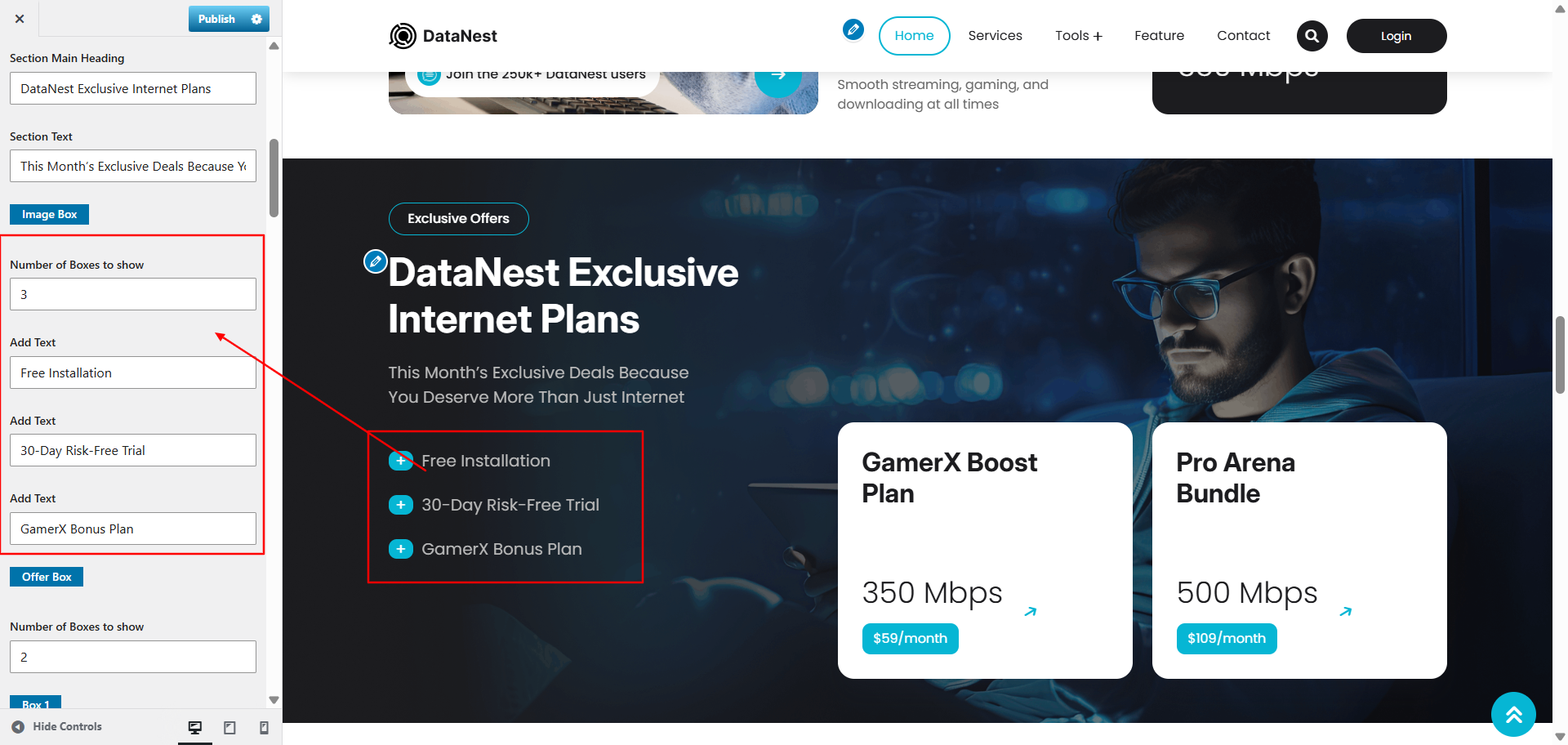
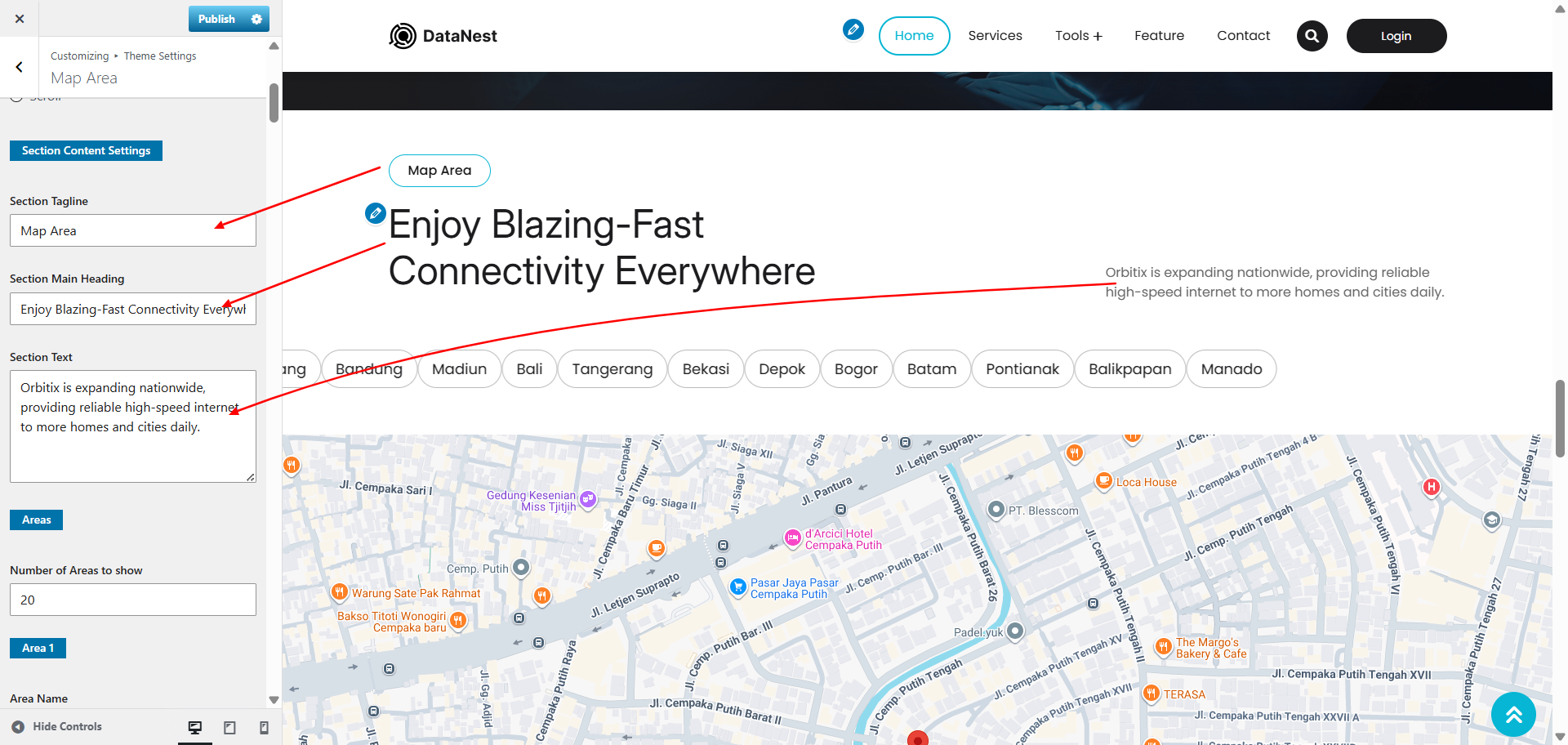
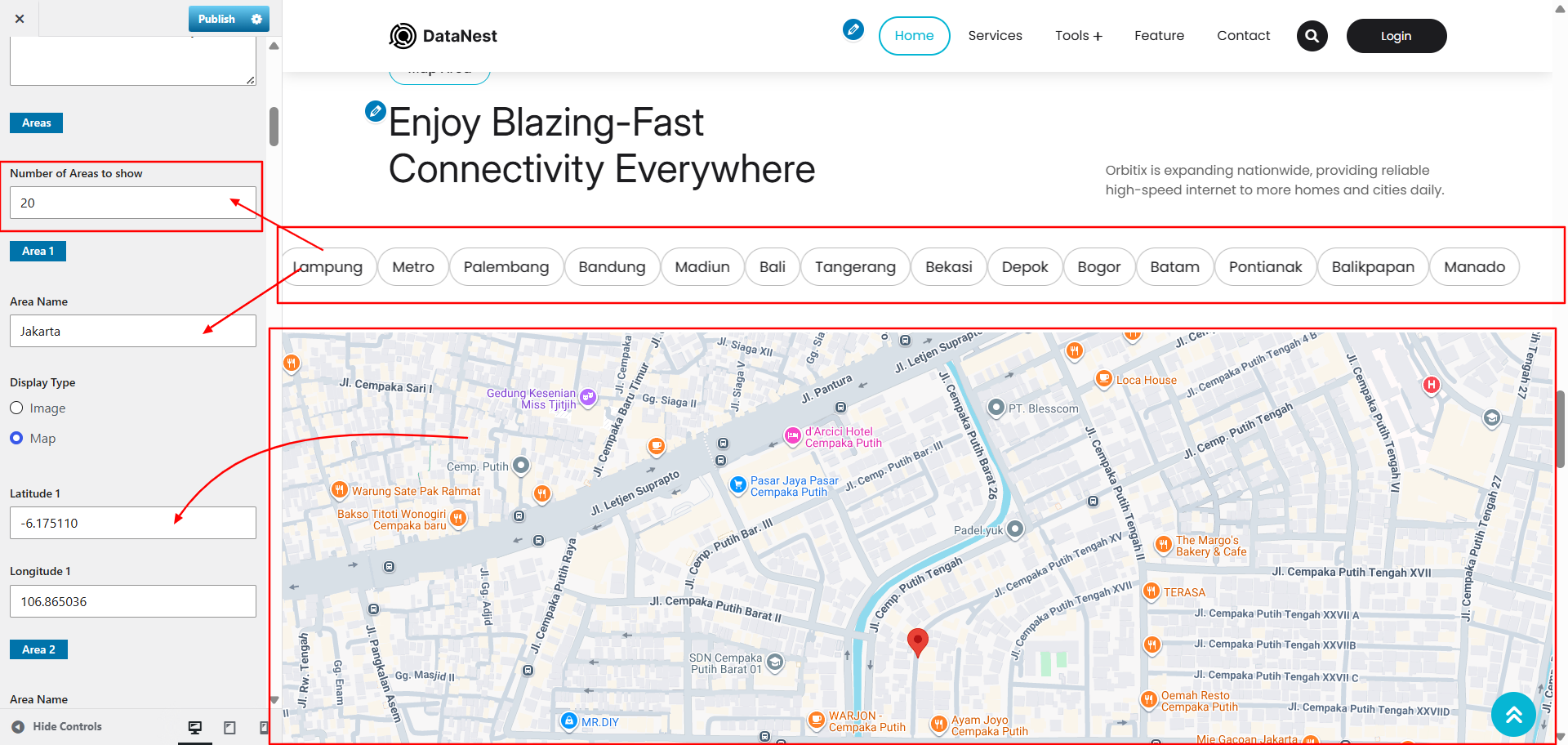
9.4. Setup Map Area section
To proceed with the Map Area section.
Go to Appearance >> Customize >> Theme Settings >> Map Area and update the content. Add or remove tab as per your requirement.
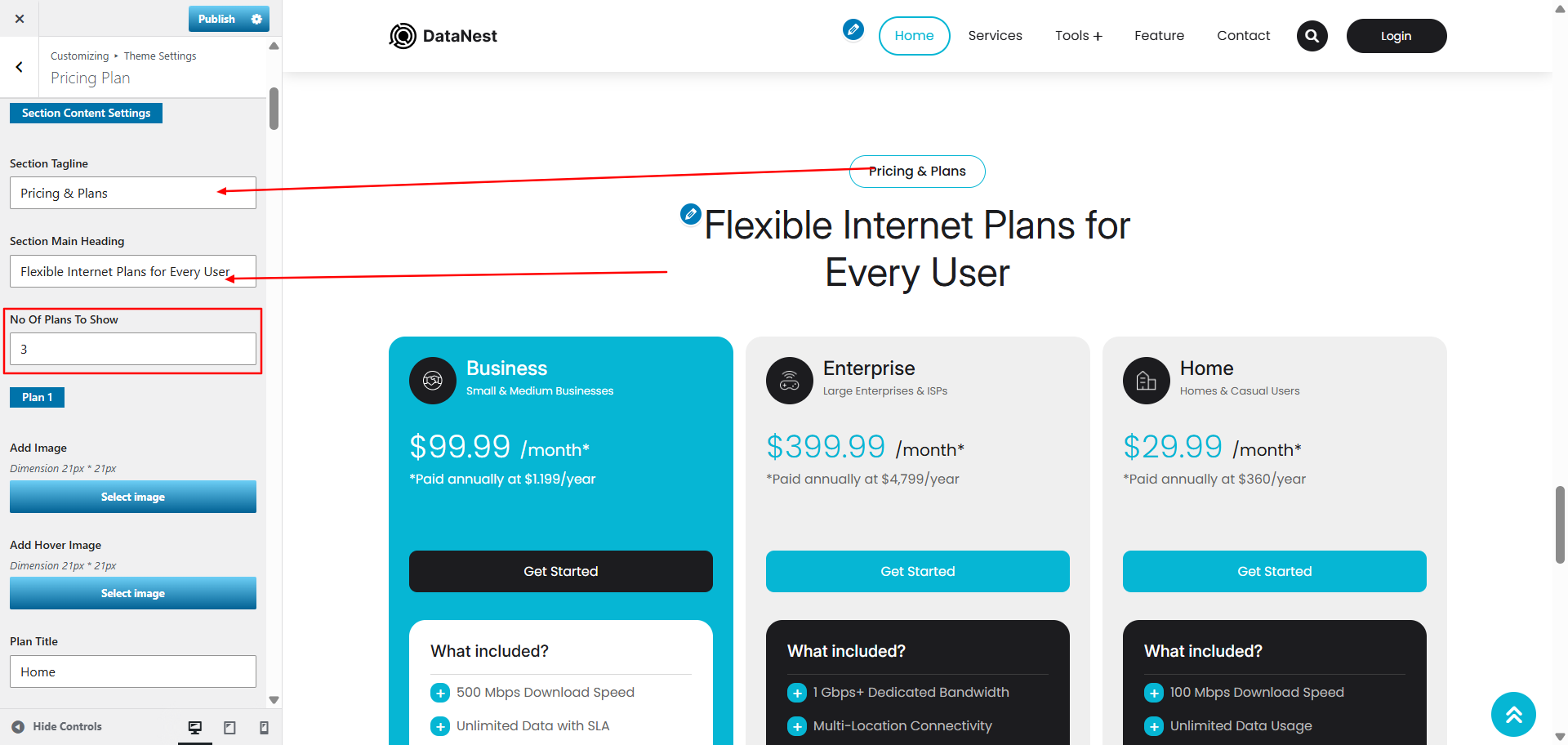
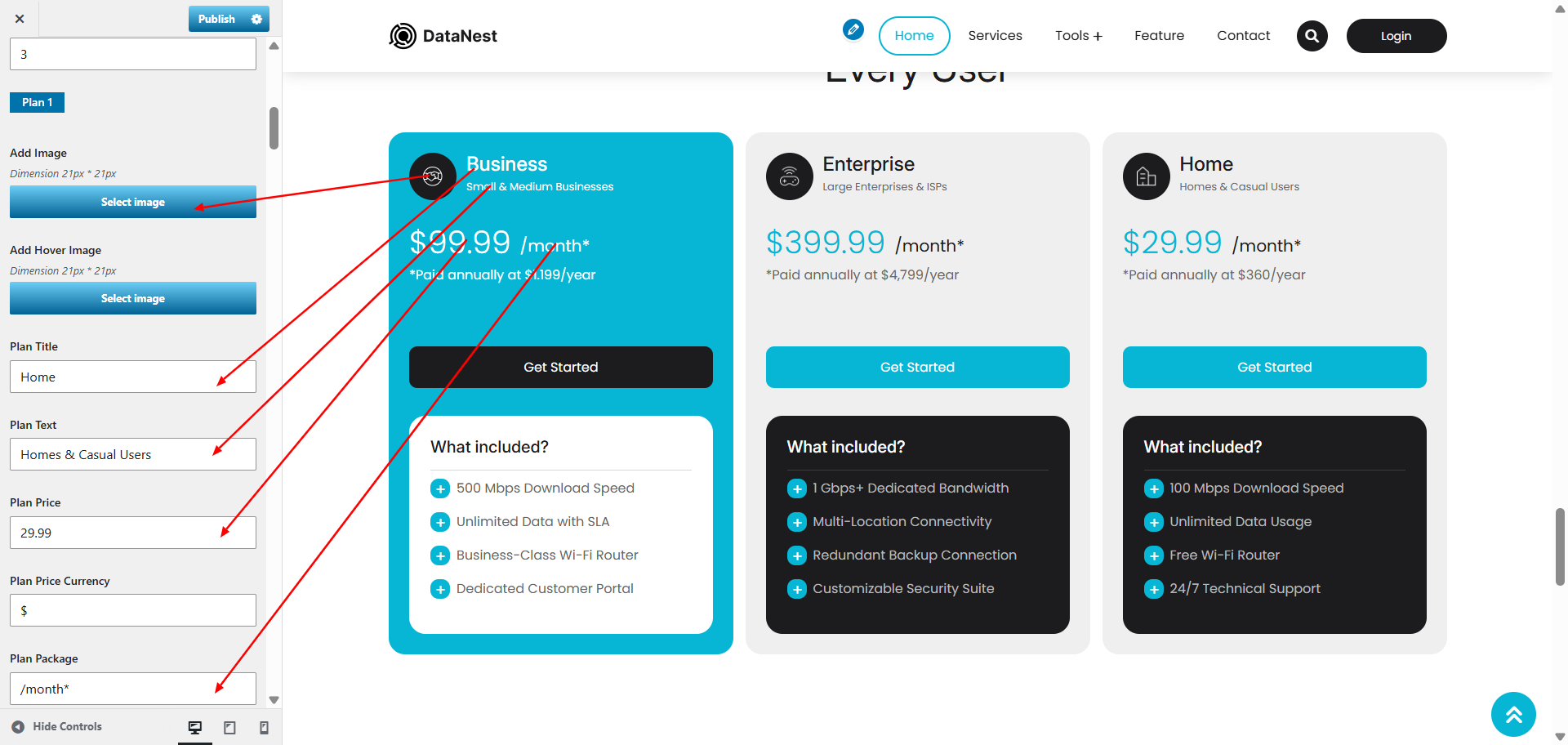
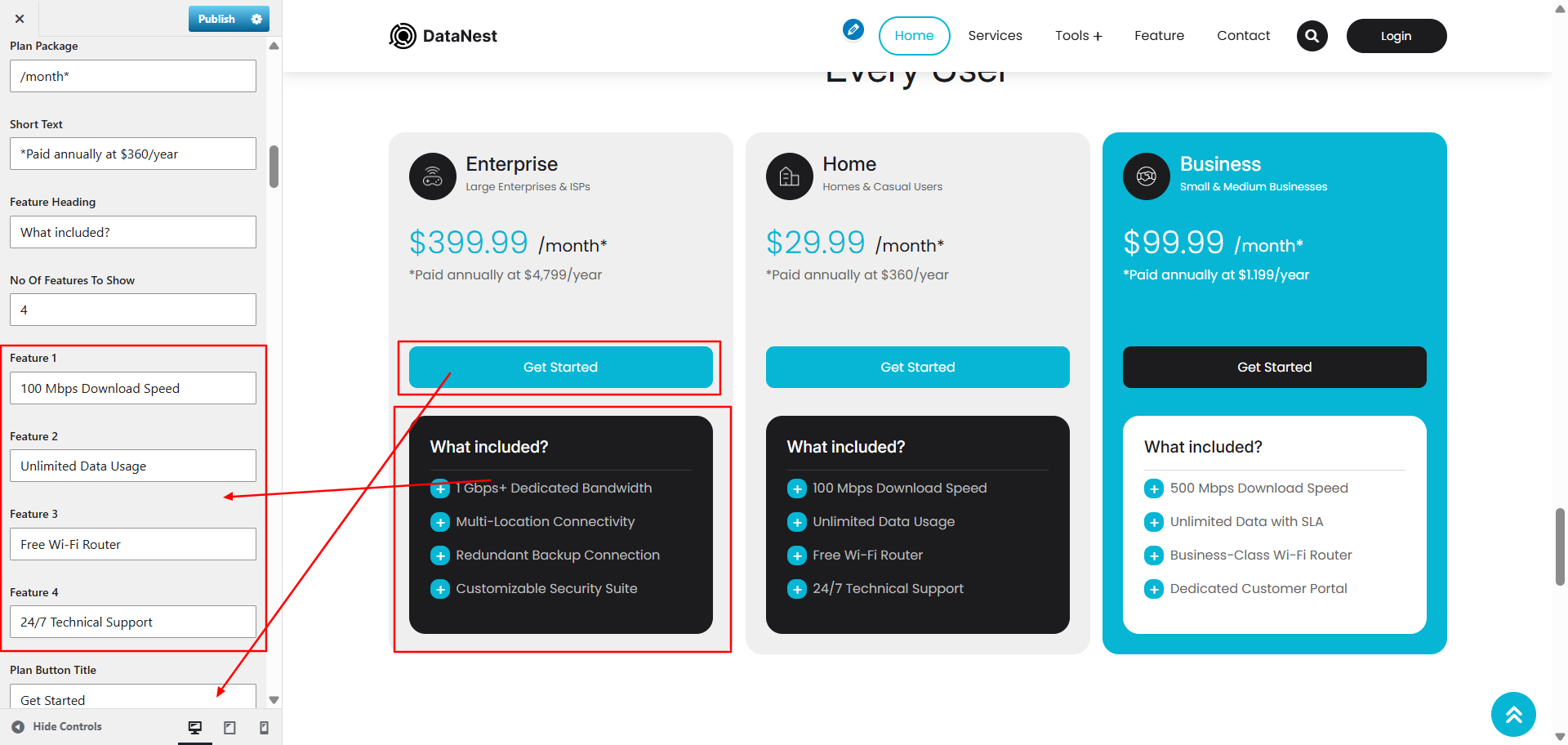
9.4. Setup Pricing Plan section
To proceed with the Pricing Plan section.
Go to Appearance >> Customize >> Theme Settings >> Pricing Plan and update the content. You can create new one as well.
9.4. Setup Testimonials Section
To proceed with the Testimonials section.
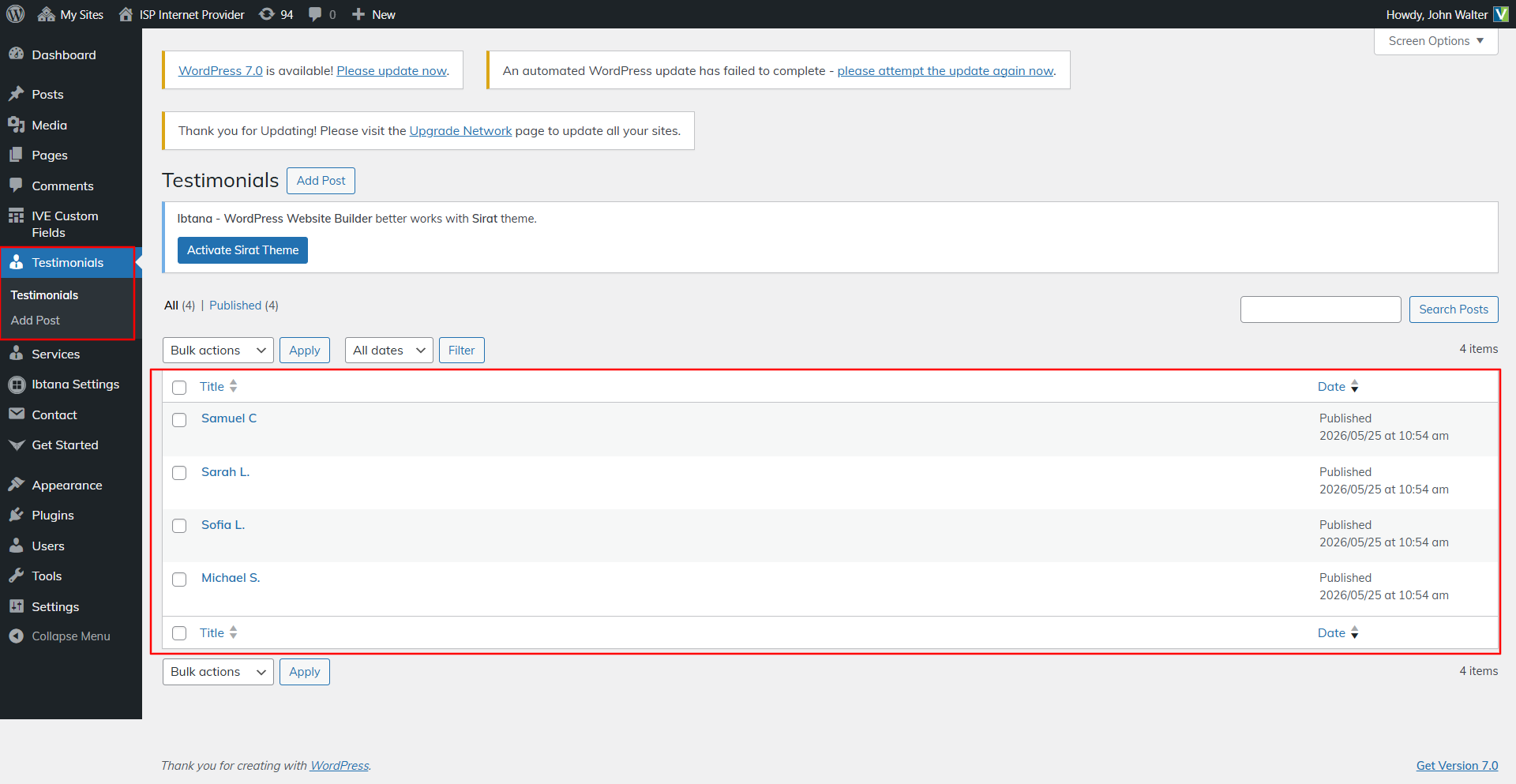
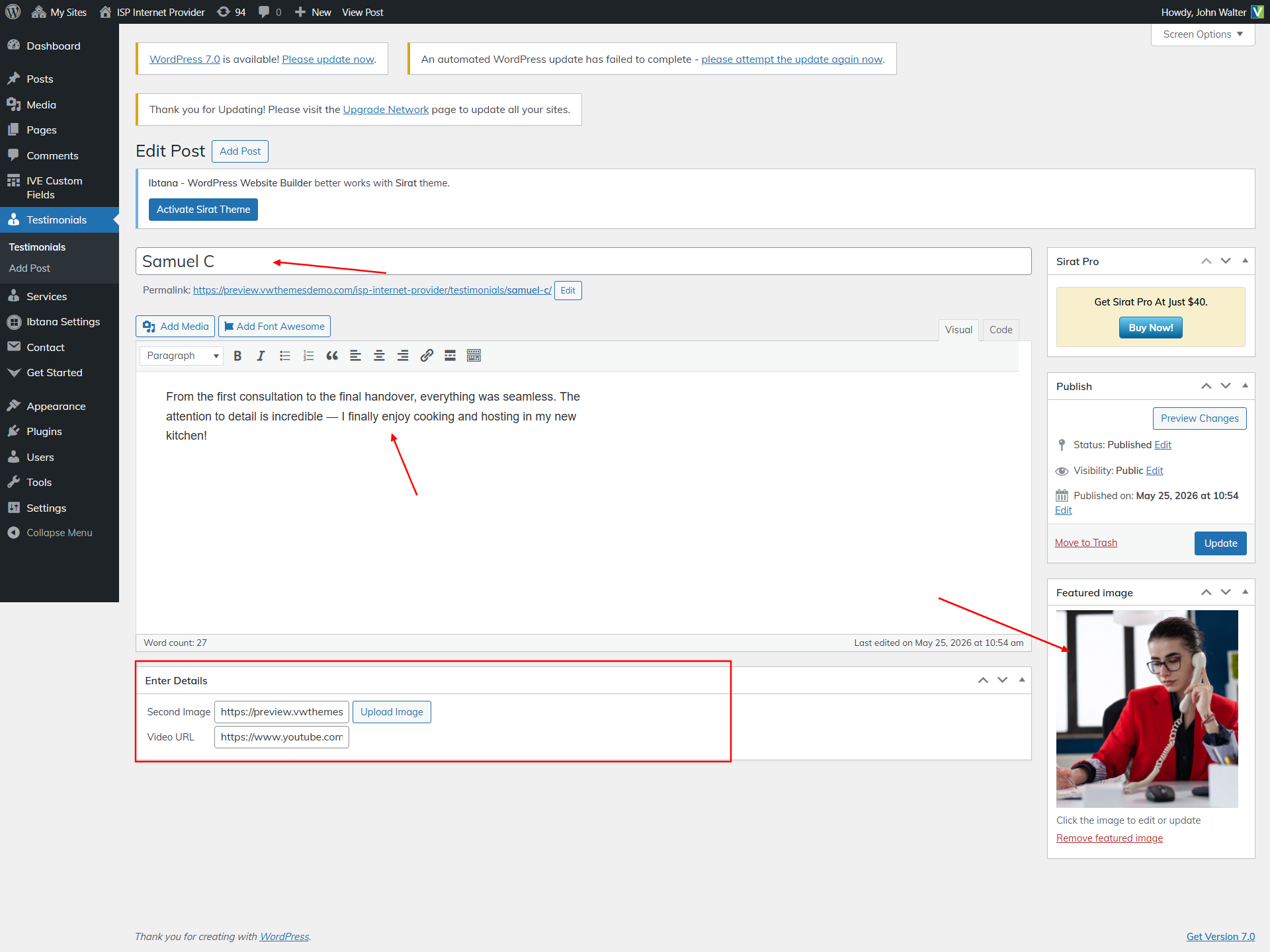
Go to Appearance >> Customize >> Theme Settings >> Testimonials and update the content. You can create new one as well.
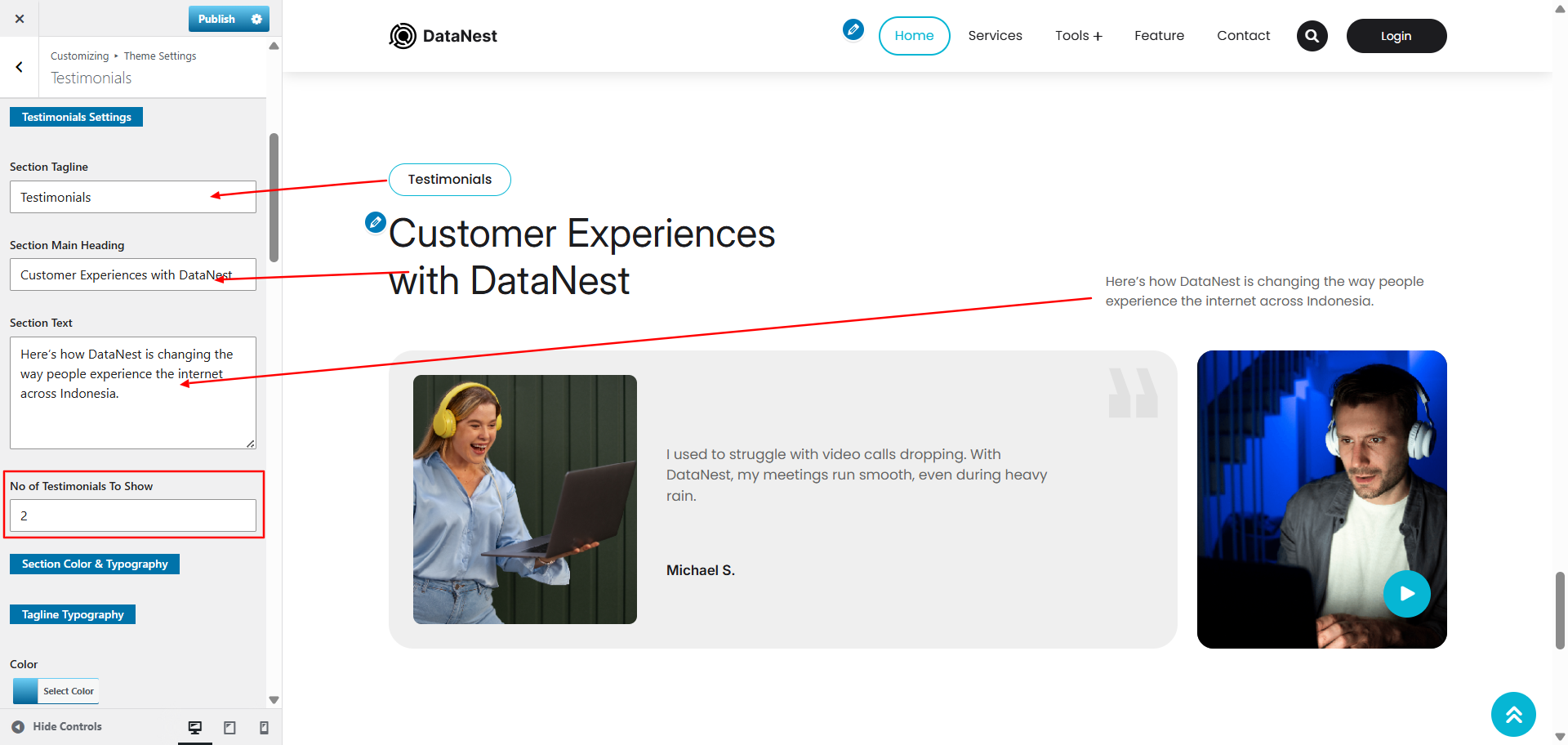
Go to Appearance >> Testimonials >> and update the demo testimonials post. You can create new one as well.
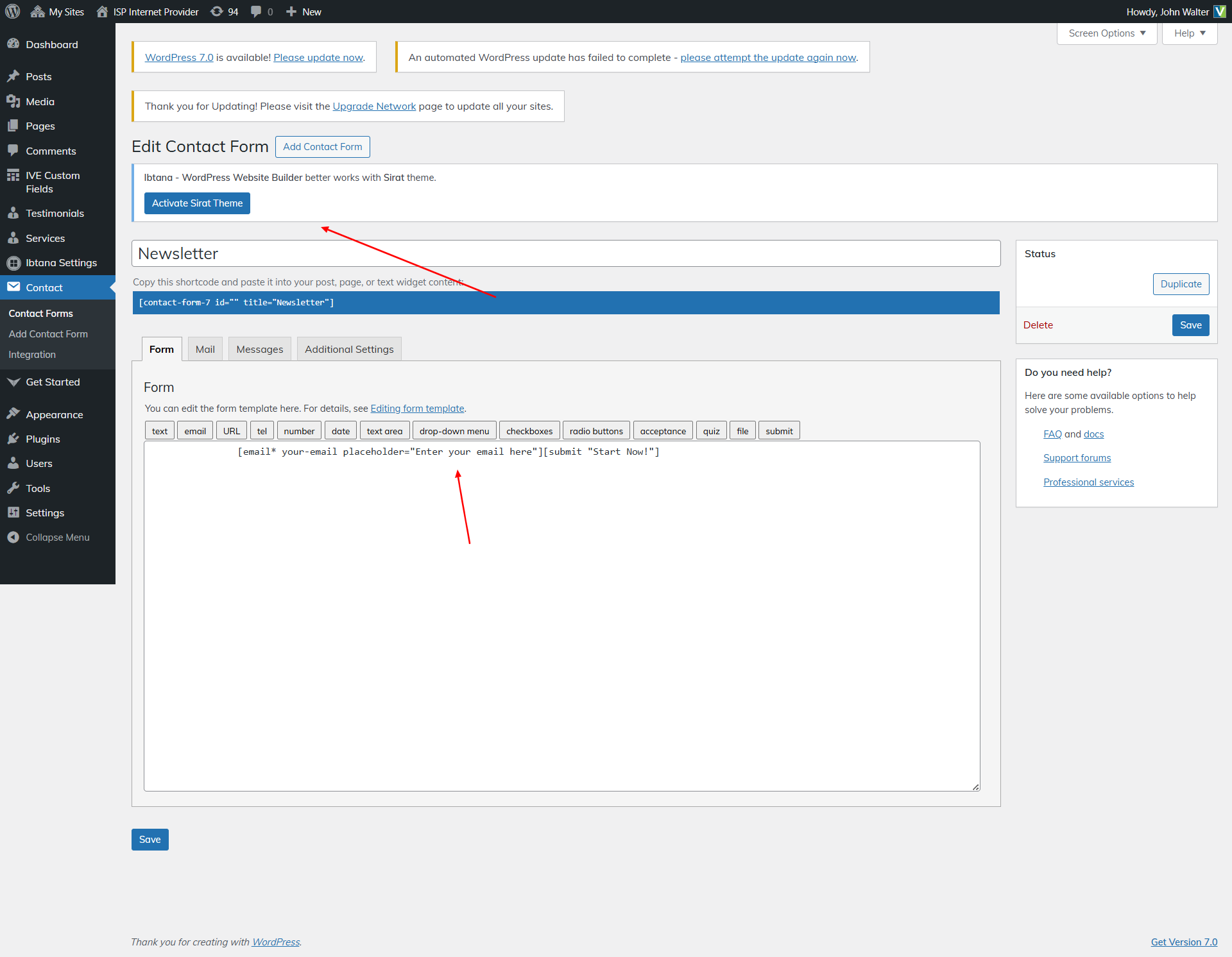
9.4. Setup Newsletter section
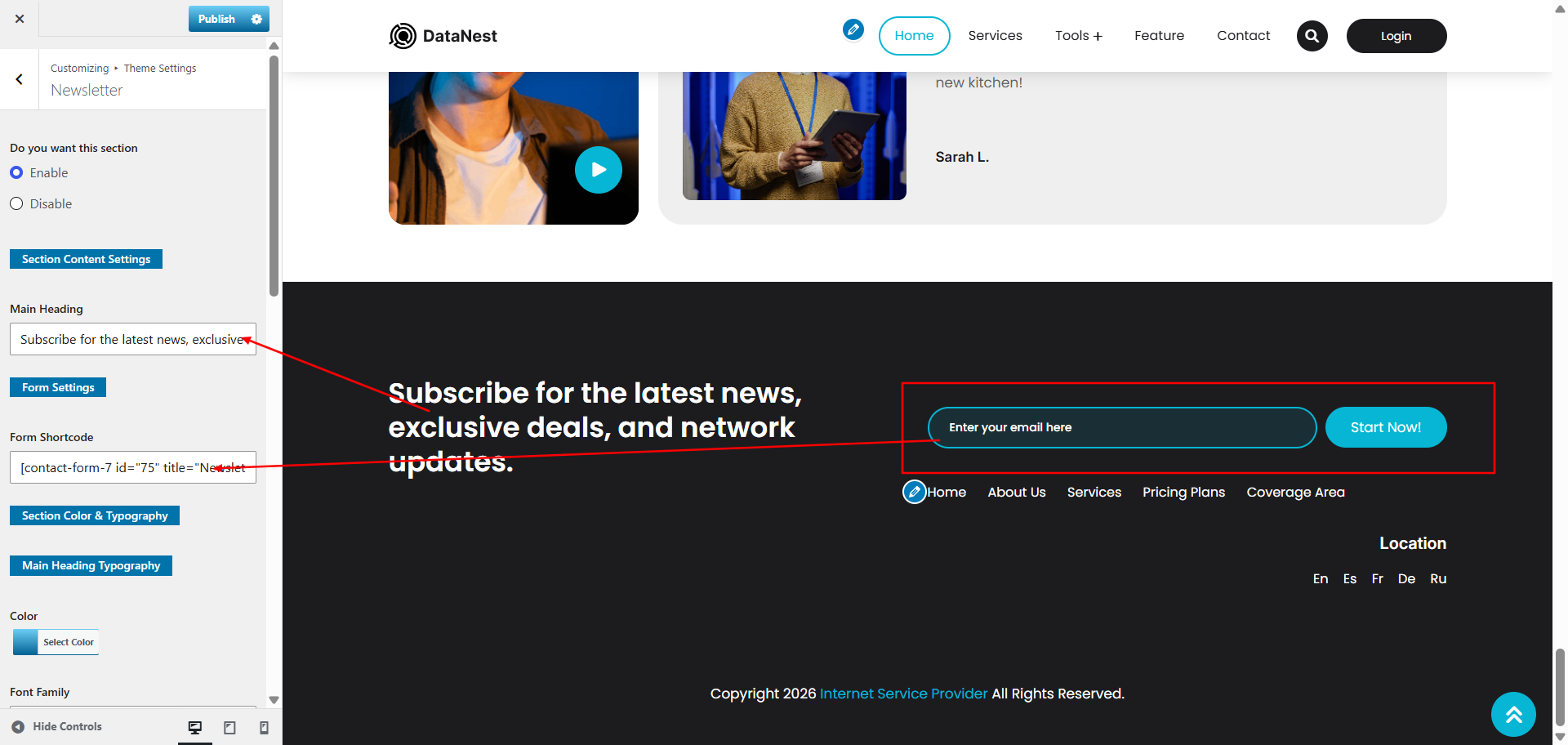
To proceed with the Newsletter section.
Go to Appearance >> Customize >> Theme Settings >> Newsletter and update the content.
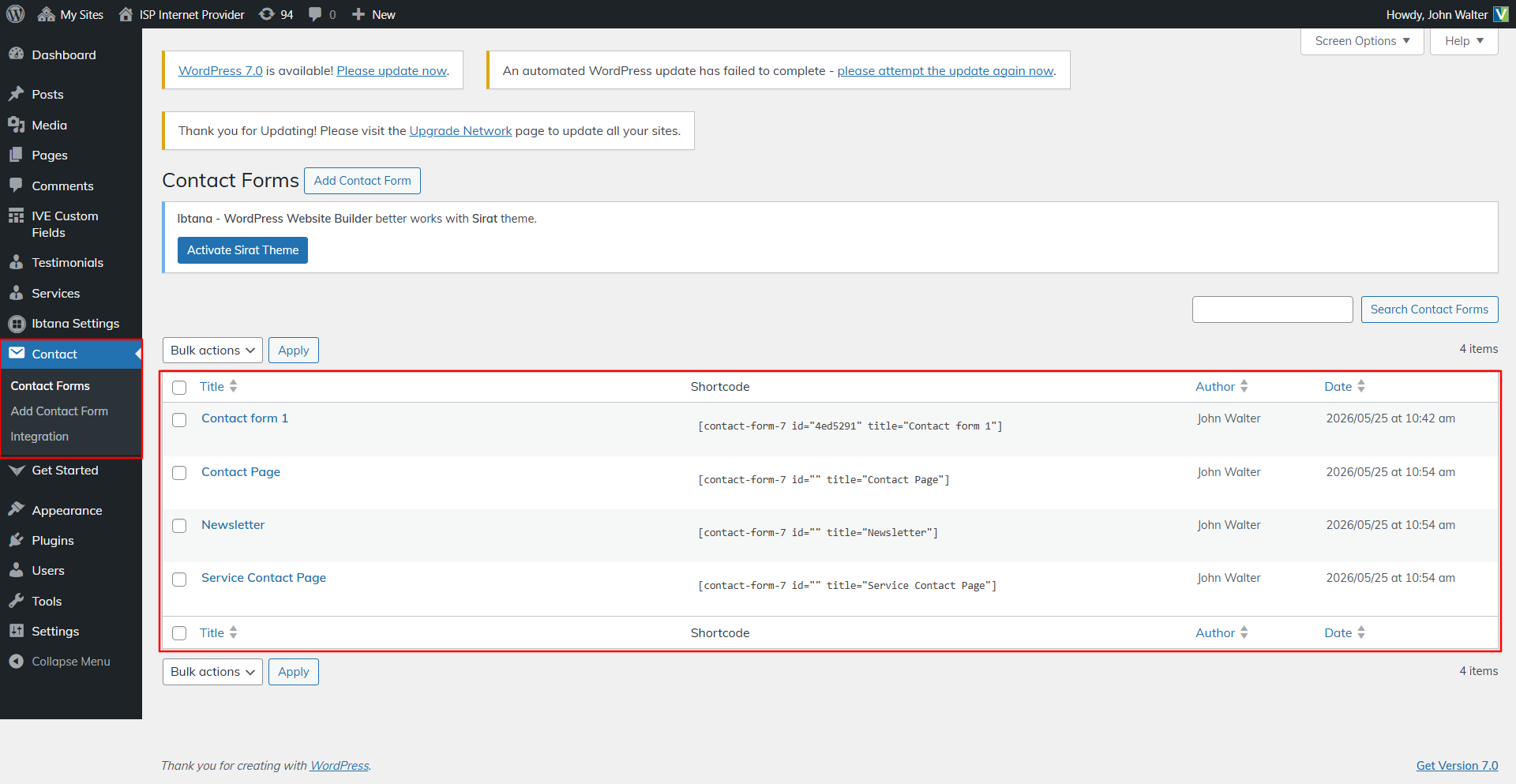
Go to Appearance >> Contact >> and update the demo form.
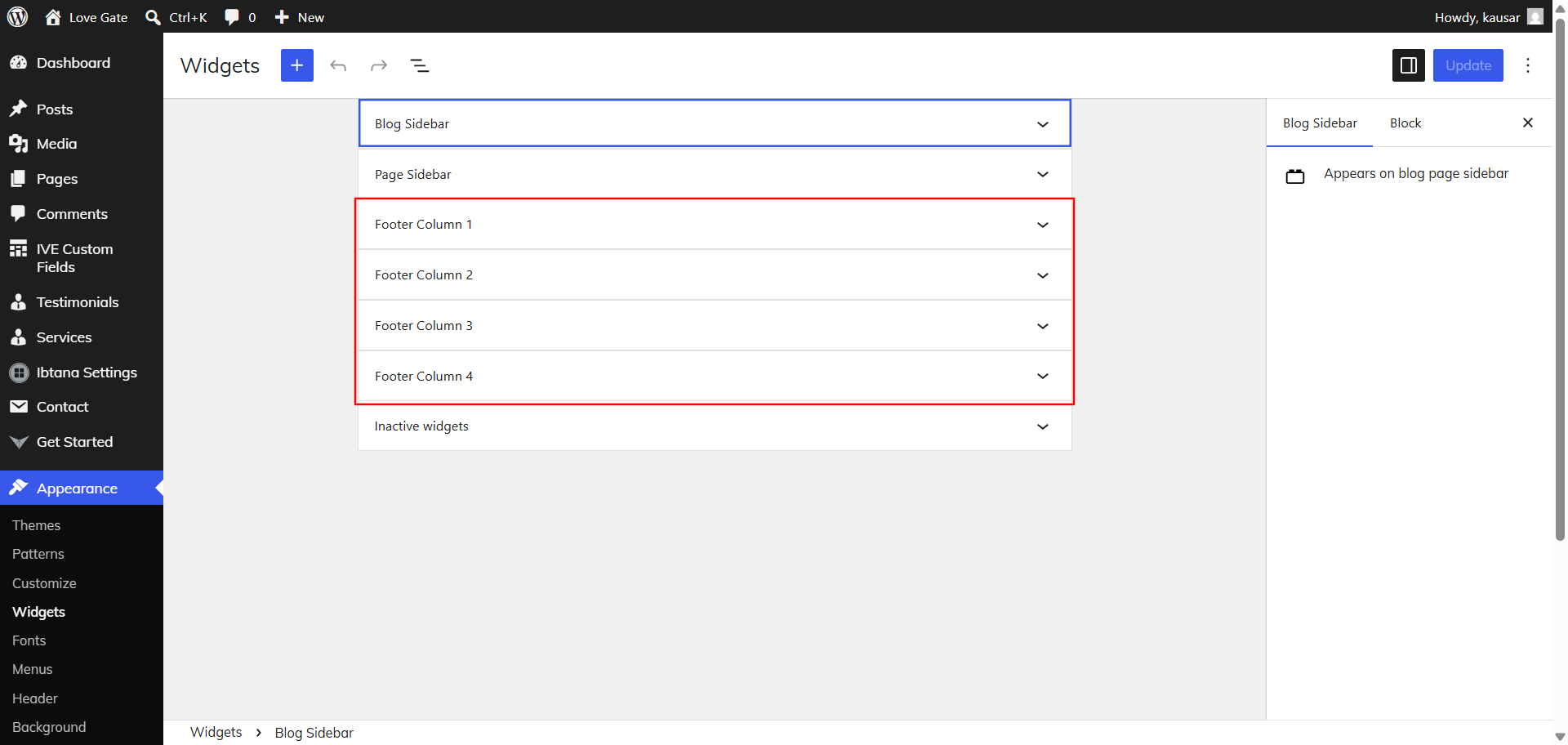
9.14. Setup Footer Widgets Section
To display the Footer Widgets Section the steps outlined below
Go to Dashboard >> Appearance >> Widgets
Refer video for Setup Footer Widgets:
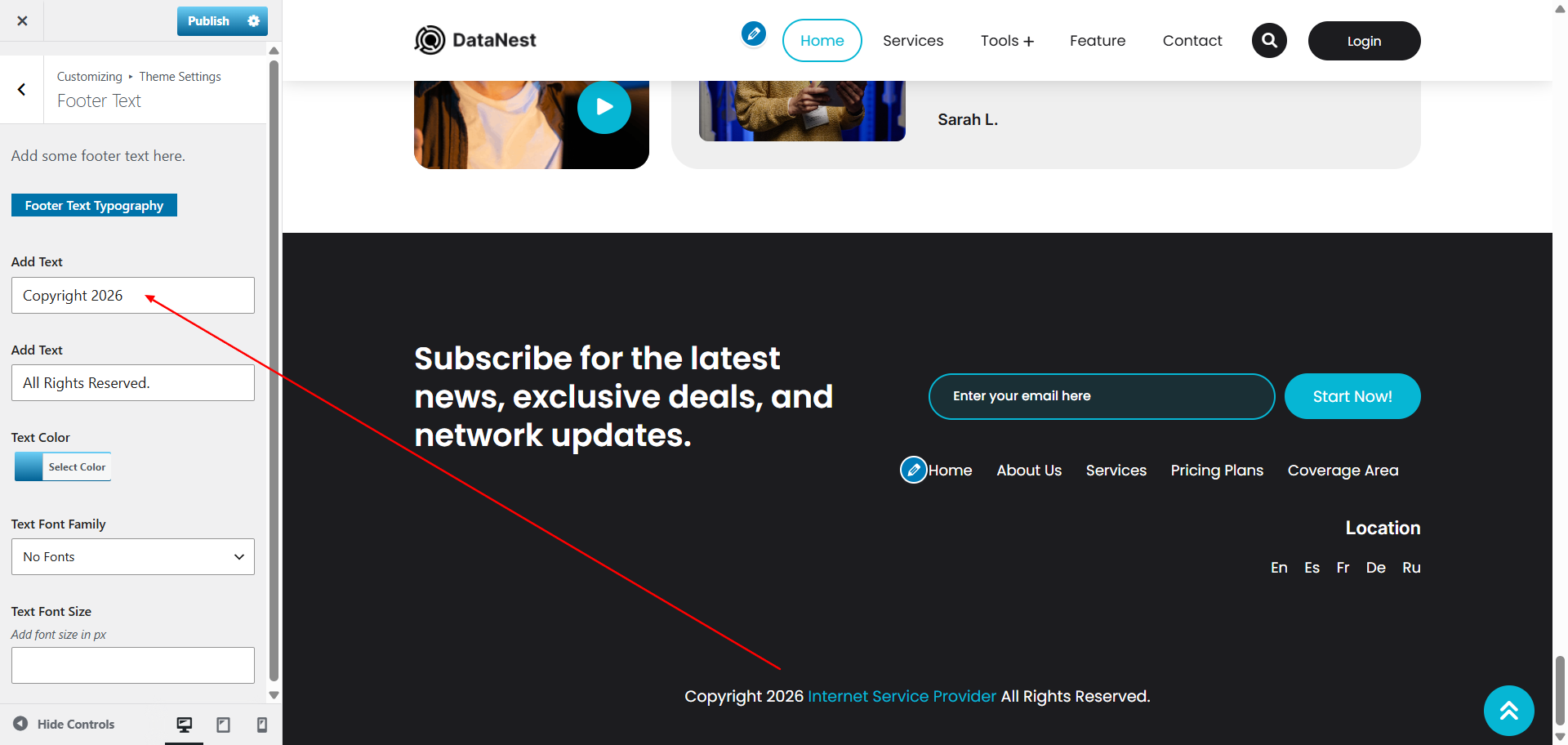
9.15. Setup Footer Text Section
1.Go to Appearance >>VW Theme setting>> Footer Menu.
Refer video for installation of Contact form 7 Plugin:
Refer video for Setup Social Icons:
Refer video for plugin activation:
Setup Navigation
- First of all, create pages from go to Pages >> Add new page.
- Go to Appearance >> Menu
- Click on Create a new menu link
- Give a name to your menu in Menu name and click save menu button
- after creating a menu. Pages must be added by checking the appropriate boxes. You can drag and drop the menu list into place after adding it.
- Select menu theme location from the below checkboxes
- If you checked primary menu checkbox then menu will appear on header.
1.To set a template for a new page, navigate to the Dashboard, click on Pages, and then select Add New Page.
Give the page a name, such as "Home," or any other desired label. Next, choose the "home-page" template from the dropdown menu of available templates.
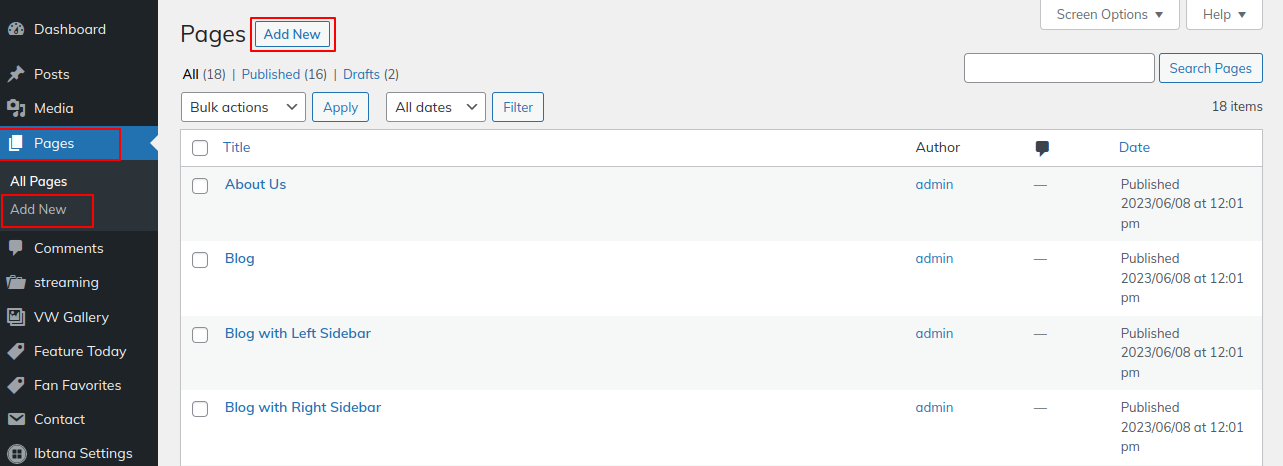
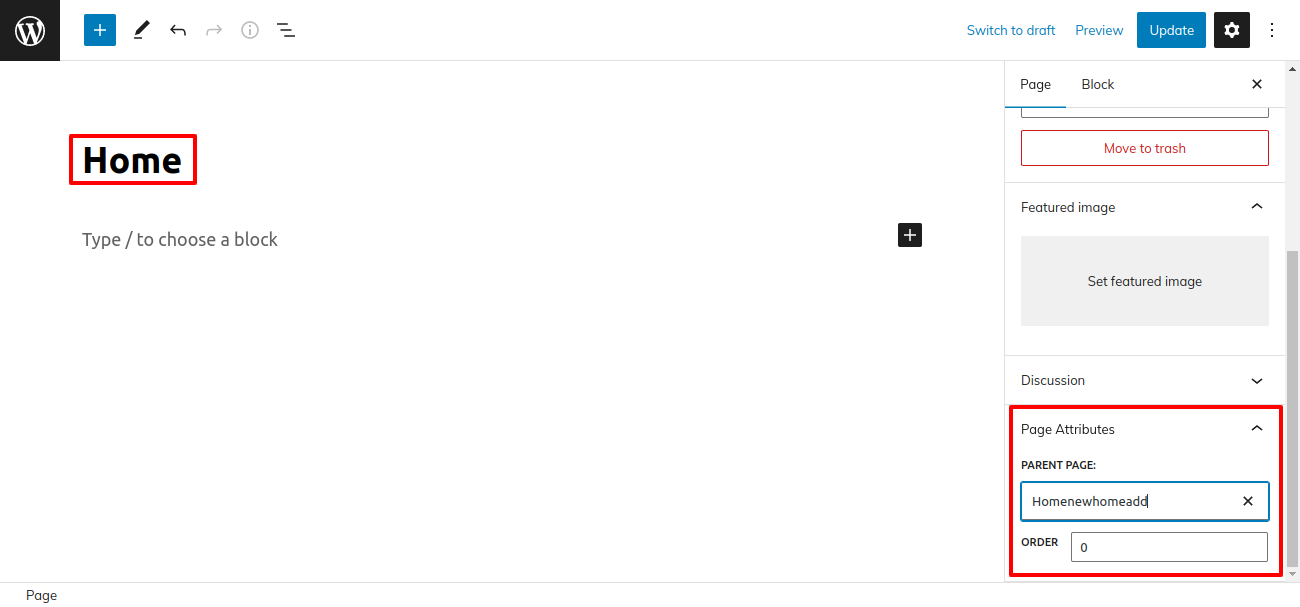
See this screenshot for better understanding.
Go to Dashboard >> Appearance >> Menus.
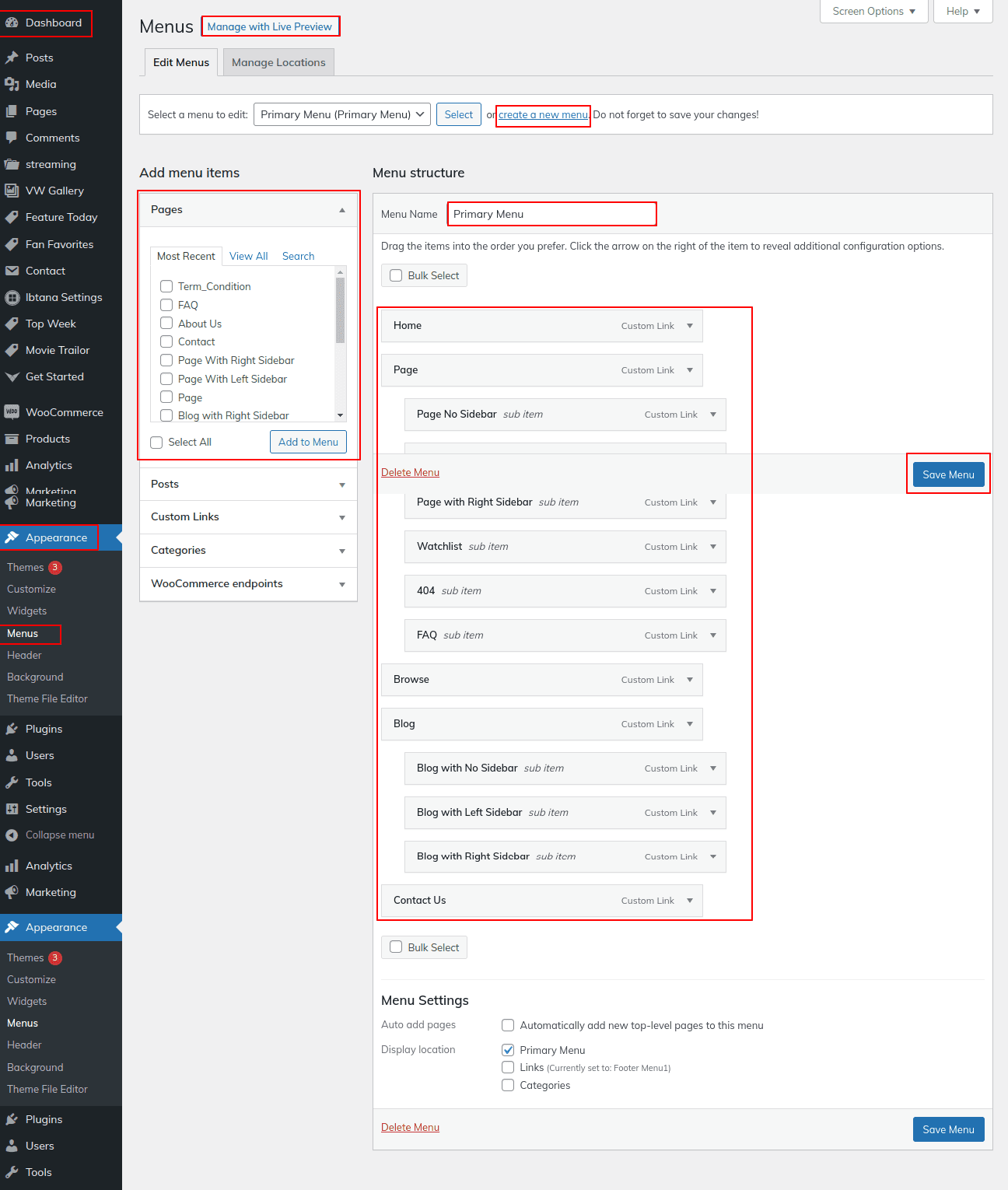
Refer video for Setup Navigation Menu:
Page Templates and sidebars
Page Templates
- Default Template (the default page template with a right sidebar position)
- Blog with Full Width (a blog templates with one column without sidebar)
- Blog with Left Sidebar (a blog templates with left sidebar position)
- Blog with Right Sidebar (a blog template with right sidebar position)
- Contact (the default Contact template with no sidebar position)
- Home Page (Template to show home page content)
- Page with Left Sidebar (a page templates with left sidebar position)
- Page with Right Sidebar (a page template with right sidebar position)
Post, Categories and Post Formats
Adding category
Review the following article for more information on adding categories: http://codex.wordpress.org/Manage_Categories_SubPanel
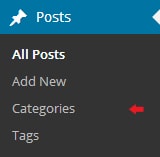
- Log into your WordPress Administration Panel (Dashboard).
- Click the Posts tab.
- With that done, click Categories for blog posts.
- Type in the name of your new category.
- After that, click the Add New Category button.
Creating a Blog post
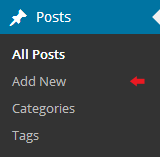
- Log into your WordPress Administration Panel (Dashboard).
- Click the Posts tab.
- Click the Add New tab.
- Type in your post content. For more information on adding posts, please check the following link http://codex.wordpress.org/Posts_Add_New_SubPanel.
Shortcodes
A shortcode is a powerful content building tool http://codex.wordpress.org/Shortcode. Shortcodes are easy to use. First of all, make sure that the editing mode is set to Visual.
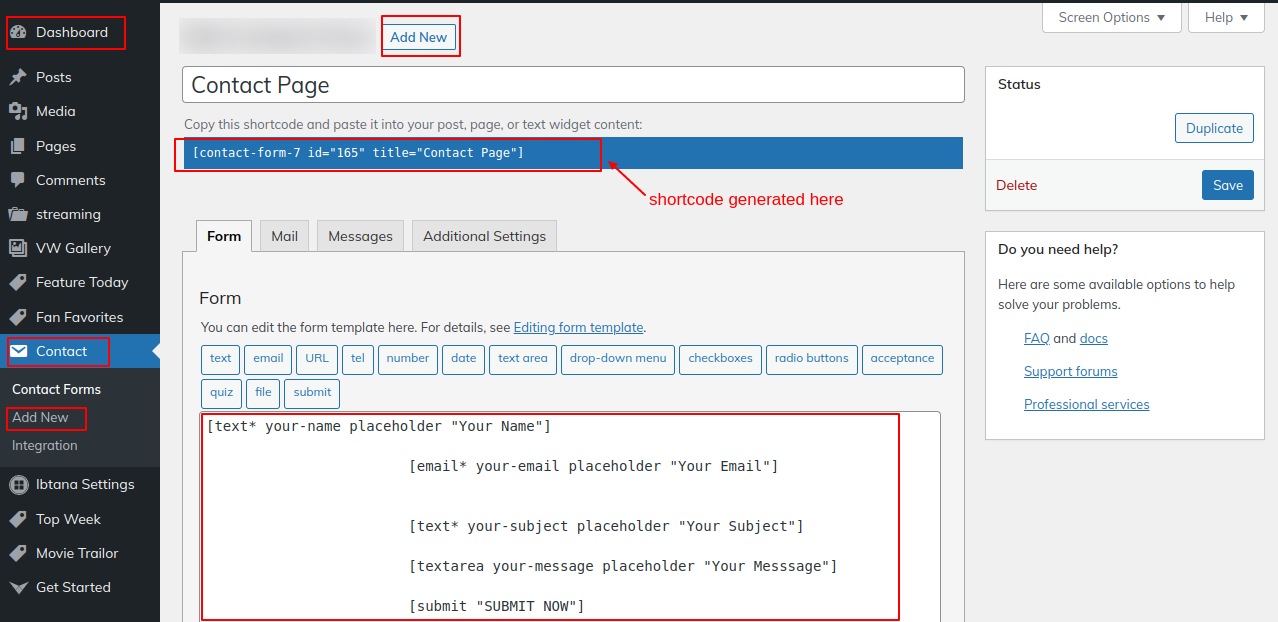
Refer video for Create Pages Using Shortcode:
Custom Widgets

Refer video for Setup Footer: