

Introduction
We appreciate you installing our WordPress Theme. The complete procedure to configure and manage a WordPress Website from the beginning is shown in this documentation in different portions.
What is WordPress CMS?
WordPress is an open source tool which is based on PHP and MySQL to create websites. It is a completely free CMS, or content management systemCMS, or content management system and a strong blogging platform. With this CMS, you can develop websites and solid online apps. You hardly require any knowledge or technical capability to manage it. WordPress has become the most accepted website development software available because of it’s varied aspects like its easy usage and flexibility. Learn More
What is a Wordpress Template?
A WordPress template acts as a skin for the websites which are created on WordPress CMS. The installation of a WordPress Template is very easy. With the help of an installed new template, you can change the look of your WordPress website very easily. All the requisite source files are provided with a WordPress template and you can freely go for editing and increasing it the way you want.
Template Installation
File Structure
The template package you have downloaded consists of several folders. Let's see what each folder contains:
-
Screenshots
-contains template screenshot. Not for production.
- theme -contains wordpress theme files.
- "real-estate-developer.zip" -this folder contains all the necessary files for the theme.
- "license.txt" -contains license details.
- "readme.txt" -contain information about theme images path, font use and usage script.
Template installation
Template installation is very easy process.
All installation steps can be done within WordPress interface. It makes process comfortable and fast.
There are two ways to go about the installation process.
1-Install a theme using wordpress admin.
First thing you need to do is to login to your WordPress admin area. Next, click on.
1.1 Go To Dashboard >> Appearance >> Themes.
1.2. Once you have reached the page of themes, click on the Add New button.

1.3. Press "Upload Theme" button then select your real-estate-developer.zip theme then click on "install now".

Then, Your theme will be successfully install.
2-Install a Theme using FTP
The following installment choice is to FTP the theme. For this method first log into your site via FTP and browse to your themes folder placed in the wp-content. The theme you downloaded and unzip it and upload only the extracted Total folder to your server.
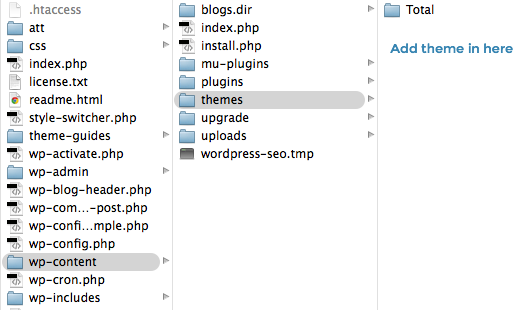
Next log into on your WordPress blog and browse to access Appearance >> Themes to activate Theme.
Theme Demo Import
For Importing Demo proceed as follows.
Visit Dashboard > Appearance > Theme Demo Import
Click Run Importer Button as shown in figure below.

Then Click on Visit Site Button

Setup Home page Template With Customizer
In order to setup home page with customizer, follow the below steps.
Go To Dashboard >> Pages >> Add New
3.1. Create a new page and name it as "Home" then select the template "Custom Home page".

3.2. you can select static home page by two methods
Method 1. Go To Dashboard >> Settings >> Reading
Select the option of Static Page, now select the page you created to be the Home page, while another page to be your default page.

Method 2. Go To Dashboard >> Appearance >> Customize >> Homepage Settings
Select the option of Static Page, now select the page you created to be the Home page, while another page to be your default page.

Once you have done that, save the settings and now you have a custom Home page. You will now have a custom page being displayed as your Home page.
Setup Logo
For Logo
Go To Dashboard >> Appearance >> Customize >> Site Identity

Setup Topbar
In order to setup the Top Bar Settings, follow the below steps.
Go To Dashboard >> Appearance >> Customize >> VW Settings >> Homepage Settings >> Top Bar Settings

It will appear as such on the front end.

Setup Navigation Menus
- Create pages by going to pages first >> A new page was added.
- Go To Appearance >> Menus.
- Then select create a new menu.
- Give your menu a name in the Menu Name field, then click the Save Menu button.
- After creating a menu. pages must be added by checking the appropriate boxes. You can drag and drop the menu list into place after adding it.
- Choosing a menu theme location from the below checkboxes.
See this screenshot for better understanding.

It will appear as such on the front end.

Setup Banner
In order to setup the Banner Section, follow the below steps.
Go To Customizer >> VW Settings >> Homepage Settings >> Banner Settings
Add Tile, Content and Image as shown in figure.

For adding Banner Video follow the below steps.
Copy the Embed code of video as shown in figure below.


Add link in customizer setting of button


It will appear as such on the front end.

Video will appear as such on the front end.

Setup Categroy Section
In order to setup categroy section, follow the below steps.
First, you need to install the Essential Real Estate plugin.
Go To Dashboard >> Plugins >> Add Plugins
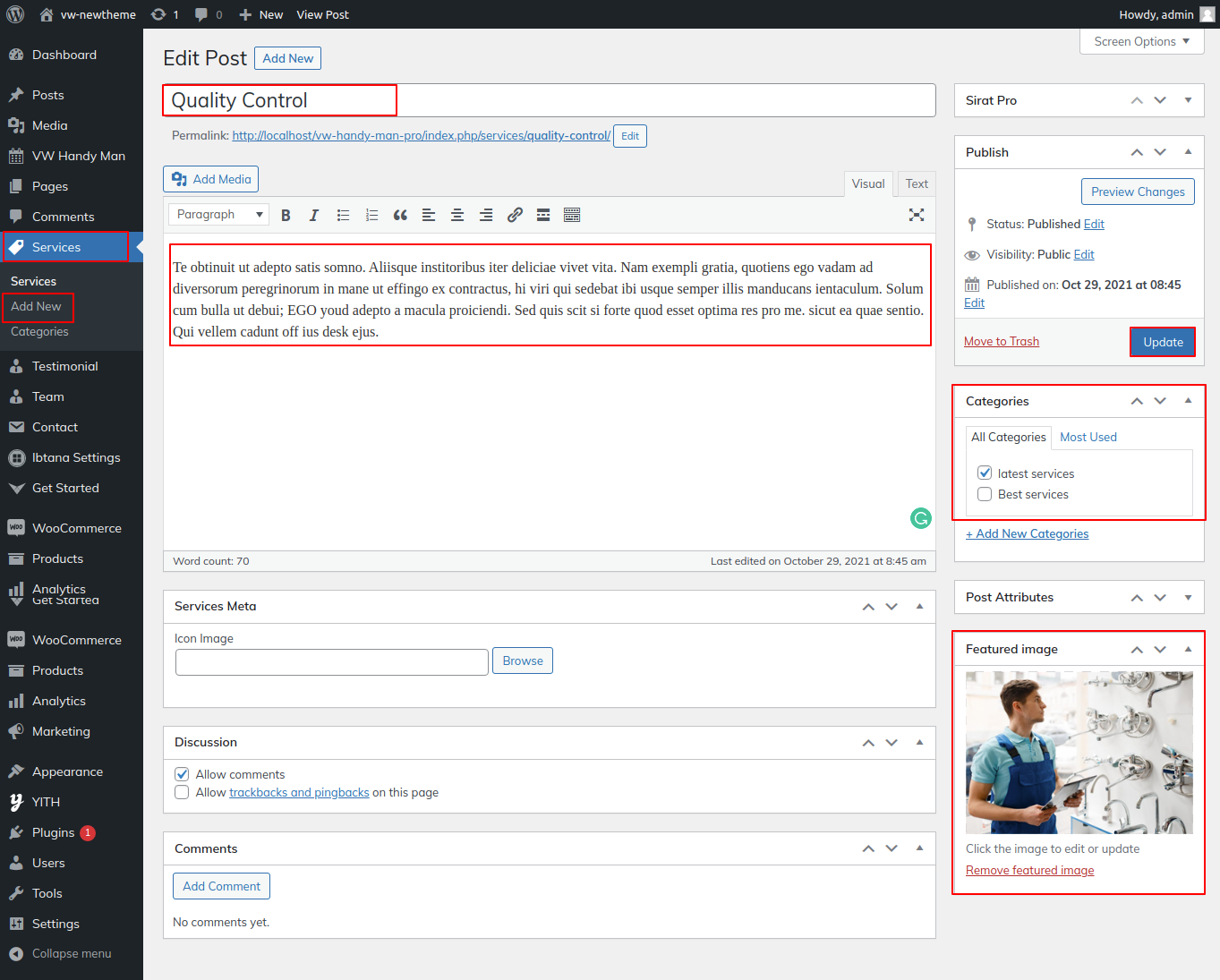
After installing Activate Essential Real Estate plugin
Now Go To Dashboard >> Properties >> Property Type
Add name of property type and click on Add New Property Type button as shown in figure.
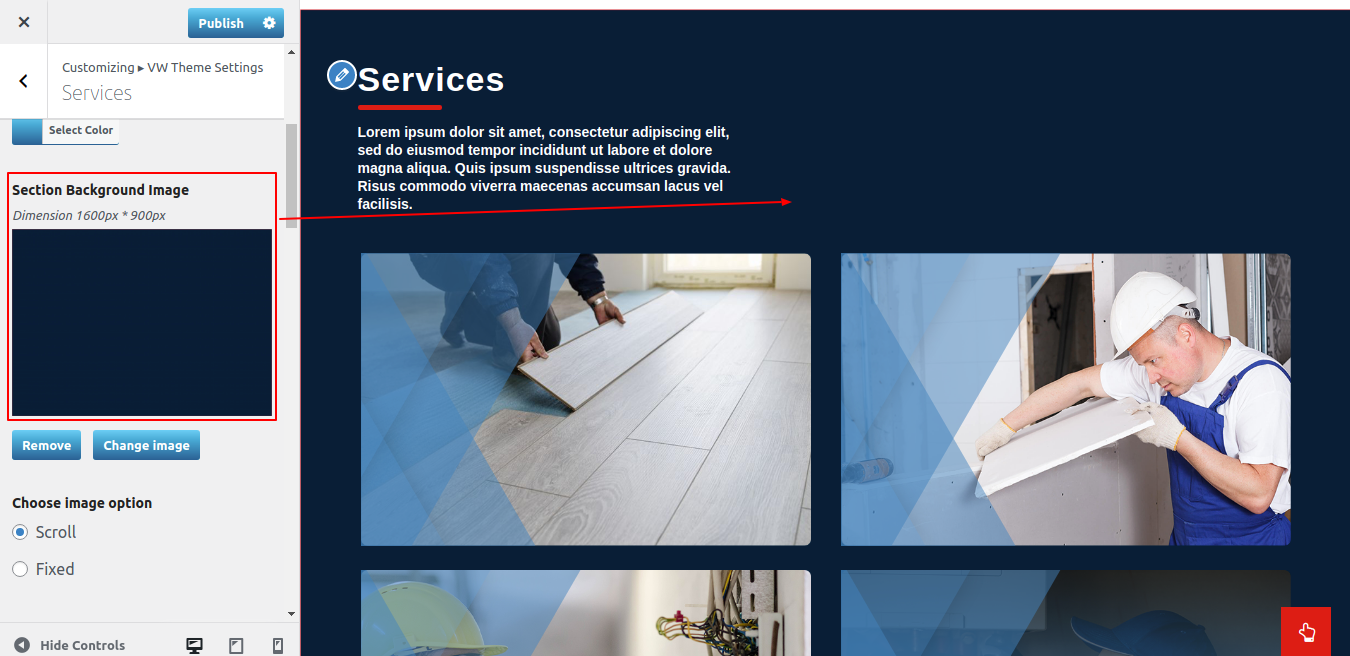
Go To Dashboard >> Properties >> Add New Properties
Add Property Title , content, Price and Size.
Then Select Category Property Type and add Featured Image as shown in figure.


Now Go To Dashboard >> Appearance >> Customize Homepage Settings >> Category Section
Add Section Title and Section text in customizer setting.

It will appear as such on the front end.

Setup Footer Section
In order to setup the footer section, follow the below steps.
Upload the Classic Widgets plugins, install and activate it.

Go To Dashboard >> Appearance >> Widgets

Go To Dashboard >> Appearance >> Customize >> Homepage Settings >> Footer Settings
Here you can set the Footer's settings as shown in image below.
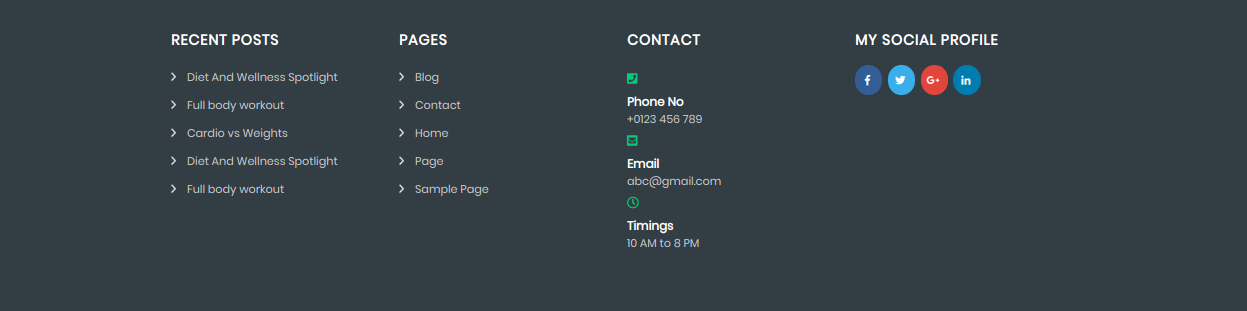
It will appear as such on the front end.

In this way you can setup Footer section.
Setup Copyright Section
In order to setup the copyright section, follow the below steps.
Go To Dashboard >> Appearance >> Customize >> VW Settings >> Homepage Settings >> Footer Settings
Here you can change the copyright alignment.

It will appear as such on the front end.

For Scroll To Top:
Here you can show / hide scroll to top, and you can change its position.

Blog Post Settings
1. Post Settings
In order to setup the Post Settings, follow the below steps.
Go To Dashboard >> Appearance >> Customize >> VW Settings >> Blog Post Settings >> Post Settings
Here you have options for enable/disable author, date, comments, time and featured image respectively.

2. Button Settings
In order to setup the Button Settings, follow the below steps.
Go To Dashboard >> Appearance >> Customize >> VW Settings >> Blog Post Settings >> Button Settings
Here you have options for blog post button padding, border radius and button text options.

It will appear as such on the front end.

3. Related Post Settings
In order to setup the Related Post Settings, follow the below steps.
Go To Dashboard >> Appearance >> Customize >> VW Settings >> Blog Post Settings >> Related Posts Settings
Here you have options for related post title, Show/hide related post and related post count options.

It will appear as such on the front end.

4. Single Post Settings
When setting up the Single Post Settings, proceed as directed below.
Go To Dashboard > Appearance > Customize > Blog Post Setting > Single Post Settings
Here you have choices for enable/disable author, date, comments, time and featured image respectively.

It will appear as such on the front end.

5. Grid Settings
When setting up the Grid Settings, proceed as directed below.
For Grid Layout
Go To Dashboard > Appearance > Customize > Blog Post Setting > Post Settings > Select Grid Layout

Now Go To Dashboard > Appearance > Customize > Blog Post Setting > Grid Layout Settings

It will appear as such on the front end.

General Setting
Go To Dashboard > Appearance > Customize > Other Setting > General Setting
1. Page Sidebar Layout
Add Page sidebar as follows:

In this, you can change the page sidebar layout.

It will appear as such on the front end.

3. Pre-Loader: In this, you have option to show/hide the Pre-Loader in the theme and also have option for Pre-Loader type.

Responsive Media Settings
Go To Dashboard >> Appearance >> Customize >> VW Settings >> Other Settings >> Responsive Media
Here you have options to show/hide slider, sidebar and scroll to top.

Free Vs Premium
| Theme Features | Totally free themes | Superior Themes |
|---|---|---|
| Customised Themes |  |
|
| Flexible design | |
|
| Upload a logo | |
|
| Links to social media | |
|
| Slider Options |  |
|
| Banners there are | |
|
| Website Templates | 3 | 6 |
| Home page Template | 1 | 1 |
| Theme sections | 2 | 11 |
| Contact us Page Template | 0 | 1 |
| Blog Layout & Templates | 0 | 3 right/left sidebar, full width |
| Website Templates & Layout | 0 | 2. Right/Left Sidebar |
| Color Pallete For Particular Sections | |
|
| Global Color Option | |
|
| Section Reordering | |
|
| Demo Importer | |
|
| Allow To Set Site Title, Tagline, Logo | |
|
| Enable Disable Options On All Sections, Logo | |
|
| Complete Documentation | |
|
| The most recent WordPress compatibility | |
|
| Compatibility with WooCommerce | |
|
| Support Third-Party Plug-Ins | |
|
| Optimised and Secure Code | |
|
| Exclusive Capabilities | |
|
| Section Allow / Disable | |
|
| Google Fonts in Section | |
|
| Images | |
|
| Mega and Simple Menu Options | |
|
| Support for custom CSS and JS | |
|
| Shortcodes | |
|
| Custom Background, Colors, Header, Logo & Menu | |
|
| Premium Membership | |
|
| Budget Friendly Value | |
|
| Priority Error Fixing | |
|
| Custom Feature Addition | |
|
| All Access Theme Pass | |
|
| Seamless Customer Support | |
|
| Upgrade to Pro |
Setup Theme With Ibtana Template
In order to setup the theme with the IBTANA template, follow the below steps.
First, activate the Real Estate Developer theme.
Create Pages And Setup Menus
- Create pages by going to pages first >> A new page was added.
- Goto Appearance >> Menus.
- Then select create a new menu.
- Give your menu a name in the Menu Name field, then click the Save Menu button.
- After creating a menu. Pages must be added by checking the appropriate boxes. You can drag and drop the menu list into place after adding it.
- Choosing a menu theme location from the below checkboxes.
Repeat the above steps for more pages. As you can see, pages were created.

See this screenshot for better understanding.
In this way, you can setup Menus.
Setup Footer Section
In order to setup the footer section, follow the below steps.
Upload the Classic Widgets plugins, install them, and activate them.
Go To Dashboard >> Appearance >> Widgets
In this way, you can set up the footer section.
1. Go To Dashboard >> Plugins >> Add New

Activate the above plugins.

There are two steps to setting up the theme using Ibtana plugins.
step1. Visit Dashboard >> ibtana settings >> templates

click on preview >> free import

step2. Visit Dashboard >> Pages >> Add New

Below screenshot is for ibtana editor.

Slider Section
In order to setup slider section follow the below steps.
take Multiblock Slider.

Now you can add more slides and slider background images.

You can change heading tags, alignment options, font size, and line height through the editor.

You can also change heading colours, hover colors, and spacing settings..

Fashion Categroy Section
In this section, you can replace images and also change the image's dimension.

Setup Topbar
In order to setup topbar follow the below steps.
Go To Dashboard >> Appearance >> Customize >> VW Settings >> Homepage Setting >> Top Bar Settings
Below screenshot is for ibtana front.

In this way, you can set your theme using the Ibtana template.
Please see Customiser to set up additional pages.
Setup Theme With Block Pattern
In order to setup a theme with a block pattern, follow the below steps.
First, activate the Real Estate Developer theme.
Create Pages And Setup Menus
- Create pages by going to pages first >> A new page was added.
- Goto Appearance >> Menus.
- Then select create a new menu.
- Give your menu a name in the Menu Name field, then click the Save Menu button.
- After creating a menu. Pages must be added by checking the appropriate boxes. You can drag and drop the menu list into place after adding it.
- Choosing a menu theme location from the below checkboxes.
Repeat the above steps for more pages. As you can see, pages were created.
See this screenshot for better understanding.
Go To Dashboard >> Pages >> Add New
Name it as Home and select the template as Custom Home Page.

In this way you can setup Menus.
Setup Footer Section
In order to setup the footer section, follow the below steps.
Upload the Classic Widgets plugins, install them, and activate them.
Go To Dashboard >> Appearance >> Widgets
In this way, you can set up the footer section.
Go To Dashboard >> Pages >> Add New


Below screenshot is for block pattern editor.

Banner Section
In order to setup the banner section, follow the below steps.
Take cover and add an image for the slider.

You can change text color, font size, etc. through the editor.

Fashion Categroy Section
In this section, you can replace images and also change the image's dimension.
Setup Topbar
In order to setup the topbar, follow the below steps.
Go To Dashboard >> Appearance >> Customize >> VW Settings >> Homepage Setting >> Top Bar Settings
Below screenshot is for block pattern front.

In this way, you can set your theme using a block pattern.
Please see Customiser to set up additional pages.