


Theme Wizard
System Requirements
We advise you have the following minimum system configuration in your web server in order to have the vw landing page pro theme.
- WordPress 6.4 or later
- PHP 8.3
- MySQL 5.6 (or greater) | MariaDB 10.0 (or greater)
- Need php ini file configration -
- post_max_size = 256M
- upload_max_filesize = 256M
- max_execution_time = 5000
- max_input_time = 5000
- memory_limit = 1000M
Introduction
Thank you for installing our WordPress Theme. The complete procedure to configure and manage a WordPress Website from the beginning is shown in this documentation in different portions.
What is WordPress CMS?
WordPress is an open source tool which is based on PHP and MySQL to create websites. It is a completely free content management system(CMS) and a strong blogging platform. With this CMS, you can develop websites and solid online apps. You hardly require any knowledge or technical capability to manage it. WordPress has become the most accepted website development software available because of it’s varied aspects like it’s easy usage and flexibility.Learn More
What is a Wordpress Template?
A WordPress template acts as a skin for the websites which are created on WordPress CMS. The installation of a WordPress Template is very easy. With the help of an installed new template, you can change the look of your WordPress website very easily. All the requisite source files are provided with a WordPress template and you can freely go for editing and increasing it the way you want.
Template Installation
File Structure
The template package you have downloaded consists of several folders. Let's see what each folder contains:
-
Screenshots
-contains template screenshot. Not for production.
- theme -contains wordpress theme files.
- "home-accessories-shop.zip" -this folder contains all the necessary files for the theme.
- "license.txt" -contains license details.
- "readme.txt" -contain information about theme images path, font use and usage script.
Template installation
Template installation is very easy process.
All installation steps can be done within WordPress interface. It makes process comfortable and fast.
There are two ways to go about the installation process.
1-Install a theme using wordpress admin.
First thing you need to do is to login to your WordPress admin area. Next, click on.
1.1 Go To Dashboard >> Appearance >> Themes.
1.2. Once you have reached the page of themes, click on the Add New button.

1.3. Press "Upload Theme" button then select your home-accessories-shop.zip theme then click on "install now".

Then, Your theme will be successfully install.
2-Install a Theme using FTP
The following installment choice is to FTP the theme. For this method first log into your site via FTP and browse to your themes folder placed in the wp-content. The theme you downloaded and unzip it and upload only the extracted Total folder to your server.
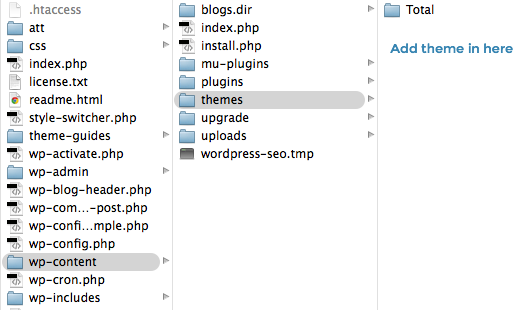
Next log into on your WordPress blog and browse to access Appearance >> Themes to activate Theme.
Setup Home page Template
In order to setup homepage in a page .

Setup Header Section
In order to setup the Header Section, follow the below steps.
Go To Dashboard >> Appearance >> Editor

5.1. To add Logo, follow the below steps.
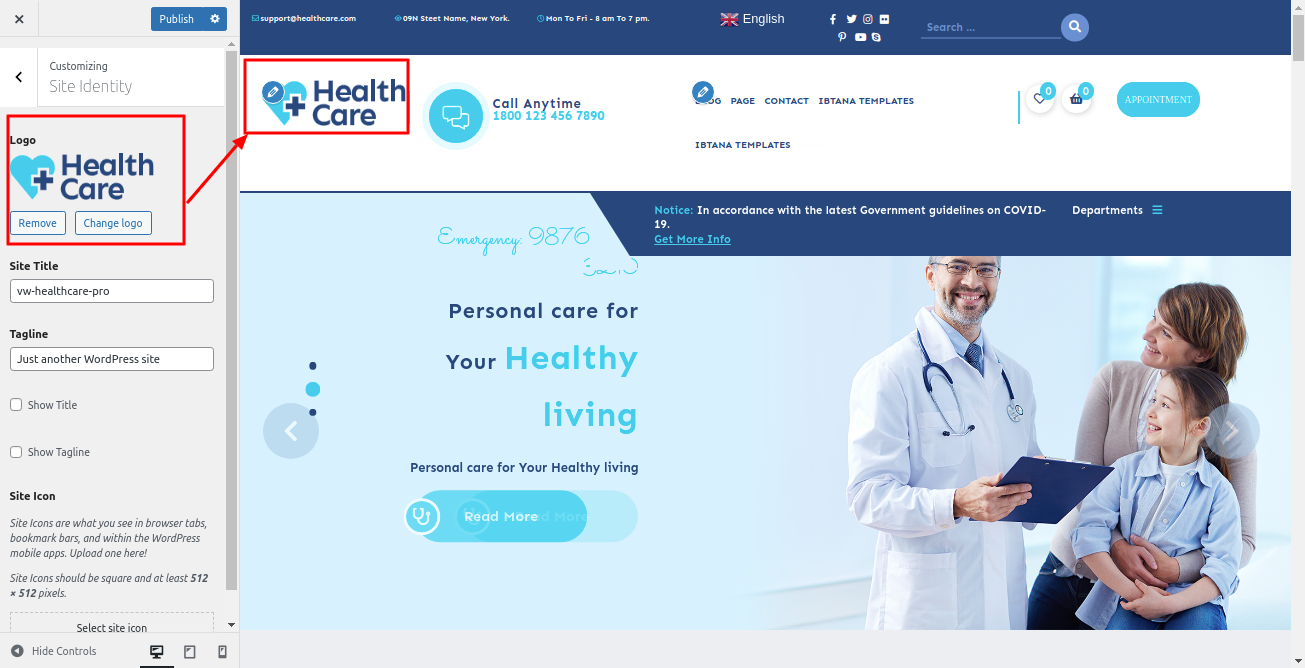
5.2. To add extra menus, follow the below steps.
First create the pages.
Go To Dashboard >> Pages >> Add New Page


5.3. To display a currency switcher and language selector (like the one shown in the top right corner of the demo page), follow these steps:
1. Install Required Plugins
- WooCommerce Plugin
- Currency Switcher for WooCommerce
- GTranslate Plugin
2. For installing Woocommerce plugin follow the below steps
Go To Dashboard >> Plugins >> Add Plugin
Install and Activate the WooCommerce Plugin as shown in figure below

3. For Installing Currency Switcher for WooCommerce follow the below steps
Go To Dashboard >> Plugins >> Add Plugin
Install and Activate the Currency Switcher for WooCommerce Plugin as shown in figure below

For configuring Currency Switcher plugin
Go To Dashboard >> WooCommerce >> Settings >> Currency Switcher >> General
Copy %currency_code% in the Switcher item format section as shown in figure below


Then Click on Flags in the same setting page as shown in figure below
and Uncheck the Enable Section option

4. For Installing GTranslate Plugin follow the below steps
Go To Dashboard >> Plugins >> Add Plugin
Install and Activate the GTranslate Plugin as shown in figure below

For configuring GTranslate plugin
Go To Dashboard >> WooCommerce >> Settings >> GTranslate
Choose the display style to Dropdown.

5. Add a Shortcode block where you want the switchers to appear.
Add this code [woocommerce_currency_switcher_drop_down_box] for Currency Switcher
and this code [gtranslate] for GTranslate

The Header will appear as such on the front end.

Setup Banner Section
In order to setup Banner Section, follow the below steps.
Go To Dashboard >> Appearance >> Editor
To add a video popup feature on the banner’s video play button, We need to Install Video Popup Block by WPZOOM plugin. Go To Dashboard >> Plugins >> Add New Plugin Video pop up will appear as such on the front end. Banner will appear as such on the front end.


Setup Offer Section
In order to setup the Offer Section follow the below steps.
Go To Dashboard >> Appearance >> Editor

For Configure Essential Blocks. Settings
Go To Dashboard >> Plugins >> Add New Plugins

The Offer Section will appear as such on the front end.

Setup About Us Section
In order to setup the About Us Section follow the below steps.
Go To Dashboard >> Appearance >> Editor
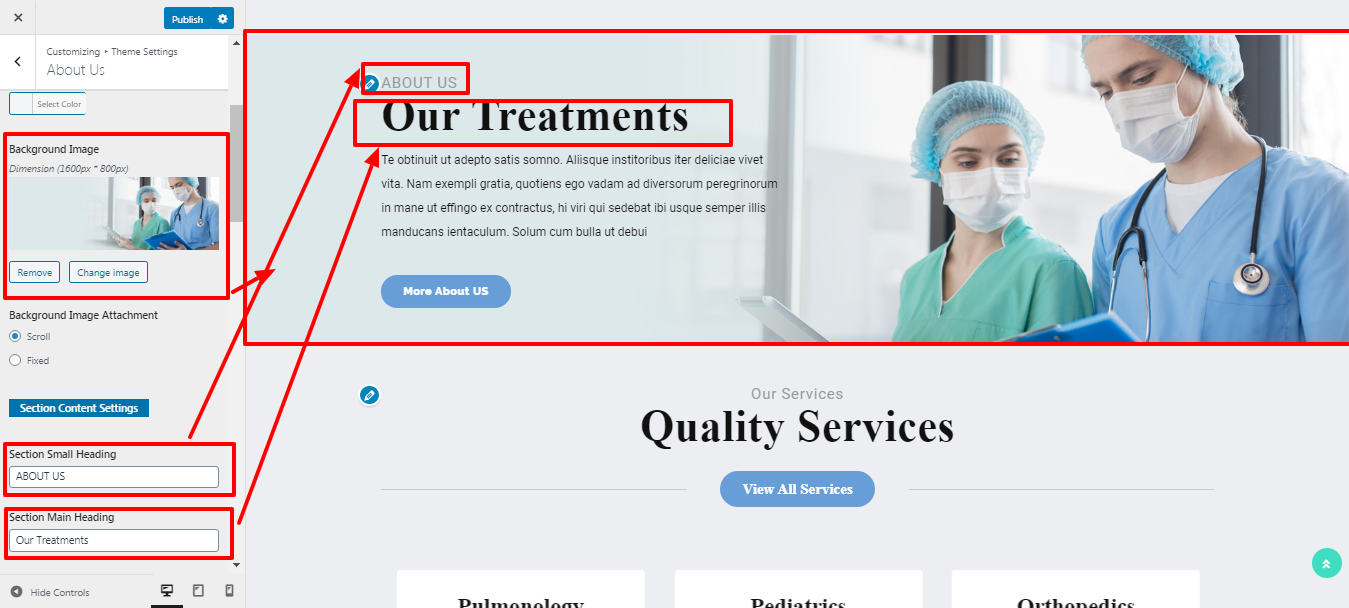
It will appear as such on the front end.

Setup Testimonial Section
In order to setup the Testimonial Section follow the below steps.
Go To Dashboard >> Appearance >> Editor

It will appear as such on the front end.

Setup News and Blogs Section
In order to setup the News and Blogs Section follow the below steps.
Then create Posts
Go To Dashboard >> Appearance >> Posts >> Add New Post
Add Title, Content, Set Featured Image and select Category, Then click on Publish Button

Go To Dashboard >> Appearance >> Editor

It will appear as such on the front end.

Setup FAQ's Section
In order to setup the FAQ's Section follow the below steps.
Go To Dashboard >> Appearance >> Editor

It will appear as such on the front end.

Setup Footer Section
In order to setup footer section, follow the below steps.
Go To Dashboard >> Appearance >> Editor
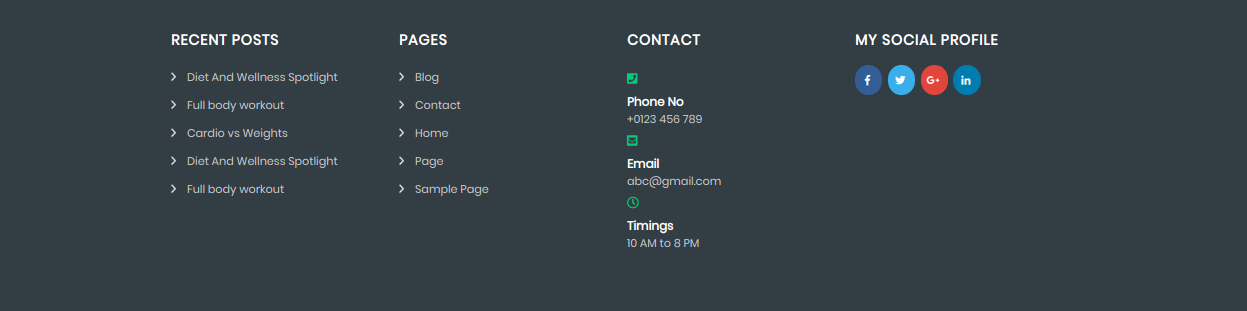
It will appear as such on the front end.
